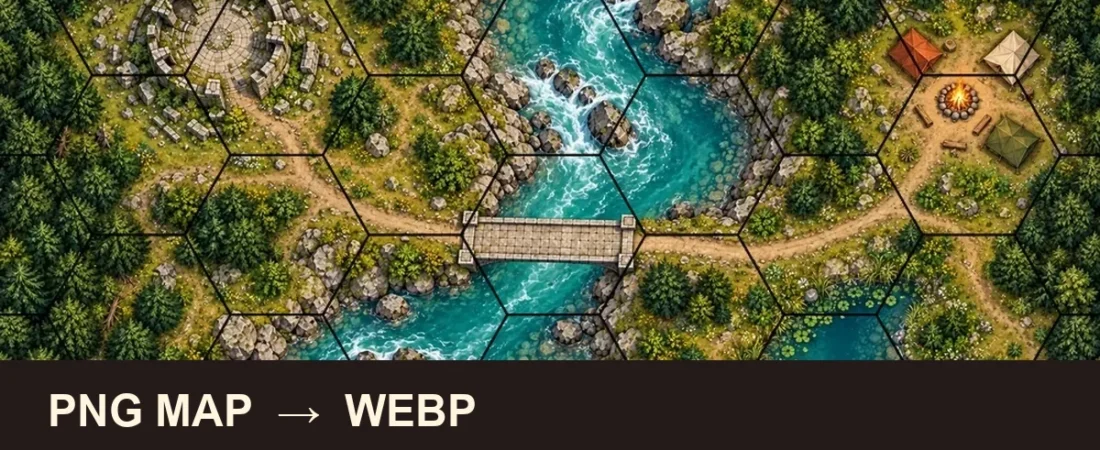
A PNG battle map can take up more storage than you want for a VTT scene. Converting it to WebP may reduce its file size, but resizing would change the pixel spacing of a baked-in square or hex grid. The practical goal here is a smaller export at the same width and height; check the visual quality before replacing your original.
You can perform this conversion directly in your browser using the non-AI Bulk Image Converter on GMCraft Tavern, a lightweight utility in the collection of free GM tools. This guide walks through the exact steps to convert a gridded PNG battle map to WebP while keeping its dimensions untouched.
Why Convert Battle Maps to WebP?
WebP supports compact images, with lossy and lossless encoding available in the format. For this particular converter workflow:
- Potentially smaller files: A lighter map may transfer faster, depending on the source image and your VTT.
- Preserved Grid Alignment: By keeping the original image width and height, the distance between grid lines remains unchanged.
- Alpha Channel Support: Like PNG, WebP supports full alpha transparency, making it suitable for transparent tokens, spell templates, and modular dungeon tiles (though full-scene battle maps are typically opaque).
When preparing a table-ready battle map, keeping file sizes lean while preserving raster clarity ensures your prep stays organized and responsive.
Step-by-Step Conversion Walkthrough
Step 1: Load Your PNG Map
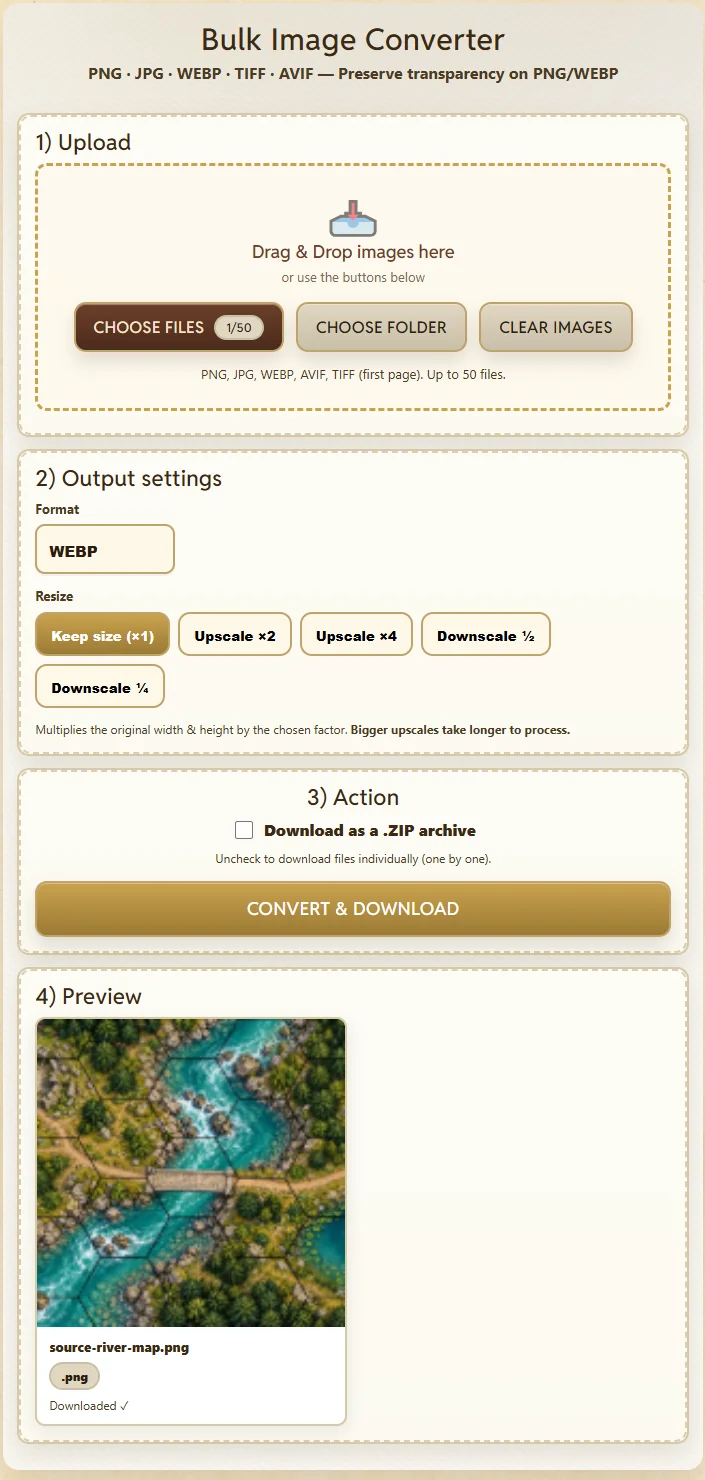
Open the Image Converter in any modern desktop browser. Click the CHOOSE FILES button and select your battle map from your local drive. You can upload up to 50 images in a single batch. The tool accepts PNG, JPG, WEBP, AVIF, and TIFF files (for multi-page TIFFs, the first page is imported).
For this one demonstration, we selected an opaque 1000×563-pixel PNG river encounter map with a hex grid. The input was 1,387,822 bytes. We made the PNG from our own previously published WebP map specifically for the walkthrough; these numbers are not a general PNG-versus-WebP benchmark.
Step 2: Choose Output Format and Dimension Settings
Once your file appears on the worktable, configure the output settings:
- Format: Select WEBP from the dropdown menu (the converter also supports PNG, JPG, and TIFF).
- Resize Mode: Select Keep size (×1) to preserve the image width and height without downscaling or upscaling.
Step 3: Export the Converted Map
By default, the Download as a .ZIP archive option is checked, which is convenient when batch processing multiple assets. For a single battle map, uncheck Download as a .ZIP archive so your browser downloads the converted image file directly.
Click Convert & Download. The client-side script encodes the image and immediately triggers a download of source-river-map.webp to your default download directory.
Results From This Single Conversion
In our verified conversion test, the 1000×563 hex-gridded river map yielded the following measurable results:
- Input Format & Size: PNG — 1,387,822 bytes (1.32 MB)
- Output Format & Size: WebP — 302,376 bytes (295 KB)
- Compression Ratio: ~78.2% reduction in disk storage
- Dimensions: Exactly 1000×563 pixels (identical to input)
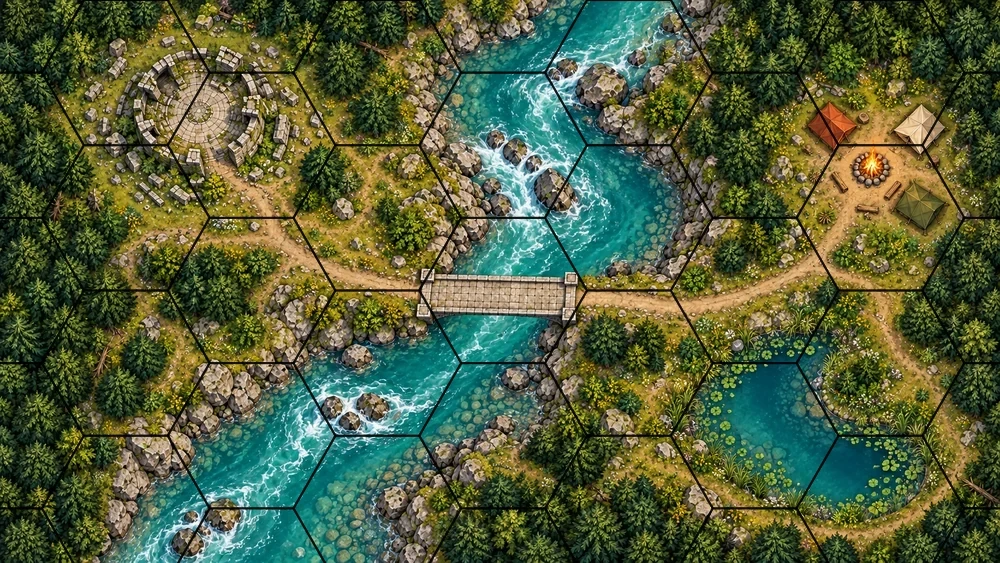
This is one measured conversion, not a compression guarantee. Reduction depends on image complexity and the original encoding. The grid is baked into the raster pixels, not reconstructed as vectors. Keeping the same dimensions preserves grid spacing in pixels, but lossy encoding may soften thin lines. Compare the exported map with the original at actual size and keep your original PNG; VTT grid alignment must still be checked in the VTT.
If you need to overlay custom grids onto art before converting, see our guide on adding a hex grid to a river battle map.
Troubleshooting Common Conversion Issues
The Downloaded File Still Has a PNG Extension
Verify that you selected WEBP in the format dropdown before clicking convert. If the selector remains on PNG, the converter will re-export a standard PNG file.
Grid Cells Appear Blurry or Shifted
If grid lines lose sharpness or scale differently in your viewer, confirm the resize setting was set to Keep size (×1). Downscaling an image reduces pixel density, which can cause thin grid lines to lose definition or blend into background textures.
Batch Files Are Grouped in a ZIP Archive
If you prefer individual file downloads for single images, uncheck the Download as a .ZIP archive checkbox prior to conversion. When processing multiple maps at once, leaving the ZIP option enabled is recommended to prevent your browser from triggering numerous individual download prompts.
Frequently Asked Questions
Does converting from PNG to WebP alter grid scale?
No. As long as you select Keep size (×1), the image maintains its exact horizontal and vertical pixel count. Any grid baked into the raster artwork remains at its exact original dimensions.
Does WebP support transparent tokens and map overlays?
Yes. WebP includes full alpha channel support, allowing you to convert transparent PNG tokens, terrain overlays, and spell templates without adding an opaque background. Full environment battle maps are typically opaque, as shown in our river map test.
What if the WebP output looks softer than the PNG?
Keep the PNG when crisp line art matters more than file size. Inspect thin grid lines at full resolution, and try a different export format if the compressed result does not meet your needs. You can repeat the test in the Image Converter without overwriting the original source file.
Can I convert multiple battle maps simultaneously?
Yes. You can select up to 50 images in a single batch. Keep the ZIP archive option checked to receive all converted WebP files in a single organized archive download.