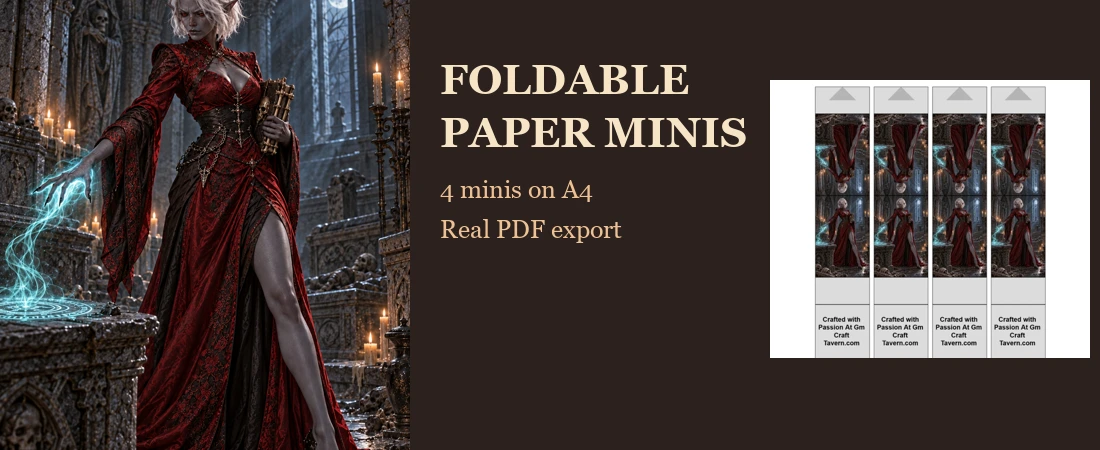
Want a matching group of foldable paper minis for a physical encounter? Start with one vertical character image, use the Paper Mini Maker to lay it out four times on A4, then print the actual PDF at 100%. Below is a real browser export—not a reconstructed template—made from our original full-body fantasy character art.
What this example produces
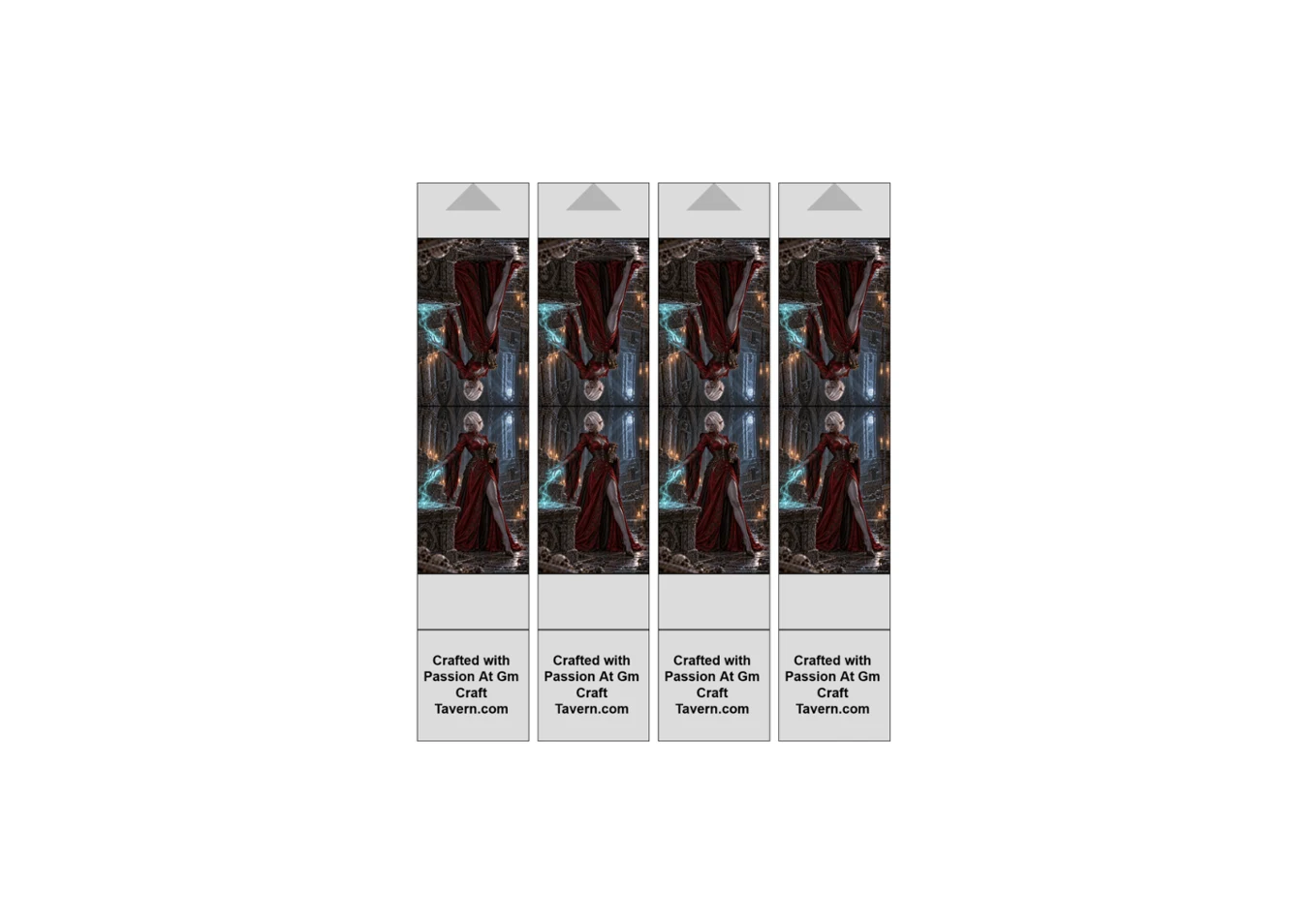
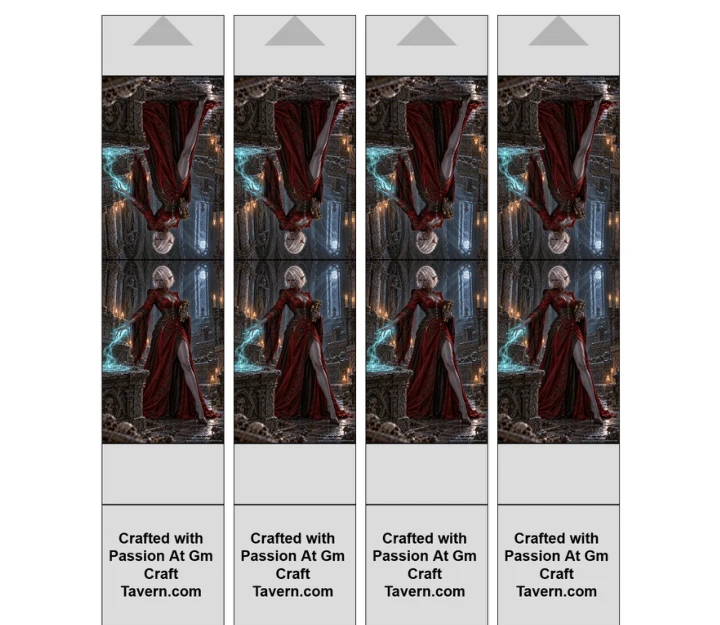
Our input is a tall portrait of a red-clad fantasy character. In the foldable tab, we selected A4, Small / Medium (1 square – 1×1″) and 4 Tokens (Landscape). The downloaded one-page landscape PDF contains four repeated, front-and-back foldable figures. This duplicates one image; it does not invent four different characters. Your own art must be yours to use.
Make the A4 foldable sheet
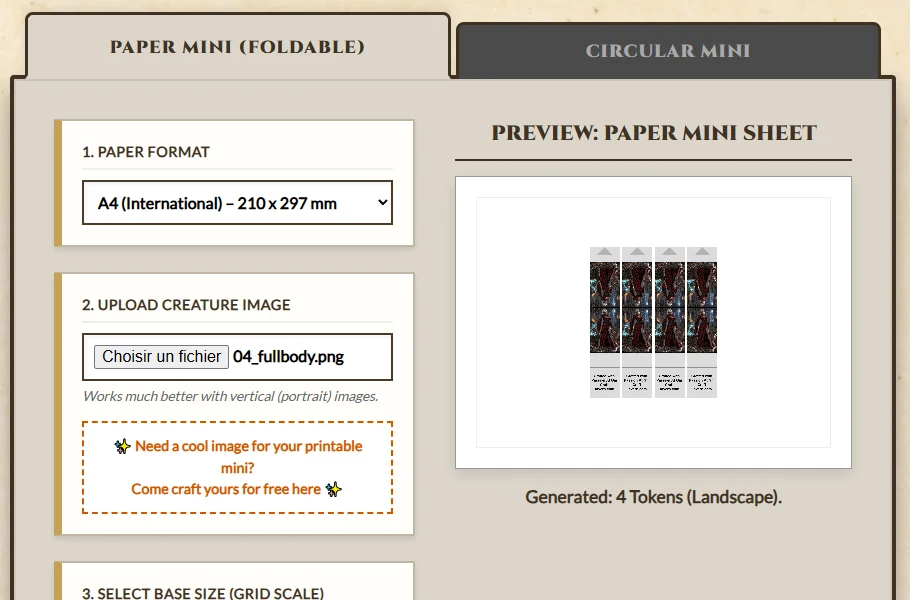
- Open the Paper Mini Maker and leave Paper Mini (Foldable) selected rather than Circular Mini.
- Under Paper Format, choose A4 (International) – 210 × 297 mm. If you use North American stationery instead, select US Letter and check that sheet independently.
- Under Upload Creature Image, choose a portrait-oriented PNG or JPEG you have permission to use. A full-body figure is easier to recognize when cut out. Inspect the preview: a dark or busy background remains visible in the output; this example does not remove it automatically.
- Set Select Base Size (Grid Scale) to Small / Medium (1 square – 1×1″) and Quantity per Page to 4 Tokens (Landscape). The preview should say “Generated: 4 Tokens (Landscape).”
- Choose Download PDF. Open the downloaded sheet and inspect every figure, including the reversed back, fold lines, lower tabs and all margins before printing or cutting.
Print and assemble without changing the scale
Print the PDF using Actual Size / 100%, not “Fit to page.” This preserves the selected grid scale; printer drivers and non-printable margins vary, so measure a test figure against your table’s grid before cutting the whole sheet. Cut around the outside, fold at the horizontal divider so both character faces are visible, and use the lower tabs to stand or attach the figure to a base. If you need a whole printed battle map for the same encounter, our real A4 battle-map printing walkthrough shows how to preserve an existing hex grid without adding another overlay.
Quick fixes before wasting cardstock
- Character is too small or clipped: inspect the uploaded portrait’s original framing. This workflow repeats and fits the source art; choose an image with room around the silhouette rather than assuming an automatic cutout.
- Wrong paper orientation: four copies produce a landscape PDF even though A4 itself is 210 × 297 mm; let the PDF viewer use the page’s orientation.
- Printed size is off: turn off fit/shrink/scale-to-margins and run a single plain-paper test at 100% before using cardstock.
- Want flat circles instead? Switch to the Circular Mini tab; it has different size, quantity and border controls. Do not use its settings as if they were foldable-mini settings.
The foldable mini tool is one option among the Tavern’s free GM tools. This example documents the tested A4/four-copy workflow, not a claim that every input image will crop or print identically.