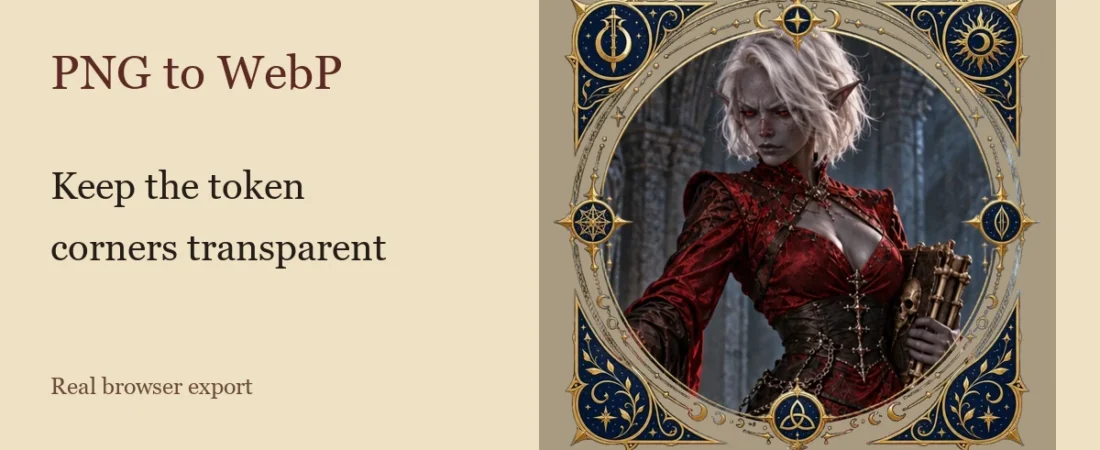
A square character token may have transparent corners even though its portrait still has a painted background. If you want a lighter file for a VTT or a shared asset folder, you can convert the finished PNG to WebP without replacing those transparent corners with white. This walkthrough uses the Tavern Image Converter on a real token export and checks the downloaded file, rather than treating a preview as proof.
Start with a token that already has transparency
Our source was an owned 1024 × 1024 PNG from the square portrait-token walkthrough. An ornate square frame surrounds a character; outside the frame, the PNG corners are transparent. Inside the frame, the portrait’s painted background remains. This converter changes the file format: it does nicht remove the painted background or generate a new cutout. Keep a copy of the original PNG so you can compare both versions and revert if the new compression softens fine details.
Convert the finished PNG in the browser
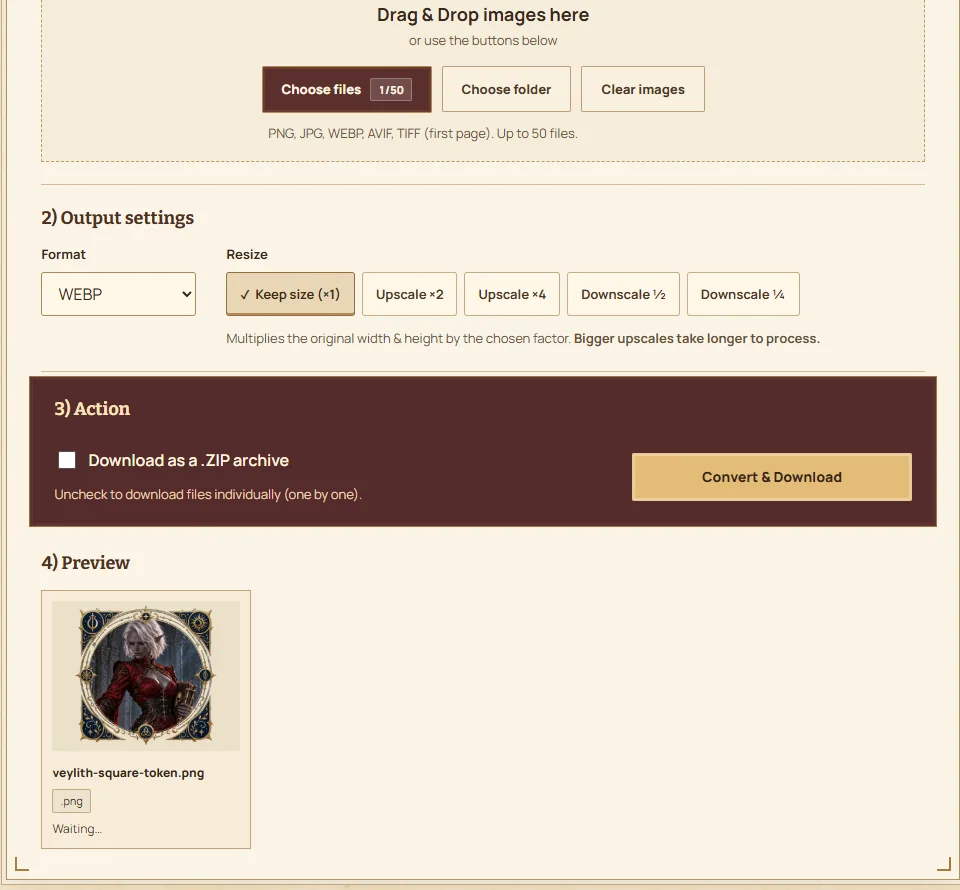
- Öffne die Bildkonverter. Use Dateien auswählen to load your finished PNG. The worktable accepts up to 50 files, but begin with one so you can inspect the result closely.
- Unter Output settings, wähle WEBP as the format. Choose Größe beibehalten (×1) rather than an upscaling or downscaling option. This preserves the image’s pixel dimensions; it does not guarantee visually identical pixels.
- For one token, uncheck Als .ZIP-Archiv herunterladen if you want an individual file. Select Konvertieren und herunterladen, then retain the downloaded WebP alongside the PNG for inspection.
What the actual download showed
In this test, the uploaded PNG was 1,683,569 bytes and the downloaded WebP was 209,982 bytes. Both decoded to 1024 × 1024 pixels. The top-left corner had zero alpha (transparent) in both files, while the center remained opaque. That is an observed result for this one image, nicht a promised size reduction for every token or a guarantee of identical appearance. The page below shows the actual downloaded WebP, not an AI-rendered substitute.
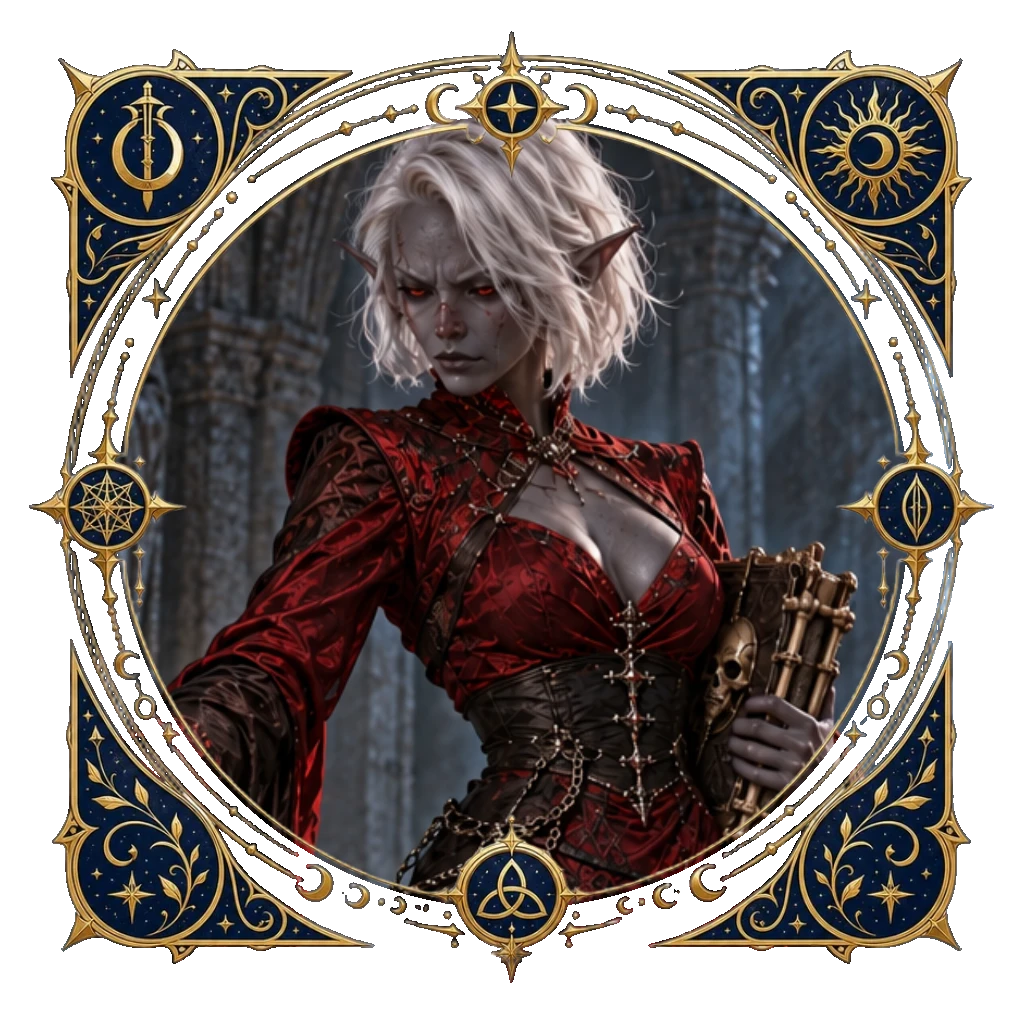
Open the downloaded file over a dark und light background. Check the frame’s fine gold lines, hair and any partially transparent details at the scale you will actually use in your VTT. A plain white viewer can hide whether an edge is opaque white or transparent. If the WebP looks worse or is larger than your original, keep the PNG instead.
When this workflow is useful—and when it is not
Use it after the token’s framing is finished, not as an editing step. The file dimensions remain unchanged at Keep size, so the token does not need to be re-cropped solely because you converted its format. Whether WebP imports and displays correctly depends on your chosen tabletop and its version: test one actual upload there before converting a whole library. For other browser-based prep tools, browse the Verzeichnis kostenloser Tools für die Spielleitung. If you are converting a map with a baked-in grid rather than a transparent token, follow the separate battle-map grid-size guide: it explains a different visual check.
Quick troubleshooting
- The corner looks white: first check the original PNG on a contrasting background; format conversion cannot create transparency that was never there. Also verify the downloaded WebP rather than relying on a viewer’s white canvas.
- The result looks soft: compare the frame and facial features at normal token size. Keep the original PNG when its detail is more valuable than the saving for your particular use.
- You got a ZIP: uncheck the archive option for individual downloads. With multiple images, the archive option can be convenient, but inspect each output rather than extrapolating from this single-token test.
For the next token, make the final portrait and border first; then use the converter only if the resulting WebP passes your own alpha and visual checks.