
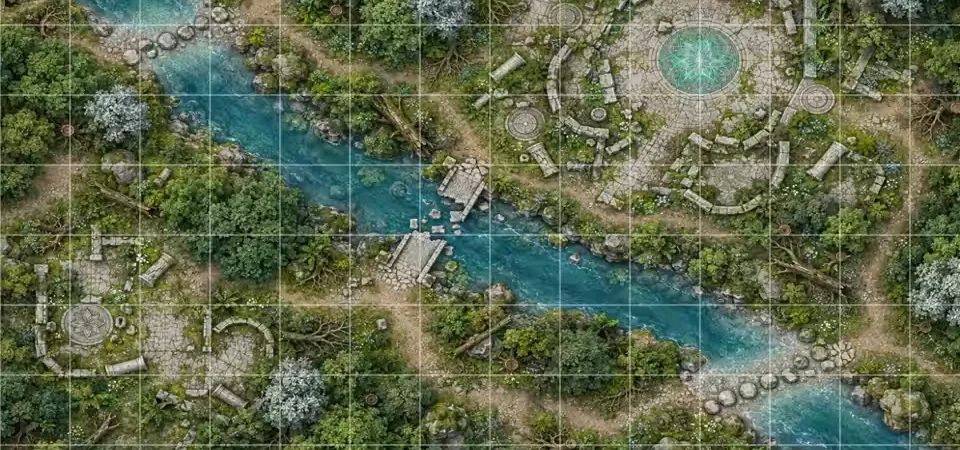
Have a short moving battlemap with no grid, but need squares your players can read without hiding the scenery? In this walkthrough, I use the Animierter Battlemap-Rastergenerator to put a light square overlay on a river-and-ruins clip, then download the actual WebM result. This is a video workflow—not a way to add a grid to a still image.
Start with a short, ungridded clip
For a reproducible test I made a three-second silent MP4 loop with a subtle camera move from an ungridded forest-river battlemap. It is a test animation of a still map, not footage of naturally moving water. The input was 960 × 540 pixels; the tool accepted the MP4 and displayed the map in its preview. For your own session, use an MP4 or WebM loop you have the right to edit. If a grid is already baked into it, adding another overlay will make two competing grids; choose the original ungridded file instead.
Add squares without covering the map
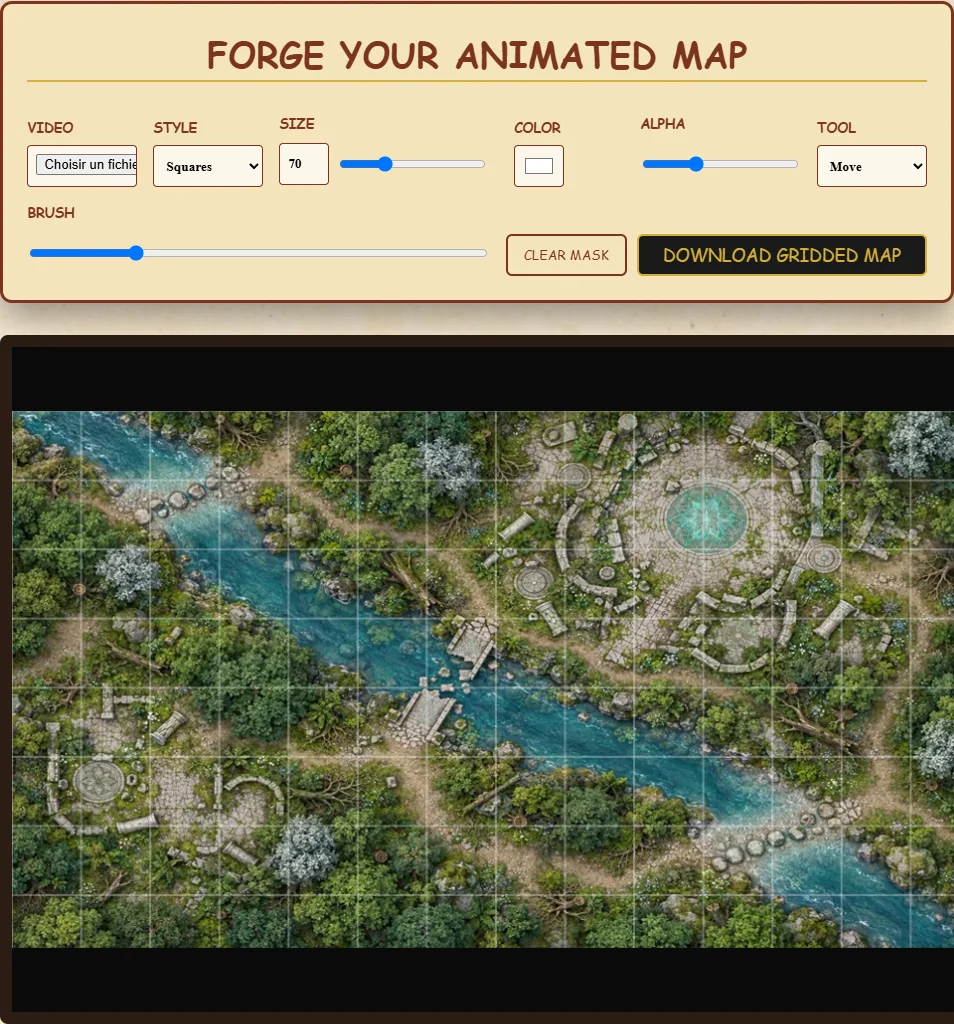
- Öffne die animated map grid tool and select your clip in Video. Wait until the map appears in the preview before adjusting the overlay.
- Festlegen Stil bis Quadrate. The separate Hexagons option is available if your encounter uses hex movement, but this example uses squares throughout.
- Adjust Größe while looking at a clear landmark. In the real test, I used 70 pixels for each square. That is a visual spacing choice, not a promise of one-inch print scale or automatic VTT calibration.
- Change Farbe to white and lower Alpha to 0.3. With this map, the lighter lines remain visible across dark trees and water without becoming the main subject. If the lines vanish over a pale road, try another color or a modest alpha increase rather than assuming one setting fits every map.
- Leave Tool am Bewegen to position the grid. Löschen und Wiederherstellen are available for local masking; Maske entfernen resets that mask. I did not need a mask for this demonstration.
- Wähle Battlemap mit Raster herunterladen. Let the browser finish recording the short clip and save the file; do not close the tab mid-export.
Check the downloaded result
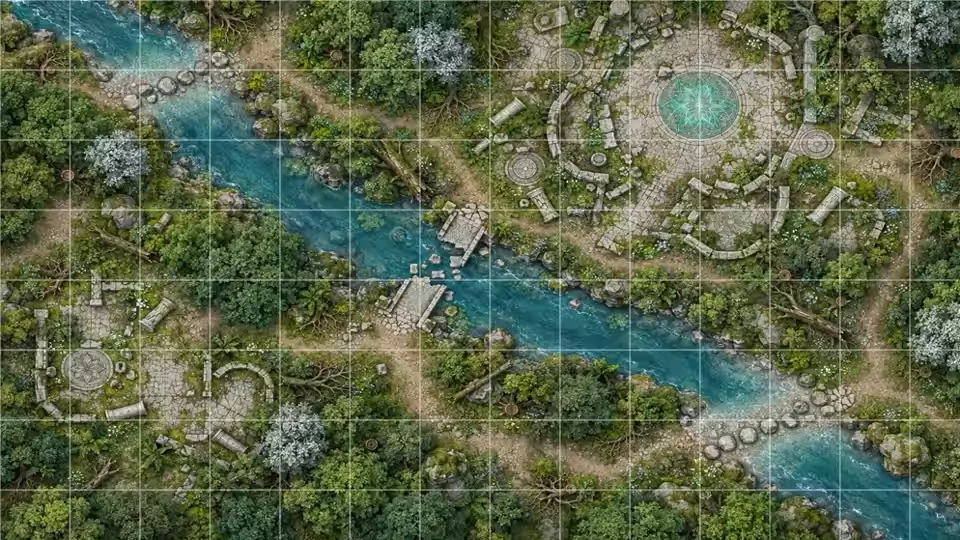
The browser downloaded a 960 × 540 WebM from the three-second test clip. I opened the exported file and inspected a real frame: one light square grid runs over the river and ruins, and the underlying map remains legible. The frame below comes from that export, not a reconstructed marketing mock-up. The test input was silent, so it does not establish what happens to audio in another source clip. Play your downloaded file to check its movement, grid spacing, beginning and end before bringing it into your own VTT.
When the preview or export does not look right
- Two grids: check the source artwork for a baked-in grid before uploading. This tool cannot remove lines already drawn into the video.
- Lines too heavy: reduce Alpha or use a lighter color. Check both bright and dark parts of the clip.
- Unclear scale: Size controls the overlay spacing in the image. Compare it against a known visual landmark; set the scene grid separately in your VTT rather than claiming the export automatically configures it.
- Long export stalls: try a short loop instead. Browser recording uses local resources; the tool itself advises against hour-long recordings.
Working with a still PNG instead? Follow the distinct static map hex-grid example. You can also browse the GM tools by task. For another animated map, return to the video grid worktable and test a short clip before committing to a longer export.