

What you’ll learn in this article
- 🎲1Define goals and KPIs for managing your VTT asset library effectively.
- ✅2Analyze your inventory to categorize and prioritize assets for quick access.
- 🔎3Establish a logical folder structure and naming conventions for digital RPG assets.
- 🧙4♂️ Create a metadata schema for better asset indexing and searchability.
- 🎨5Implement a tagging taxonomy to streamline asset discovery in VTT platforms.
- ⚙6️ Develop a deduplication workflow to maintain an organized asset library.
- 📦7Prepare assets for export to platforms like Foundry VTT and Roll20.
- ☁8️ Optimize asset delivery with CDN and caching strategies.
- 📜11Ensure compliance with licensing and attribution for third-party assets.
- 🔧12Set up regular audits and maintenance workflows to keep your library healthy.
- 🎲13Monitoring, audits, and maintenance workflows
Managing a massive library of over 300,000 digital RPG assets can feel overwhelming, but effective VTT asset management is essential for any game master or content creator. Whether you’re using platforms like Foundry VTT or Roll20, organizing your virtual tabletop assets not only speeds up your workflow but also enhances the gaming experience for your players. In this guide, I’ll walk you through practical steps to streamline your asset organization, deduplicate files, and implement a robust tagging system, ensuring you can find what you need quickly and efficiently.
1. Planning your VTT asset management program
Define goals, scope, and KPIs (search speed, duplicate ratio, storage cost)
To kick off your VTT asset management program, it’s essential to define clear goals and Key Performance Indicators (KPIs). Start by determining what you want to achieve with your digital RPG assets. For instance, you might aim for a search speed of under 2 seconds, a duplicate ratio of less than 5%, and a manageable storage cost. These metrics will guide the design of your system and help you evaluate its effectiveness.
Next, establish your inventory scope. This means taking a baseline count of your assets categorized by type, such as maps, tokens, and tiles. For example, if you currently have 300,000 assets, projecting a growth rate of about 50,000 assets per year from purchases can help you plan your storage and management needs. Regularly tracking these KPIs using simple scripts in tools like Grafana or Google Sheets will help maintain focus on your objectives and allow for timely adjustments as needed.
Tip: Set up a monthly review process for these KPIs to ensure you stay on track. Utilize simple scripts to automate data gathering for easier tracking.
Inventory analysis: asset types, file counts, sizes, formats
Conducting a thorough inventory analysis is crucial for understanding your asset library. Use command-line tools to scan your files and gather data on the number of assets, their sizes, and formats. For example, using commands like find . -type f | wc -l can give you the total count of files, while du -sh * helps you assess the sizes of different folders. Log this information into a CSV file with columns for type, count, size (in GB), and format (e.g., PNG, JPG, MP4).
This analysis should also include a breakdown of file formats. Knowing the distribution of formats will help you optimize storage and identify any potential conversion needs. For instance, if you find that 80% of your assets are in PNG format but only 20% are in WebP, you may want to focus on converting some PNG files to WebP to save space and improve loading times.
Warning: Be cautious with very large asset libraries; consider sampling approaches by analyzing smaller batches (e.g., 10,000 files at a time) to avoid overwhelming your system’s memory.
Prioritization: hot vs cold assets, platform targets
Once you have a clear inventory, it’s time to prioritize your assets into categories like hot and cold. Hot assets are those that are frequently accessed or used—typically the top 10,000 assets based on usage statistics—while cold assets are less frequently accessed and can be stored in a more cost-effective manner, such as on cloud storage. For example, you might keep hot assets cached locally for quick access while archiving cold assets to a service like Amazon Glacier.
Next, consider the platform targets for your assets. Different platforms like Foundry VTT, Roll20, and Owlbear have varying requirements for file sizes and formats. Establish clear criteria for what qualifies as hot or cold, and set up automated policies to promote or demote assets based on their usage over the last 90 days. For instance, if an asset hasn’t been used in the past three months, it could be moved to cold storage.
Example: Create a simple policy table that includes criteria for marking assets as hot or cold, the expected service level agreement (SLA) for retrieval (e.g., hot assets should be served in under 100 milliseconds), and the mapping of storage tiers for each asset type.
2. Recommended folder structures and naming conventions (with examples)
Top-level layout (by category, source, or project)
Establishing a logical folder structure is key to effective VTT asset management. A recommended top-level layout might follow the format /assets/{type}/{category}/{theme}/{resolution}/{name}.{ext}. For example, a folder for a fantasy village map could be structured as /assets/maps/fantasy/village/1400x1050/village_map_001.png. This structure not only organizes your files efficiently but also makes it easier for automated scripts to locate and process files.
You might also consider organizing folders by source or project, especially if your assets come from multiple vendors or creators. For instance, you could have a folder like /assets/source/GMCraftTavern/{pack}/ to keep all assets from a specific creator in one place. This method helps maintain clarity and simplifies tracking the origin of assets, which is essential for licensing and attribution purposes.
Tip: Use symlinks (symbolic links) for campaign-specific folders that reference your main asset library. This approach avoids duplication and makes it easier to manage assets across different campaigns.
Filename patterns and sample regex to extract metadata
Next, create consistent filename patterns to facilitate automated processing and metadata extraction. A good naming convention could be {size}_{type}_{theme}_{entity}_{id:04d}.{ext}. For example, 1400x1050_map_fantasy_village_0001.png clearly indicates the file’s size, type, theme, and unique identifier.
To help automate the extraction of metadata from filenames, you can use regular expressions (regex). An example regex pattern to capture the components might look like this: ^(\d+x\d+)_(.+?)_(.+?)_(.+?)_(\d{4})\.(png|jpg|ogg)$. This pattern allows you to easily parse filenames for size, type, theme, entity, and identifier, making it easier to catalog your assets systematically.
Warning: Be mindful of the maximum length for filenames, which can vary by operating system. Keeping filenames concise while still informative is crucial to avoid compatibility issues.
Examples for maps, tokens, tiles, audio
When implementing your naming conventions, it’s essential to have concrete examples for different asset types. For maps, consider a naming style like 1400x1050_med_fantasy_village_001.png, while tokens could be named tok_npc_orc_f_001.png. For audio files, use a pattern like ambient_forest_44100hz_128kbps.ogg.
In addition to these examples, include versioning in your filenames where applicable. For instance, if you have a revised version of a token, you might name it tok_npc_orc_f_001_v002.png. This practice not only helps you track changes but also ensures that your assets remain organized over time.
Example: For animated assets, you might use animated_token_orc_10s_v1.mp4, indicating the animation length and version. This clarity aids in managing updates and provides context for users accessing the files.
3. Metadata schema: fields, formats, and storage
Minimal metadata set (required fields) and extended fields
Creating a robust metadata schema is vital for effective VTT asset management. Start with a minimal metadata set that includes essential fields such as asset_id, filename, type, tags[], resolution, license, source_pack, and sha256. This foundational metadata ensures that each asset can be uniquely identified and categorized.
To enhance your asset management, consider adding extended fields like vtt_compat, filesize, created_at, last_used, and versions. For example, including a last_used timestamp allows you to track asset usage over time, which can inform decisions about asset prioritization and archival. This comprehensive approach to metadata will facilitate better searchability and cross-platform compatibility.
Tip: Establish a routine for updating metadata fields, especially for last_used and versions, to keep your catalog current and relevant.
Sample JSON/CSV metadata record
Once you have defined your metadata fields, it’s helpful to provide examples of how this data should be structured. A sample JSON record might look like this:
{
  "asset_id": "001",
  "filename": "1400x1050_map_fantasy_village_0001.png",
  "type": "map",
  "tags": ["fantasy", "village"],
  "resolution": "1400x1050",
  "license": "CC-BY",
  "source_pack": "GMCraftTavern",
  "vtt_compat": true
}
For CSV, the header mapping could include:
asset_id,filename,type,tags,resolution,license,source_pack,vtt_compat
001,1400x1050_map_fantasy_village_0001.png,map,"fantasy;village",1400x1050,CC-BY,GMCraftTavern,true
This structured approach ensures that your metadata can be easily ingested into databases or search engines, enhancing the usability of your asset library.
Warning: Ensure that your metadata schema aligns with any platform-specific requirements, as different VTT platforms may have unique needs for metadata fields.
How to embed metadata (EXIF/XMP) vs sidecar files
Embedding metadata directly into asset files can enhance portability and usability. Use formats like XMP (Extensible Metadata Platform) for embedding, as it allows for a wide range of metadata fields to be included within the asset file itself. Tools like ExifTool can help you write and read these embedded tags efficiently.
On the other hand, sidecar files (separate files containing metadata) can be useful for assets that do not support embedding. For instance, you might create a JSON file alongside an image asset that contains all its metadata. This approach allows for richer metadata without altering the original file. However, be sure to establish a consistent naming convention for sidecar files, such as naming the sidecar for 1400x1050_map_fantasy_village_0001.png as 1400x1050_map_fantasy_village_0001.json.
Example: For a comprehensive approach, consider embedding essential fields like asset_id, tags, and license in the XMP, while keeping detailed fields in the sidecar. This hybrid method balances portability with the richness of metadata.
4. Tagging taxonomy and controlled vocabularies
Tag categories (genre, terrain, creature, resolution, license)
Establishing a clear tagging taxonomy is essential for efficient VTT asset management. Recommended tag categories include genre, terrain, creature, resolution, license, and style. For instance, a fantasy village map might be tagged with genre:fancy, terrain:village, and license:commercial. This structured approach enables precise filtering and search capabilities.
When creating tags, limit the number of tags per asset to 5–10 to maintain clarity and usability. This prevents overwhelming users with too many options and ensures that the most relevant tags are prioritized. For example, a token might be tagged as creature:orc, type:npc, resolution:50px, and license:CC-BY, making it easy to locate through a search query.
Tip: Use a controlled vocabulary for tags to ensure consistency across your asset library. This can be managed through periodic audits and pre-import checks.
Tag namespace and hierarchical tags
Using namespaces for your tags can help organize your metadata effectively. For example, you could structure your tags as creature:orc, environment:forest, and license:commercial. This hierarchical approach allows for more nuanced filtering and searching, as users can query by broader categories and drill down into specific aspects.
Implementing hierarchical tags also enables inherited filtering. For instance, if a user searches for genre:fancy, they can automatically see all assets tagged with fantasy because of the hierarchical relationship. This feature can significantly enhance the user experience by making it easier to find relevant assets with minimal effort.
Warning: Ensure that your namespace patterns are enforced during the asset ingestion process to prevent inconsistencies and duplicates in tagging.
Example tag lists and tag bundles for quick filtering
To streamline asset discovery, consider creating predefined tag bundles for common scenarios. For instance, you might have a bundle for a “Fantasy Combat Pack” that includes tags like creature:dragon, terrain:mountain, and style:realistic. This way, users can quickly filter through assets relevant to a specific theme or campaign.
Provide ready-made bundles that map to common search queries, such as Urban Streets, Post-Apoc Vehicles, or Fantasy Creatures. Including commands to apply these bundles in bulk using tools like ExifTool or CSV ingestion can significantly improve curator productivity. For example, a bundle for Fantasy Creatures might include tags such as creature:elf, creature:ogre, and creature:dragon.

Example: Document how to apply these tag bundles in your asset management system, including any commands or scripts needed to streamline the process. This will empower users to quickly organize and find assets based on their specific needs.
✨ Discover the Ultimate Tavern Bundle ✨
Stop prepping for hours. Get 350,000+ digital assets to create immersive campaigns instantly.
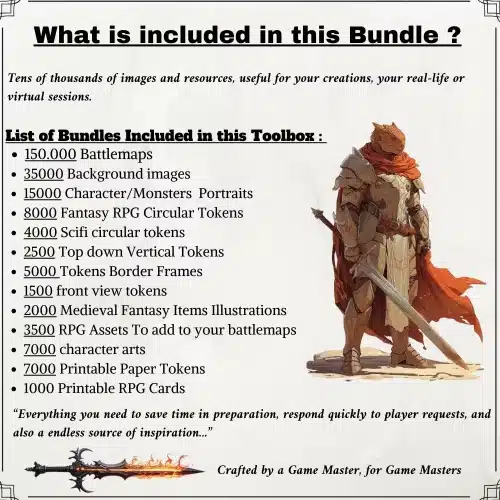
🎲 Get the Ultimate Toolbox Now
Instant Download • Lifetime Access
5. Deduplication and similarity detection at scale
Exact dedup (MD5/SHA1) workflow
To maintain a clean and efficient asset library, implementing a deduplication strategy is essential. Start by calculating hashes for your assets using algorithms like MD5 or SHA256. These hashes allow you to identify bytewise duplicates. For example, you can use a command like md5sum * > hashes.txt to generate a list of file hashes.
Once you have your hashes, group files by their hash values and canonicalize them to keep the highest quality or most relevant version. A typical workflow might involve processing assets in batches of 10,000 to avoid overwhelming your system’s memory. After identifying duplicates, you can choose to keep the canonical file and symlink others or tag them for potential deletion later.
Tip: Implement a retention policy for duplicates, such as quarantining them for 30 days before permanent deletion. This provides a safeguard against accidental loss of useful assets.
Near-duplicate detection (pHash, dHash) and thresholds
In addition to exact deduplication, detecting near-duplicates is crucial for managing your asset library effectively. Utilizing perceptual hashing techniques, such as pHash or dHash, allows you to identify similar images even if they have slight variations. For instance, you might set a Hamming distance threshold (10-20) to determine how similar two images must be to be considered near-duplicates.
To optimize this process, run your detection algorithms on known packs and adjust the thresholds to minimize false positives. Implementing a user interface for manual review of candidate groups can further refine your results. For larger sets, consider using approximate nearest neighbor indexing tools like FAISS to speed up the detection process.
Warning: Be mindful of the CPU and memory trade-offs when running near-duplicate detection on large asset libraries. Batching your processing can help manage resource usage effectively.
Canonicalization, provenance, and handling variant assets
Once you’ve identified duplicates and near-duplicates, it’s essential to establish a clear canonicalization policy. Assign a unique asset_id to the canonical file, and create symlinks or tags for any variants. For example, if you have a bordered version of a token, you might tag it as bordered in your metadata.

Keeping track of the provenance of your assets is equally important. Ensure you document the original source of each asset, including any purchase details or creator attributions. This information not only helps in maintaining legal compliance but also supports transparency in your asset management process.
Example: Create a schema for recording provenance that includes fields like original_source_id, canonical_id, and variant_reason. This level of detail will help you manage your assets responsibly while ensuring users can trace the origins of the files they are using.
6. Bulk import, format conversion, and optimization procedures
Steps to ingest a new asset pack (3–6 step procedure)
When you’re ready to add a new asset pack to your virtual tabletop (VTT) library, having a well-defined process is essential for ensuring everything is organized and functional. Here’s a streamlined approach to ingesting your assets efficiently:
- Staging and Unzipping: Start by staging your asset pack in a designated folder. Unzip the contents to prevent overwriting any existing files accidentally. This allows you to work with a clean slate.
- Deduplication and Renaming: Use a deduplication tool to identify and remove any duplicate files. This step is crucial to keep your library clean and manageable. Renaming files according to your established naming conventions will also help maintain order.
- Conversion: Convert your assets to the appropriate formats for your VTT. For example, if your maps are in JPG format, consider converting them to PNG or WebP for better quality and performance.
- Embedding Metadata: After conversion, use tools like ExifTool to embed essential metadata directly into your files. This metadata can include tags, licenses, and asset IDs, making it easier to search and organize later.
- Move and Index: Finally, move your newly processed assets to their permanent location within your asset library and update your indexing system. This ensures that they are searchable and ready for use in your VTT sessions.
Tip: Automating this process using scripts can save you considerable time, especially when dealing with large asset packs. Consider setting up a simple script that handles these steps for you.
Image/animation conversion rules (PNG/WebP/AVIF, animated GIF -> WebM)
When managing a vast library of digital assets, ensuring that your images and animations are in the right format is key to maintaining performance and quality. Here are some guidelines for converting your assets:
- Map Images: Convert maps to either PNG or WebP formats. PNG is lossless, meaning it retains quality but can be larger in file size. WebP offers a good balance between quality and file size, making it a great choice for fast-loading maps. For example, you could convert a 1400×1050 map to WebP at a quality setting of 85.
- Token Images: For tokens, PNG is typically the preferred format due to its support for transparency. Aim for resolutions that are multiples of 50px (like 280px or 350px) to ensure they display correctly across various VTT platforms.
- Animated Assets: Convert animated GIFs to WebM format. This format is more efficient, allowing for higher quality and smaller file sizes. For instance, an animated token that lasts 10 seconds at 30 frames per second can be converted to a 10fps WebM file, which significantly reduces the file size without sacrificing too much quality.
Example: Here’s a command you can use with ImageMagick to convert a GIF to WebM:
ffmpeg -i input.gif -c:v libvpx -b:v 1M -vf "fps=10" output.webmWarning: Always keep a backup of your original files before performing conversions. Sometimes, the conversion process can lead to unexpected quality loss.
Example ImageMagick/ffmpeg commands and sample Python script
To streamline your conversion process, you can use commands from ImageMagick and ffmpeg. Here are some essential commands to get you started:
- Convert JPG to PNG:
convert input.jpg -strip -quality 85 output.png - Convert GIF to WebM:
ffmpeg -i input.gif -c:v libvpx -b:v 1M -vf "fps=10" output.webm - Create Thumbnails:
convert input.png -resize 256x256 thumbnail.png
In addition to these commands, a simple Python script can help automate the process of converting images and embedding metadata. Here’s a pseudocode outline of what that might look like:
import os
import subprocess
import exiftool

def convert_and_embed_metadata(input_file, output_file, metadata):
    # Convert image
    subprocess.run(['convert', input_file, output_file])

    # Embed metadata
    with exiftool.ExifTool() as et:
        et.set_tags(metadata, output_file)

# Example usage
convert_and_embed_metadata('input.gif', 'output.webm', {'Title': 'My Animation'})
Tip: Integrating these commands and scripts into a CI/CD (Continuous Integration/Continuous Deployment) pipeline can greatly enhance your asset management workflow. This way, you can automate the conversion and metadata embedding as soon as new assets are uploaded.
7. Indexing and search: database + search engine architecture
Minimal SQL schema for asset catalog (CREATE TABLE example)
To effectively manage your VTT assets, you’ll need a solid database structure that allows for efficient searching and indexing. Here’s a minimal SQL schema to get you started:
CREATE TABLE assets (
    asset_id INT PRIMARY KEY,
    path VARCHAR(255) NOT NULL,
    sha256 CHAR(64) NOT NULL,
    resolution VARCHAR(50),
    license VARCHAR(100),
    vtt_compat BOOLEAN DEFAULT TRUE
);

CREATE TABLE tags (
    tag_id INT PRIMARY KEY,
    name VARCHAR(100) NOT NULL
);

CREATE TABLE asset_tags (
    asset_id INT,
    tag_id INT,
    FOREIGN KEY (asset_id) REFERENCES assets(asset_id),
    FOREIGN KEY (tag_id) REFERENCES tags(tag_id)
);
This schema includes an assets table for storing asset details, a tags table for categorizing assets, and an asset_tags junction table to manage the many-to-many relationship between assets and tags.
Example: If you have a fantasy map with an asset ID of 1, you might store its resolution as “1920×1080” and tag it with “fantasy” and “map” in the tags table.
Elasticsearch/OpenSearch mapping example and sample query
Elasticsearch or OpenSearch can significantly enhance your search capabilities. Here’s how to set up a mapping for your assets:
PUT /assets
{
  "mappings": {
    "properties": {
      "tags": {
        "type": "keyword"
      },
      "resolution": {
        "type": "keyword"
      },
      "license": {
        "type": "keyword"
      },
      "aspect_ratio": {
        "type": "float"
      },
      "source_pack": {
        "type": "keyword"
      }
    }
  }
}
With this mapping, you can easily filter and sort your assets based on their tags, resolution, and licensing information.
Sample query to find assets tagged with “fantasy” and “map”:
GET /assets/_search
{
  "query": {
    "bool": {
      "must": [
        { "match": { "tags": "fantasy" }},
        { "match": { "tags": "map" }}
      ]
    }
  }
}
Tip: Consider implementing a faceted search UI that allows users to filter results by tags, resolution, and license type. This can significantly improve the user experience when navigating a large asset library.
Faceted search UI design and example queries
Creating a user-friendly faceted search UI can make it much easier for users to find the assets they need. Here are some elements to consider including:
- Facets: Offer filters for tags, resolution, license, and source pack. This allows users to narrow down their search quickly.
- Typeahead Tag Search: Implement a typeahead search box that suggests tags as users type, making it easier to find specific categories.
- Preview Thumbnails: Display small thumbnails of the assets next to their names in the search results. This helps users quickly identify what they’re looking for.
Example queries to support common tasks might include:
- Find all assets licensed under CC-BY that were last used less than 90 days ago.
- Retrieve fantasy tokens that are 50px in size and tagged as “orc.”

Warning: Ensure that your search and filtering are performant, especially as your asset library grows. Poorly optimized queries can lead to frustrating delays for users.
8. VTT-specific packaging and cross-platform exports
Foundry-ready bundles (manifest, module structure)
Creating bundles for Foundry requires a specific structure to ensure compatibility. Here’s how to set up your Foundry asset bundles:
- Structure: Organize your assets in the following format:
/Data/assets/ /myModule/ /images/ /sounds/ /data/ manifest.json - Manifest File: Your
manifest.jsonshould include keys for metadata about your module, such as:{ "name": "My Module", "title": "A Great Adventure", "version": "1.0.0", "description": "An exciting new module for Foundry.", "author": "Your Name", "module": "myModule" } - Testing: Before distributing, test your module in a sandbox Foundry instance to ensure everything loads correctly.
Tip: Always include a license.txt file in your bundles to clarify usage rights. This helps maintain compliance and provides users with necessary legal information.
Roll20 / Fantasy Grounds / Owlbear packaging tips
Each VTT platform has its unique requirements for asset packaging. Here are some tips for preparing your assets:
- Roll20: Use ZIP files for uploads. Structure your assets and ensure that files do not exceed the maximum size limits (generally 5MB for images).
- Fantasy Grounds: This platform requires FGXML files for assets. Make sure to convert your assets into this format before packaging.
- Owlbear: For Owlbear, you can directly drag and drop your PNG files into the platform. However, organizing them into folders can still help maintain clarity.
Example: When preparing a ZIP for Roll20, ensure to include all necessary assets and a README.txt file explaining the contents and any usage instructions.
Warning: Be mindful of each platform’s specific requirements and limitations to avoid import errors. Testing your packages in a sandbox environment can help catch issues before they reach users.
3–6 step export procedures for each platform
Exporting assets for different VTT platforms can be streamlined by following these steps:
- Query Database: Retrieve the necessary assets from your asset catalog based on user requests or project needs.
- Zip Selected Paths: Create a ZIP file of the selected assets, ensuring to include a
LICENSE.txtfile that outlines usage rights. - Optimize Assets: Run your images and animations through an optimization process to reduce file sizes while maintaining quality.
- Test Import: Before finalizing, test the import of your packaged assets in a sandbox instance of the target VTT.
Tip: Automate the export process using scripts to reduce manual work and ensure consistency across different platforms. This can significantly save time, especially when dealing with large asset libraries.
11. Performance tuning and asset delivery strategies
Tile and sprite atlasing strategies
When you’re managing a large collection of RPG assets, performance is key, especially in a virtual tabletop (VTT) setting. One effective way to enhance performance is through the use of tile and sprite atlasing. This technique involves combining multiple smaller images into a single larger image, which reduces the number of HTTP requests needed to load assets. For instance, if you have a set of 100 tokens, instead of loading each one separately, you can create a single atlas image that contains all of them.
To implement this, follow these steps:
- Gather all the individual tile or sprite images you want to combine.
- Use a tool like TexturePacker or an automated script to generate the atlas image.
- Define the coordinates for each asset within the atlas, so they can be correctly cropped during runtime.
- Update your VTT code to reference the atlas instead of individual images.
- Test the performance to ensure that load times have improved.

Tip: Keep the atlas size within a maximum of 4096×4096 pixels to ensure compatibility across most VTT platforms. This will help maintain a balance between performance and flexibility.
CDN use, caching headers, and lazy-loading for VTTs
Using a Content Delivery Network (CDN) can significantly improve the delivery speed of your RPG assets. A CDN caches your assets in multiple locations around the world, allowing users to access them from a server nearest to them. This reduces latency and enhances the overall user experience. To make the most out of your CDN, you should also implement proper caching headers and lazy-loading techniques.
Here’s how to set it up:
- Choose a reliable CDN provider and upload your assets.
- Set Cache-Control headers for your assets. For example, use
Cache-Control: public, max-age=31536000, immutablefor versioned assets to allow long caching times while ensuring that frequently updated assets have shorter cache durations. - Implement lazy-loading in your VTT, which means that assets are only loaded when they enter the viewport (the visible area of the screen).
- Test the asset loading times to ensure that the CDN is functioning correctly and that lazy-loading does not hinder user experience.
Warning: Be cautious with signed URLs for assets that are under license restrictions. Ensure you have a robust invalidation policy to refresh cached assets when necessary to avoid serving outdated versions.
Resize on-the-fly vs precomputed derivatives
When it comes to managing asset sizes, you have two main options: resizing on-the-fly or precomputing derivatives. Precomputing derivatives involves creating multiple versions of an asset in different sizes ahead of time, which can save processing time during gameplay. On-the-fly resizing dynamically adjusts asset sizes based on user needs, but can introduce latency.
Consider the following steps to decide which method to use:
- Analyze your asset usage patterns to identify which assets are frequently accessed and in what sizes.
- For assets that receive high traffic (e.g., over 100 hits per week), precompute derivatives in various sizes, like thumbnails or different resolutions.
- For less frequently used assets, implement on-the-fly resizing with a caching mechanism to store generated sizes for quicker access in the future.
- Regularly review and adjust your thresholds based on user engagement and performance metrics.
Example: If you find that a specific token is frequently used at 50px and 280px, precompute these sizes so they load faster during gameplay. For assets used less often, allow your system to resize them dynamically when requested.
12. Licensing, attribution, and provenance tracking
Storing license fields and legal metadata
Properly managing licenses and legal metadata is crucial when dealing with a large library of RPG assets. You should store essential fields such as license type, source pack, purchase URL, and receipt ID to ensure compliance with usage rights. This practice not only helps you maintain a legal inventory but also simplifies the attribution process when you share or publish your assets.
To effectively store this information, follow these steps:
- Create a metadata schema that includes fields for
license,source_pack,purchase_url, andreceipt_id. - Embed the license information in the asset’s metadata using XMP (Extensible Metadata Platform) for portability.
- Implement a sidecar file approach to keep detailed license information separate but linked to the asset, making it easier to update or change in the future.
- Conduct regular audits to ensure all assets have the necessary legal metadata attached.
Tip: Utilize machine-readable license URIs to facilitate compliance checks across platforms. This will help you quickly identify assets that may have restrictions on redistribution or modification.
Handling purchased/third-party packs and keeping credits
When you acquire assets from third-party sources, it’s essential to track the licenses and ensure that you maintain proper attribution. This involves recording purchase metadata and retaining original receipts, which serve as proof of your rights to use those assets. Additionally, creating a manifest for each pack can streamline your asset management process.
Here’s how to manage this effectively:
- Create a pack-level manifest that includes fields like
pack_id,vendor,purchase_date,license_terms, andallowed_uses. - Link each asset record to its corresponding pack manifest to maintain a clear provenance chain.
- Set up access controls to restrict editing of the manifest and ensure that only authorized users can modify or delete records.
- Regularly review your asset library to ensure compliance with the licensing terms of third-party packs.
Warning: Failure to maintain proper licensing records can lead to legal issues and loss of access to assets. Always ensure that your asset management system includes adequate tracking and compliance measures.
13. Monitoring, audits, and maintenance workflows
Regular audits, duplicate rate monitoring, and KPI reports
Maintaining a healthy asset library requires regular monitoring and audits. By implementing a structured audit schedule, you can ensure that your assets are organized, compliant, and free of duplicates. This practice not only optimizes storage but also enhances search functionality within your VTT.
To set up an effective auditing process, do the following:
- Schedule monthly audits to check for duplicate assets, assess metadata completeness, and verify compliance with licensing.
- Use SQL queries to calculate your duplicate rate and generate a report on metadata completeness percentage.
- Implement a KPI (Key Performance Indicator) reporting pipeline that collects data on asset usage and compliance, feeding into tools like Grafana or Google Sheets for visualization.
- Regularly review your audit results to identify trends and make data-driven decisions about asset management.
Example: A simple SQL query to check for duplicate assets might look like this: SELECT filename, COUNT(*) FROM assets GROUP BY filename HAVING COUNT(*) > 1;. This will help you quickly identify and address any redundant files in your library.
Example queries and cron jobs for health checks
Automating your health checks through cron jobs can significantly streamline maintenance workflows. By setting up regular tasks, you can ensure that your asset library remains organized and compliant without needing constant manual oversight. This approach also helps catch issues early on, preventing potential problems during game sessions.
Here’s how to implement automated health checks:
- Set up cron jobs to run nightly deduplication and indexing scripts.
- Create SQL queries to check for orphan files (assets not linked to any metadata) and missing licenses.
- Configure alerts to notify you via email or Slack if any health check queries return unexpected results, such as a high number of orphan files.
- Review the health check results regularly to ensure that your asset library is functioning optimally.
Tip: Regular health checks can help you maintain a clean and efficient asset library. Implementing alerts ensures that you are promptly informed of any issues, allowing for quick resolution before they affect your gameplay.
Fox’s take
By following the steps outlined in this guide, you can set up a comprehensive VTT asset management system that works for your needs. Remember to regularly review your KPIs, conduct audits, and maintain your library to keep it efficient and organized. Start with the foundational steps, and as you grow more comfortable, dive into more advanced techniques like asset indexing and cloud storage solutions. Your players will appreciate the enhanced gameplay experience, and you’ll enjoy a smoother, more enjoyable game mastering journey.

FAQ
How do I deduplicate 300,000+ VTT assets without losing useful variants?
Use hash functions to identify duplicates, keeping the best version and tagging variants.
What storage setup balances cost and fast access for frequently used maps and tokens?
Store hot assets on local SSDs and archive cold assets in cost-effective cloud storage.
Which metadata fields are essential for cross-platform VTT compatibility?
Include asset_id, filename, type, tags, resolution, license, and source_pack for compatibility.
How can I automate importing new asset packs and keep the catalog in sync?
Develop scripts for ingestion, deduplication, and database updates to automate the process.
What are best practices for packaging assets for Foundry VTT and Roll20?
Structure files with manifests and legal documentation, testing packages in sandbox environments.
Continue reading
- The Ultimate Guide to Organizing Your Digital RPG Assets in 2026
Organizing digital RPG assets: step-by-step strategies for tidy libraries, VTT prep, backups, and faster session prep. - How to Become a Digital Dungeon Master (Online & VTT Guide)
How to Become a Digital Dungeon Master — step-by-step VTT setup, tools, mapping, tokens and session workflows for running online RPGs.