As a game master, I know how overwhelming it can be to manage a vast collection of digital RPG assets. In 2026, with the growing number of tools and resources available, organizing these assets isn’t just a luxury—it’s a necessity. Imagine the ease of finding a specific token or battlemaps in seconds rather than minutes. This guide will walk you through practical steps to create a tidy library that enhances your productivity, streamlines your VTT (Virtual Tabletop) prep, and sets you up for long-term success.
What you’ll learn in this article
- ✅1Understand the importance of organizing digital RPG assets for better gameplay and productivity.
- 🎲2Identify common RPG asset types and how to treat each for optimal usability.
- 🔎3Learn effective naming conventions to streamline your asset library.
- 🧙4♂️ Discover practical folder structures tailored for different RPG management needs.
- ✅5Explore tools and platforms that enhance asset management and VTT integration.
- 🎲6Implement batch processing techniques to save time on repetitive tasks.
- 🔎7Establish effective workflows for session prep and collaboration with players.
- 🧙8♂️ Learn about accessibility considerations for your RPG assets to ensure an inclusive experience.
- 🎲9Version control, backups, and restore strategies (practical plans)
- 🎲10License tracking, attribution, and commercial use management
- 🎲11Integrating marketplace purchases and storefront management (Etsy examples)
- 🎲12Workflows: session prep, sharing with players, and collaboration
- 🎲13Accessibility and usability: alt text, colorblind considerations, and UX for players
- 🎲14Maintenance routines and periodic audits (monthly, quarterly, yearly)
- 🎲15Troubleshooting & common problems (duplicates, corrupt files, sync conflicts)
- 🎲16Resources & complementary tools (tools, marketplaces, and links)
- 🎲17Appendices: sample metadata templates, sample bash/PowerShell commands, and export presets
1. Why organize your digital RPG assets in 2026 (benefits and goals)
Organizing your digital RPG assets in 2026 isn’t just a nice-to-have; it’s essential for increasing your productivity and enhancing your creative processes. When you have a centralized repository, it creates a single source of truth, which helps prevent duplication and loss of valuable assets. Imagine searching for a specific token or battlemaps during a game session and finding it in seconds rather than minutes. This streamlined access can save you precious time, allowing you to focus more on storytelling and gameplay rather than sifting through disorganized files. Setting measurable goals—like reducing your search time to under 5 seconds or cutting session prep time in half—will help motivate you to implement an effective organization strategy.
Moreover, good organization supports scaling your RPG projects, whether you’re a solo GM or part of a small studio. It enables consistency across campaigns, ensuring that everyone involved is using the same approved versions of assets. This not only improves your branding but also helps in monetization. Clean, well-organized assets are more appealing when packaged for sale, making it easier to track licenses and comply with legal requirements. By focusing on organization now, you can set yourself up for long-term success in the ever-evolving digital landscape of RPGs.
2. Inventory: common RPG asset types and how to treat each
When it comes to organizing your RPG assets, it’s essential to understand the different types you’ll be dealing with. Common categories include tokens, battlemaps, brushes, backgrounds, minis, audio files, scripts, handouts, and fonts. Each of these asset types has its own specific storage, metadata, and export needs. For instance, tokens should be stored in transparent PNG formats and available in multiple sizes, while battlemaps need to maintain grid or tile compatibility, typically at 70–100 DPI (dots per inch) for printing and optimized for web use.
To treat each asset type appropriately, consider their unique requirements. For example, audio files should include metadata about the bitrate and loop points, while brushes may require you to keep their source formats (like Procreate .brushset or Photoshop .PSD). By defining a clear approach to how you handle each type, you can ensure that all your assets are not only easy to find but also ready for immediate use in your games or for sale.
Tokens (top-down vs illustrated), battlemaps, brushes, backgrounds, minis, audio, scripts, handouts, fonts
Tokens are one of the most versatile assets in your RPG library, and it’s essential to know how to organize them effectively. You can choose between top-down tokens, which are viewed from above, and illustrated tokens, which may show the character’s full side. It’s a good idea to provide each type in multiple sizes, such as 128 px, 256 px, and 512 px, to accommodate different uses. Store them in transparent PNG formats to ensure they can easily overlay on battlemaps.
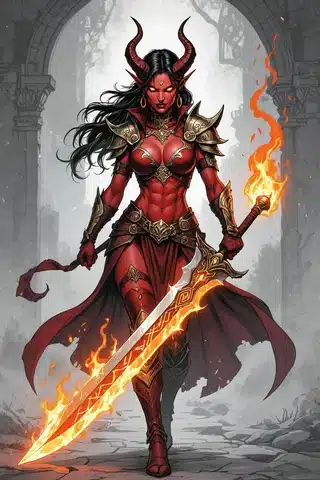
Battlemaps are another critical asset that requires careful attention. Ensure that you keep a master copy of the original layered files, which allows for easy edits later. The export should be tile-compatible and ideally sized to fit the grid of your VTT. When it comes to brushes and backgrounds, save the source files in their original formats (like Procreate .brushset) for future edits. For audio files, store the high-quality originals (WAV) along with compressed versions (MP3/OGG) for quick access during gameplay. Scripts should also include language and version details to avoid compatibility issues.
3. Naming conventions: patterns, examples, and two ready-to-use schemes
Using a consistent naming convention for your RPG assets is crucial for efficient organization. There are two primary naming strategies that can greatly enhance your workflow: a descriptive approach that includes human-readable elements like the date and version, and a compact code-based system that relies on short IDs and external metadata. The descriptive method might look like this: `[AssetType]_[Description]_[Campaign]_[Date]_v[Version].[ext]`, while a compact version could simply be something like `12345_[AssetType]_[v2].[ext]`.
Implementing a naming convention can be done in a few simple steps. First, choose the fields that are most relevant to you and standardize the date format (YYYY-MM-DD). Next, enforce version increments whenever you update an asset. If you’re transitioning from an existing naming scheme, consider using a script to bulk rename files according to your new convention. This will save you time and ensure that everything is in order.
Example naming convention A: Compact (date-style) with steps to implement
For a compact naming convention, you might use the format `[AssetType]_[Description]_[Campaign]_[Date]_v[Version].[ext]`. Let’s break this down into actionable steps. First, determine what asset types you will be using (like tokens, maps, etc.). Next, decide on a standardized date format, such as YYYY-MM-DD, to keep things uniform. When you create or update an asset, make sure to increment the version number, like v1, v2, and so on.
To implement this convention in bulk, you can follow these steps:
1. Export your current asset inventory as a CSV file.
2. Create a mapping script in PowerShell or Python to rename your files based on the new convention.
3. Run a dry-run to ensure everything works as expected before applying the changes.
Example naming convention B: Human-readable with tags and versioning
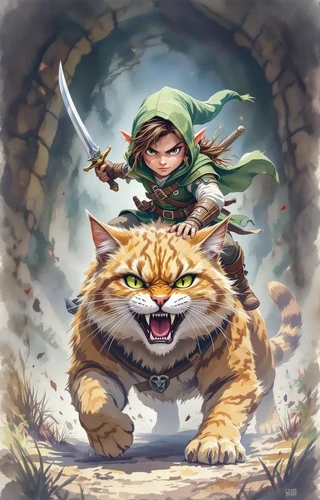
A more human-readable naming convention could look like this: `[Type]_[ShortDesc]_[Tags]_[v#]_[YYYYMMDD].[ext]`. This approach not only makes it easy to identify assets at a glance but also allows for the inclusion of tags that can improve searchability. For instance, a filename might be `Token_FireMage_FireMagic_v1_20231001.png`, making it clear what the asset is and when it was created.
To implement this naming convention, you’ll want to:
1. Develop a short controlled vocabulary for tags (no more than four tags) to maintain consistency.
2. Include a “status” tag indicating whether the asset is a draft, approved, or archived.
3. Maintain a sidecar JSON file that contains rich metadata linked to each filename, ensuring that all necessary information is easily accessible.
4. Metadata, tags, and searchable fields (embedded and external)
Metadata is a crucial component of your RPG asset management strategy. It provides context and information about your assets, making them easier to search and retrieve. Use embedded metadata formats like EXIF or XMP for images where supported, and consider using sidecar JSON files for broader cross-platform compatibility. Essential metadata fields to track include asset ID, title, type, resolution, format, license, source, and tags.
To implement a tagging system, create a taxonomy that categorizes your assets effectively. This could involve a three-tier system: Type → Setting → Features. For instance, a token might be categorized as `Token → Fantasy → FireMage`. By organizing your metadata this way, you can ensure that your assets remain searchable across different platforms and are future-proofed against changes in technology.
EXIF/XMP basics, sidecar JSON, and tag taxonomy examples
EXIF (Exchangeable Image File Format) and XMP (Extensible Metadata Platform) are two metadata formats that can be embedded directly into images. While EXIF is primarily used for photographs, XMP can hold a broader range of metadata types, making it suitable for RPG assets. Sidecar JSON files, on the other hand, are external files that accompany your assets, allowing you to include extensive metadata without altering the original files.
Here’s an example skeleton for a sidecar JSON file:
{
  "asset_id": "12345",
  "title": "Fire Mage Token",
  "type": "Token",
  "resolution": "512x512",
  "format": "PNG",
  "license": "CC BY-NC",
  "source": "SacredArtsDesigns",
  "tags": ["Fantasy", "Mage", "Fire"],
  "created": "2023-10-01",
  "modified": "2023-10-10"
}
By implementing such a schema, you ensure that anyone accessing the asset can quickly understand its properties and usage rights.
✨ Discover the Ultimate Tavern Bundle ✨
Stop prepping for hours. Get 350,000+ digital assets to create immersive campaigns instantly.
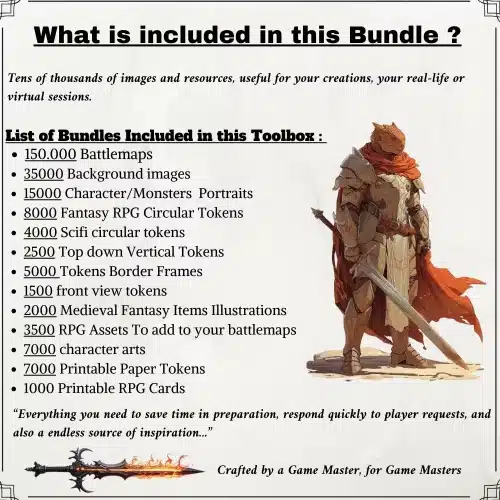
🎲 Get the Ultimate Toolbox Now
Instant Download • Lifetime Access
5. Folder structures: three practical templates (solo GM, shared VTT, marketplace seller)
Creating a well-organized folder structure is key to efficient asset management. Here are three practical templates you can use, depending on your needs:
- Campaign-First Structure: Ideal for solo GMs, this approach prioritizes ease of access for specific campaigns.
Campaigns/
	CampaignName/
		Assets/
			Tokens/
			Maps/
			Audio/
SessionNotes/ - Asset-Type-First Structure: Best for creators or marketplace sellers, this structure allows for easy retrieval of asset types.
Assets/
	Tokens/
		Fantasy/
		Sci-Fi/
	Battlemaps/
Audio/ - Hybrid Structure: This combines campaign-specific and asset-type organization, useful for growing libraries.
Library/
	Campaigns/
	Assets/
		Tokens/
		Battlemaps/
		Audio/
When implementing these structures, consider adding numeric prefixes to your main folders for predictable sorting (e.g., `01_Campaigns`, `02_Assets`). This will help ensure that your folders are organized systematically.
Local folder layout vs cloud-synced layout (one-to-one examples)
When deciding between a local folder layout and a cloud-synced layout, consider how you intend to share and collaborate on your assets. A local layout might look like this:
C:/RPG_Assets/
	Campaigns/
		DragonHunt/
			Tokens/
			Maps/
In contrast, a cloud-synced layout would include additional folders for collaboration:
Cloud/RPG_Assets/
	Campaigns/
		DragonHunt/
			Tokens/
			Maps/
	PENDING_REVIEW/
	APPROVED/
In the cloud layout, you might also want to include conflict-resolution rules. For instance, avoid editing files directly in the shared folder. Instead, use a workflow where assets move from a `PENDING` folder to an `APPROVED` folder once reviewed. This will prevent sync conflicts and ensure that the most current versions are always in use.
6. Tools & platforms to manage assets (desktop, cloud, VTT integrations)
Choosing the right tools to manage your RPG assets can make a significant difference in your workflow. For solo creators, platforms like Notion or Google Sheets can serve as effective Digital Asset Management (DAM) solutions. They allow you to create databases for your assets, making them easily searchable. For small teams, Google Drive or Dropbox can facilitate collaboration while providing cloud storage for your files.
If you’re looking to scale your efforts as a seller or studio, consider more robust options like Frontify or Stacks, which offer advanced features for asset management. These platforms often integrate with VTTs (Virtual Tabletops) like Foundry and Roll20, which is essential for seamless asset exports. When picking tools, ensure they support your specific needs, such as VTT compatibility or automated workflows.
Digital Asset Management (DAM) apps, cloud storage, VTT libraries (Foundry, Roll20), Procreate workflow
When it comes to organizing your digital RPG assets, choosing the right tools is crucial. Digital Asset Management (DAM) applications help you manage your files efficiently, preventing issues like file sprawl and version confusion. For solo creators, a simple solution could be Notion or Google Sheets, where you can create a database-driven asset index. For small teams, Google Drive or Dropbox offers shareable cloud storage that can keep everyone on the same page. If you’re scaling up, consider more robust options like Frontify or Stacks. These tools not only provide organization but also integrate seamlessly with Virtual Tabletops (VTTs) like Foundry and Roll20, making asset exports easy.
Procreate is another fantastic tool for artists creating RPG assets. It allows you to design maps, tokens, and other visual elements. When exporting from Procreate, ensure you save your master files in their native format (like .procreate) while also exporting versions in commonly used formats like PNG for transparency and PSD for layers. This way, you maintain flexibility for future edits. Make sure to include a versioning note in your workflow to track changes in your assets easily.
7. Batch processing & automation: resizing, border frames, renaming, and format conversion
Batch processing is a game-changer when it comes to managing your RPG assets. It allows you to perform actions on multiple files at once, which can save you countless hours. For example, if you have a set of tokens that need to be resized, you can use tools like ImageMagick or Python scripts for bulk resizing and format conversion. This means you can quickly create different sizes for your tokens, such as 128, 256, and 512 pixels, ensuring they are ready for any VTT without having to manually adjust each one.
To get started with batch processing, follow these steps: 1. **Backup your files:** Always keep a copy of your original files before making any changes. 2. **Choose your tool:** You can use ImageMagick for command-line processing or a GUI tool like Bulk Image Converter for a more user-friendly approach. 3. **Set your parameters:** Define the new sizes or formats you want your assets in. 4. **Run a test batch:** Before processing all your files, run a small test to ensure everything works as expected. 5. **Apply changes:** Once you’re satisfied with the test, you can apply the batch operation to your entire library.
Example scripts, GUI tools, and 3-step procedures for batch export
When you encounter duplicates, start by identifying the canonical copy that you want to keep. Once you’ve established this, you can delete the unnecessary versions. If you find corrupt files, restore the latest good copy from your backups. It’s crucial to verify the restored asset in your VTT before proceeding to ensure everything functions correctly.
For sync conflicts, establish a simple protocol: identify the version you want to keep, restore it from your backup, and then update your asset manifest accordingly. This will help maintain clarity among collaborators about which version is the most current.
8. Preparing assets for Virtual Tabletops and web delivery
Preparing your RPG assets for Virtual Tabletops (VTTs) requires attention to detail to ensure compatibility and performance. For tokens, you should export them in sizes of 128, 256, and 512 pixels, depending on your VTT’s requirements. Battlemaps should be created with a DPI (dots per inch) of 70–100 for digital use, while retaining higher DPI for print if necessary. It’s crucial to keep the master layered files intact for future edits, so always save a copy of the original files.
When exporting, consider using optimized formats like PNG or WebP. PNG is excellent for images with transparency, while WebP can offer smaller file sizes without sacrificing quality. If you’re working with animated tokens, ensure they are in formats supported by your VTT, such as GIF or APNG. This will allow for smooth animations during gameplay, enhancing the overall experience for your players.
9. Version control, backups, and restore strategies (practical plans)
Implementing a robust version control and backup strategy is essential for any RPG creator managing a large library of assets. Git LFS (Large File Storage) is an excellent tool for tracking changes in large binary files, while cloud storage solutions like Google Drive or Dropbox can help maintain version histories of your assets. Following the 3-2-1 backup rule is advisable: keep three copies of your files, store them on two different media types, and ensure one of those copies is offsite. This way, you protect your assets against potential data loss due to hardware failure or other disasters.
To set up a practical backup plan, consider these steps: 1. **Establish your backup locations:** Decide where your primary, secondary, and offsite backups will be stored. 2. **Schedule regular backups:** Automate backups to run daily or weekly to ensure that all changes are captured. 3. **Create a retention schedule:** Determine how long to keep old versions of assets and establish a routine for archiving or deleting outdated files. 4. **Test your backups:** Periodically run restore tests to ensure your backups are functioning correctly and that you can retrieve your data when needed.
10. License tracking, attribution, and commercial use management
As a creator, managing licenses and attributions for your RPG assets is critical, especially if you plan to sell or share your work. Keeping a LICENSE_MANIFEST.txt file in each campaign folder helps you track the licenses associated with your assets. Additionally, annotating your sidecar metadata with license information ensures that you have quick access to this crucial data when needed. This practice also helps streamline compliance with any licensing terms, ensuring you respect the rights of the original creators.
When organizing your licensing information, follow these steps: 1. **Create a standard license checklist:** Include fields for receipt, license text, allowed uses, attribution text, and any restrictions. 2. **Store license files alongside assets:** Keep these files in a designated LICENSES folder or adjacent to the respective assets. 3. **Tag assets with vendor and purchase date:** Use tags like `vendor:SacredArtsDesigns` and `purchased:YYYY-MM-DD` to quickly identify the source of your assets. 4. **Regularly review your licenses:** Make it a habit to check the licenses of your assets, especially before using them in a commercial context.
11. Integrating marketplace purchases and storefront management (Etsy examples)
Integrating your marketplace purchases into your asset library can streamline your workflow and make your assets more accessible. When you purchase from platforms like Etsy, it’s essential to keep your files organized by vendor. For instance, create a folder named `05_PURCHASED_BUNDLES` and within that, have subfolders for each vendor, such as `Sacred_Arts_Designs_Etsy`. This structure allows you to easily locate your purchased assets and ensures that you have all the necessary license files and metadata in one place.
To effectively manage your purchased packs, follow these steps: 1. **Download and unpack your purchased files:** Extract the contents and place them in the appropriate vendor folder. 2. **Create a LICENSE_MANIFEST entry:** Document the license information associated with your purchase, including any restrictions on use. 3. **Run batch resizing or conversion as needed:** If the assets require adjustments for VTT compatibility, do this immediately after importing them. 4. **Tag the assets:** Use tags like `vendor:SacredArtsDesigns` and `listing:1890163865` (the store listing ID) to keep track of the source of each asset.
12. Workflows: session prep, sharing with players, and collaboration
Establishing efficient workflows for session prep and collaboration can significantly enhance your RPG experience. The key is to have a systematic approach that allows for easy sharing of assets and quick preparation for game sessions. A simple workflow you can implement is the PENDING_REVIEW system, where assets are first tagged as pending approval before being moved to an approved folder for use in sessions.
To streamline your session prep: 1. **Pick a session folder:** Designate a specific folder for each session containing all relevant assets. 2. **Gather approved assets:** Pull together maps, tokens, and other materials that have been approved for use. 3. **Export VTT-ready copies:** Ensure all assets are in the correct formats and sizes for your chosen VTT. 4. **Upload to the game library:** Move the finalized assets into your VTT for easy access during gameplay. 5. **Create player handouts:** Prepare any necessary documents or materials to share with your players. 6. **Run a quick review:** Before you dive into the game, do a fast review to ensure everything is in place and functions as expected.
Short procedures for a fast session-prep workflow and shared libraries
When you’re gearing up for a gaming session, every minute counts. A well-organized workflow can make all the difference in how quickly you can prepare and share assets. Here’s a straightforward process to help you get ready in no time. 1. **Pick Your Session Folder**: Start by selecting the folder specific to your upcoming session. This should be a designated space where you aggregate all necessary assets. 2. **Gather Approved Assets**: Next, pull together all the assets you’ve already approved in your library. This includes tokens, battlemaps, and any handouts you plan to use. 3. **Export VTT-Ready Copies**: Convert your assets into formats compatible with your Virtual Tabletop (VTT) of choice, ensuring they’re optimized for quick loading. 4. **Upload to Game Library**: Once your assets are ready, upload them to your VTT game library. This way, they’ll be easily accessible during the session. 5. **Create Player Handouts**: Design handouts or summaries for your players, making sure to include any crucial information they need for the session. 6. **Run a Quick Review**: Before you dive into the game, do a fast review to ensure everything is in place and functions as expected.
To streamline this process, consider setting a timer for a 10-15 minute “prep sprint.” This will help you stay focused and efficient.
13. Accessibility and usability: alt text, colorblind considerations, and UX for players
Creating an inclusive gaming environment is essential for ensuring all players can enjoy the experience. Accessibility features like alt text (text descriptions for images) and considerations for colorblind players can make a significant difference. Here’s how you can improve the usability of your RPG assets.
First, integrate alt text into your handouts and digital assets. This allows players who use screen readers or have visual impairments to understand the content. When creating handouts, consider using descriptive language that conveys the essence of the visuals. For example, instead of just saying “monster image,” you could write, “a fierce dragon with green scales and glowing red eyes perched atop a mountain.” This not only helps visually impaired players but enhances the overall narrative for everyone.
Creating colorblind-friendly tokens and descriptive handouts
Always check the contrast ratios of your assets to ensure they are easily distinguishable. Using a color contrast tool can help you identify combinations that might be difficult for colorblind players to see. Incorporate colorblind-friendly palettes in your token designs. Consider using shapes and patterns along with colors to differentiate tokens. For instance, a red token could have a star shape, while a blue token might be circular. This way, color alone isn’t the only means of identification. Testing your designs with colorblindness simulators can also provide valuable feedback on how your tokens appear to players with different types of color vision deficiencies.
14. Maintenance routines and periodic audits (monthly, quarterly, yearly)
Keeping your digital RPG assets organized and functional requires regular maintenance. Implementing a routine for audits can help you identify unused files, duplicates, and ensure compliance with licenses. Here are some steps to keep your library in top shape.
Start with a monthly quick scan of your assets. Look for files that haven’t been used in recent sessions, as well as duplicates that may have crept in during your workflow. Set aside time quarterly for a more thorough audit, where you can delve deeper into asset organization and licensing compliance. Finally, an annual review can help you archive or retire outdated materials, ensuring your library remains relevant and streamlined.
Sample audit checklist and automated reminders
Use automated reminders in your calendar or task management tool to keep track of when these audits are due. This will help you stay organized and prevent missed maintenance. During your audits, consider tracking metrics such as the percentage of unused assets, the number of duplicates found, and your license compliance score. This data can help you make informed decisions about which assets to keep or discard, ultimately leading to a more efficient asset library.
15. Troubleshooting & common problems (duplicates, corrupt files, sync conflicts)
Every digital asset manager faces challenges, from duplicates to corrupt files and sync conflicts. Knowing how to troubleshoot these issues can save you time and stress, especially when preparing for a session. Here’s how to address common problems effectively.
When you encounter duplicates, start by identifying the canonical copy that you want to keep. Once you’ve established this, you can delete the unnecessary versions. If you find corrupt files, restore the latest good copy from your backups. It’s crucial to verify the restored asset in your VTT before proceeding to ensure everything functions correctly.
Quick fixes and recovery steps
For sync conflicts, establish a simple protocol: identify the version you want to keep, restore it from your backup, and then update your asset manifest accordingly. This will help maintain clarity among collaborators about which version is the most current. Keep a small emergency pack of critical assets offline for immediate access in case of last-minute issues. This ensures that you have essential files ready to go, even if something goes wrong with your main library.
16. Resources & complementary tools (tools, marketplaces, and links)
Having the right tools and resources at your disposal can greatly enhance your ability to manage digital RPG assets effectively. Here’s a curated list of platforms and tools that can help streamline your workflow.
- Notion: A flexible database-driven asset index that allows you to track and organize your assets efficiently. It’s great for solo creators looking to keep everything in one place.
- Google Drive: A widely-used cloud storage solution that makes sharing and collaborating easy. Perfect for small teams needing to access assets from different locations.
- ImageMagick: A powerful command-line tool for image processing that can help with batch resizing and format conversion of your assets.
- Sacred Arts Designs on Etsy: A fantastic source for various RPG assets, including maps, tokens, and brushes that can enhance your digital campaigns.
- Procreate: A popular app for digital art that allows you to create and manage your illustrations and maps. Ideal for artists looking to produce high-quality assets.
For those interested in specific asset types, check out the following links for bundles that can elevate your gameplay:
These resources can significantly improve your RPG asset management process, making it easier to find, use, and share your digital assets.
17. Appendices: sample metadata templates, sample bash/PowerShell commands, and export presets
In this section, I’ll provide you with practical templates and commands that you can use for managing your digital RPG assets. These tools will help streamline your workflow and ensure your assets are organized and accessible.
Sample Metadata Template (JSON):
{
  "asset_id": "12345",
  "title": "Dragon Token",
  "type": "token",
  "subcategory": "monster",
  "campaign": "Epic Quest",
  "resolution": "512x512",
  "format": "PNG",
  "license": "Commercial Use",
  "source": "Sacred Arts Designs",
  "creator": "Fox",
  "created_date": "2023-10-01",
  "modified_date": "2023-10-10",
  "vtt_compatible": true,
  "tags": ["dragon", "monster", "token"]
}
Example ImageMagick Command for Resizing:
convert input.png -resize 256x256 output.png
PowerShell Bulk-Rename Example:
Get-ChildItem -Path "C:\YourAssets\Tokens" -Filter "*.png" | Rename-Item -NewName { $_.Name -replace "oldname", "newname" }By using these templates and commands, you can efficiently manage your metadata, automate repetitive tasks, and ensure your assets are in optimal condition for use in your RPG sessions.
Fox’s take
By following the strategies outlined in this guide, you’ll be well on your way to mastering the art of organizing your digital RPG assets. Remember, a well-structured library not only saves you time but also enhances your creative process and prepares you for successful sessions. Start implementing these tips today, and don’t hesitate to revisit your organization strategy regularly to ensure it evolves with your needs. Happy gaming!
FAQ
How should I name tokens and battlemaps?
Use a consistent format like [AssetType]_[Description]_[Campaign]_[Date]_v[Version].[ext].
What’s the best way to back up my art assets?
Utilize cloud storage and follow the 3-2-1 backup rule for safety.
How do I prepare assets for Foundry VTT quickly?
Export in correct formats and sizes, using batch processing tools for efficiency.
How can I attach license info to purchased assets?
Create a LICENSE_MANIFEST.txt and include metadata in sidecar JSON files.
What automation tools save time when resizing art?
Use batch processing tools like ImageMagick for efficient resizing and exporting.
Continue reading
- Best Dungeon Master Gifts (Digital & Physical) – 2026 Edition
Best Dungeon Master Gifts 2026: curated digital & physical ideas for every budget. - How to Become a Digital Dungeon Master (Online & VTT Guide)
How to Become a Digital Dungeon Master — step-by-step VTT setup, tools, mapping, tokens and session workflows for running online RPGs.