Hybrid D&D is an exciting way to blend the best of both virtual tabletop (VTT) and in-person gameplay. It allows you to maintain the tactile elements of tabletop gaming while incorporating the convenience and accessibility of digital tools. This setup is particularly beneficial when you have players who can’t always be physically present. For example, if you have a friend who lives far away but still wants to join your campaign, hybrid D&D enables that connection without sacrificing the experience for those at the table.
However, opting for a hybrid approach does come with its challenges. One major issue is achieving tech parity, meaning that everyone—both remote and in-person players—should have a similar experience. This includes ensuring that visuals are clear for all and that audio is balanced so everyone can participate equally. Additionally, pacing can be tricky in hybrid sessions; it’s easy for remote players to feel left out if the action moves too quickly or if their turns aren’t managed well. It’s essential to establish clear communication and turn-taking rules to keep everyone engaged.
…
What you’ll learn in this article
- 🎲1Discover the benefits of hybrid D&D and how to implement it.
- ✅2Learn about essential hardware for a successful hybrid gaming setup.
- 🔎5Explore digital tools like Foundry VTT and Roll20 alternatives for seamless gameplay.
- 🧙6♂️ Understand best practices for creating maps and tokens for both VTT and print.
- 🎤7Get tips for managing audio and music to enhance the gaming atmosphere.
- 📊8Review workflows for session preparation and management to keep everything organized.
- 🎲9Automation, macros, and quality-of-life tools
- 🎲10Session prep and management
- 🎲11Backup, sync, and security
- 🎲12Budgeting and building incrementally
- 🎲13Two example hybrid workflows (VTT-first and table-first)
- 🎲14Accessibility, fairness, and inclusion in hybrid games
- 🎲15Resources & complementary tools (detailed list with URLs)
- 🎲16Troubleshooting common problems
1. Why hybrid D&D? Benefits and challenges
Hybrid D&D is an exciting way to blend the best of both virtual tabletop (VTT) and in-person gameplay. It allows you to maintain the tactile elements of tabletop gaming while incorporating the convenience and accessibility of digital tools. This setup is particularly beneficial when you have players who can’t always be physically present. For example, if you have a friend who lives far away but still wants to join your campaign, hybrid D&D enables that connection without sacrificing the experience for those at the table.
However, opting for a hybrid approach does come with its challenges. One major issue is achieving tech parity, meaning that everyone—both remote and in-person players—should have a similar experience. This includes ensuring that visuals are clear for all and that audio is balanced so everyone can participate equally. Additionally, pacing can be tricky in hybrid sessions; it’s easy for remote players to feel left out if the action moves too quickly or if their turns aren’t managed well. It’s essential to establish clear communication and turn-taking rules to keep everyone engaged.
1.1 When to choose hybrid vs pure VTT or in-person
Choosing between hybrid, pure VTT, or in-person gaming largely depends on your group’s needs and preferences. If you have at least one player who must be remote, hybrid is the way to go. It allows for a mix of in-person interactions while still accommodating those who can’t be there physically. On the other hand, if your group is entirely remote, sticking with a pure VTT solution can simplify things and remove the need for additional hardware and setup. In-person-only sessions work best for groups that prioritize tactile gameplay and have all players local.
To help you decide, consider these quick decision rules:
- Player count: If you have one or more remote players, lean toward hybrid.
- Campaign phase: If your session focuses on exploration or social interaction, hybrid can enhance the experience. For combat-heavy sessions, pure VTT might streamline encounters.
- GM comfort: If you’re not tech-savvy, a pure VTT may be easier to manage.
1.2 Key challenges to solve (visuals, audio, pacing, fairness)
In hybrid D&D sessions, several challenges can affect the experience for your players. The first is visuals. Ensuring that maps and tokens are clearly visible for both remote and in-person players requires careful planning. You might need a projector or a large monitor to display the digital maps for in-person players while ensuring that remote players have a good view on their screens. Token parity is also crucial; remote players should have the same visual access to the game elements as those at the table.
Audio is another critical factor. Echo and latency issues can disrupt the flow of the game, especially if players can’t hear each other clearly. Implementing a boundary microphone or noise gate can help manage sound quality. It’s also important to call turns explicitly and use turn trackers to maintain pacing, ensuring that remote players remain engaged and don’t feel sidelined during gameplay. Establishing a clear turn order and sticking to it can help with this.
2. Core hardware for hybrid sessions
To effectively run a hybrid D&D session, having the right hardware is essential. At a minimum, you’ll need a laptop or tablet to host your VTT, an overhead webcam (like the Logitech C920) to capture the table for remote players, a USB microphone (such as the Blue Yeti) for clear audio, and a display, like a TV or projector, for showing maps and visuals to in-person players. Wired Ethernet is also highly recommended over Wi-Fi to ensure a stable connection during your sessions.
Once you have your basic setup, consider upgrades that can significantly enhance your hybrid experience. A projector can allow for large-scale map displays on the table, while a consumer scanner or printer can facilitate print workflows for battlemaps and tokens. An audio mixer, such as Voicemeeter, can help you manage sound levels and prevent echo issues, providing a smoother experience for both remote and in-person players.
2.1 Minimum viable hybrid kit (tablet/laptop, camera, microphone, display)
For those just starting with hybrid D&D, a minimum viable kit can be assembled for around $200–$300. This kit should include a laptop or tablet capable of running your chosen VTT, a Logitech C920 webcam for capturing the tabletop, a USB microphone like the Blue Yeti for clear audio, and a display that is at least 24 inches wide. This setup will allow you to run sessions effectively without breaking the bank.
Additionally, consider including an inexpensive Ethernet adapter and spare USB cables to ensure you have everything you need for a smooth session. Testing with a smartphone as a backup camera can also be a great way to ensure you’re prepared for any technical difficulties that may arise during play.
2.2 Recommended upgrades (projector, consumer scanner/printer, mixer)
Once you have your minimum kit set up, consider investing in some upgrades to enhance your hybrid gaming experience. A projector can greatly improve the visual experience, allowing you to project maps directly onto the table for in-person players. This not only makes maps more accessible but can also create a more immersive experience. Expect to spend around $200–$500 for a decent projector, depending on the quality and features.
A consumer scanner or printer is another valuable addition, especially for printing out battlemaps and tokens. This can streamline your print workflows significantly. Additionally, an audio mixer can help manage sound levels between remote and in-person players, reducing echo and ensuring everyone can hear each other clearly. Investing in these upgrades can provide a significant return in terms of player engagement and session quality.
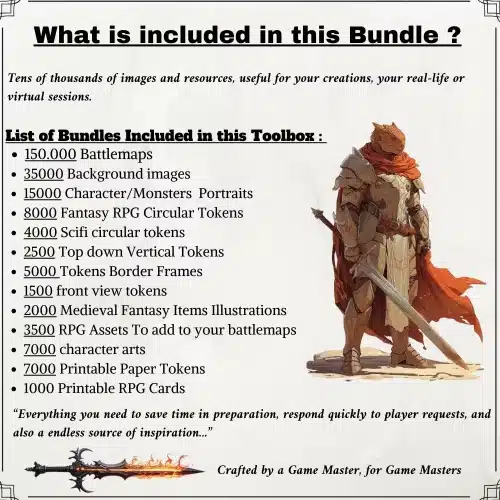
✨ Discover the Ultimate Tavern Bundle ✨
Stop prepping for hours. Get 350,000+ digital assets to create immersive campaigns instantly.
🎲 Get the Ultimate Toolbox Now
Instant Download • Lifetime Access
5. Asset sources: maps, tokens, backgrounds, audio
When running hybrid D&D sessions, creating an immersive atmosphere is crucial for keeping both in-person and remote players engaged. Audio libraries and ambient sound tools like Syrinscape and Tabletop Audio can provide the rich soundscapes that enhance gameplay. These platforms allow you to tailor sound effects and music to match your campaign’s theme, whether it’s a bustling tavern or a dark dungeon.
To optimize your audio setup, consider creating a cue list of 10–20 sounds that fit the various session types you run. For instance, if you’re planning a combat-heavy session, include battle sounds, tense music, and ambient noises that reflect the environment. Additionally, it’s important to route your audio correctly so that both remote and table players can enjoy a balanced mix of music and voice without interference. Be sure to separate music and voice outputs to avoid mic pickup, allowing for different volume levels for each.
5.3 Audio libraries and ambient sound tools
When it comes to creating an immersive auditory experience for your hybrid D&D sessions, Syrinscape and Tabletop Audio are excellent choices. These tools provide a wealth of ambient sounds and music tailored for tabletop gaming. Syrinscape, for example, offers customizable soundscapes that can change based on the scenario, allowing you to adapt to the mood of your session.
To effectively use audio tools, maintain a list of cues that suit the various types of sessions you run. For instance, if you’re running a session set in a haunted mansion, include eerie sounds, creaking doors, and whispering voices in your cue list. This preparation will help you create an engaging atmosphere that enhances the storytelling experience for both remote and in-person players.
6. Map and token creation workflows
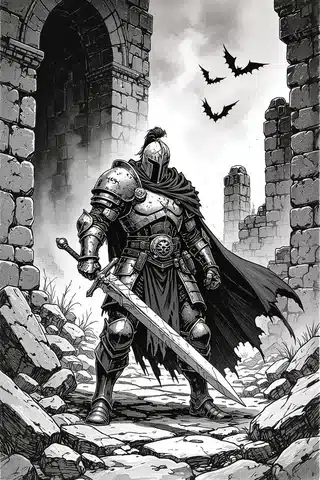
Creating maps and tokens for hybrid D&D sessions is a crucial part of your preparation. By using tools like Dungeondraft or Wonderdraft for maps and Procreate or Photoshop for tokens, you can create assets that are suitable for both virtual tabletop (VTT) and printed formats. This dual-purpose approach saves time and ensures consistency across your game.
Here’s a simple workflow for creating assets that work for both VTT and print:
- Design your map or token at a high resolution (300 DPI is standard for print).
- Export the VTT version as a PNG file, optimizing it for web use (72 DPI).
- Resize your print version for the desired dimensions, and ensure that you tile large maps into manageable sections for printing.
- Test-print a section to verify that everything aligns correctly with your miniatures or tokens.
- Import the VTT version into your chosen platform and set any necessary layers or visibility options.
6.1 Create once, export for VTT and print (3–5 step procedure)
Creating assets that can be easily used in both digital and physical formats is essential for a successful hybrid D&D session. This workflow allows you to maximize your effort and ensure a seamless experience for all players. Here’s a straightforward procedure to follow:
- Design at high resolution: Start your project in a program like Procreate or Photoshop, setting your canvas to at least 300 DPI for printing.
- Crop and scale for VTT: Once your design is complete, crop and scale the image for use in your VTT, typically at 72 DPI.
- Export VTT PNG: Save your VTT version as a PNG file to maintain transparency and image quality.
- Resize for print: Adjust the dimensions to fit your desired print size, ensuring that you have the correct bleed (extra space around the edges for trimming).
- Export PDF for printing: Finally, save your print version as a PDF to ensure it retains the quality and layout when printed.
6.2 Token export workflow (square & circular assets, bleed, borders)
When exporting tokens for hybrid gameplay, it’s important to ensure that they are properly formatted for both digital use in a VTT and physical use as printed standees. Here’s how to effectively manage your token exports:
- Set your dimensions: Create your tokens at a standard size, typically 400×400 pixels for VTT use. This ensures they display correctly on the grid.
- Add a bleed: Include an 8-pixel bleed (extra area around the edges) to your tokens for printing. This helps prevent any important details from being cut off when printed.
- Export formats: Save your digital tokens as transparent PNG files for the VTT and export the print versions as PDFs. Ensure you include a circular crop for standees.
- Naming convention: Use a consistent naming scheme for your tokens, such as
token_monstername_size_version.png, to keep your files organized. - Include borders: Consider adding a drop shadow or border layer during export to improve visibility on the game table.
6.3 Procreate / Photoshop brushes and asset kits (file settings)
Using the right brushes and asset kits in Procreate or Photoshop can significantly enhance your map-making process. Sacred Arts Designs offers a variety of brushes that can help you create intricate details in your maps. Here’s how to set up your file for optimal results:
- Choose the right canvas size: For print quality, set your canvas to a size between 4000–6000 pixels at 300 DPI. This ensures that your maps will look sharp when printed.
- Use non-destructive layers: Work with layers to edit your designs easily without losing previous work. This is particularly useful for making adjustments later on.
- Export settings: When you’re ready to export, save your work as a layered PSD for future edits and as a PNG for VTT use. This keeps your assets versatile.
- Select appropriate brushes: Use brushes that match the style of your campaign. For example, if you’re designing a fantasy-themed map, choose brushes that create natural textures like trees or mountains.
- Link to resources: For high-quality brushes, consider checking out the Procreate Fantasy Map-Making Brush Kit at this link: Procreate Fantasy Map-Making Brush Kit.
7. File formats, resolution, and export settings
When preparing assets for hybrid D&D sessions, understanding file formats and resolution is vital to ensure compatibility across platforms. Here’s a breakdown of the best practices for exporting your maps and tokens:
- VTT settings: Use PNG files at 72 DPI for your VTT assets. This format is ideal for online use as it supports transparency and maintains quality with smaller file sizes.
- Print settings: For printed materials, export your files as PDF or TIFF at 300 DPI. This high resolution ensures your maps are crisp and clear when printed.
- Bleed and alignment: Always include a 1-inch bleed for print designs to account for trimming and ensure that any grid layers are correctly aligned to avoid discrepancies during gameplay.
- Cross-compatibility tips: Maintain a layered PSD or PSB file for edits, and consider using WebP for large online assets where supported, as it offers a good balance between quality and file size.
- Quick reference table: Below is a simple table to guide your export decisions:
| Format | Use Case | Recommended DPI | Key Features |
|---|---|---|---|
| PNG | VTT Assets | 72 DPI | Supports transparency, smaller size |
| Print Maps | 300 DPI | High quality, suitable for printing | |
| TIFF | Print/High Res Images | 300 DPI | Excellent quality, larger file size |
| WebP | Online Use | Varies | Good compression, supports transparency |
8. Audio, music, and voice management
Effective audio management is essential for hybrid D&D sessions, especially when balancing sounds for both remote and in-person players. Tools like Syrinscape and Tabletop Audio can enhance the atmosphere, but proper routing and management are key to avoiding audio issues.
To set up your audio for hybrid gameplay, follow these steps:
- Select your audio tools: Choose tools like Syrinscape for soundscapes and Tabletop Audio for music. These platforms provide a wide range of ambient sounds that can enhance your sessions.
- Create a cue list: Prepare a list of sounds for different scenarios in your campaign. For example, have ambient sounds ready for taverns, forests, and dungeons.
- Route audio correctly: Use software like Voicemeeter to separate your audio output between music and voice. This allows you to control volume levels independently, ensuring remote players can hear everything clearly.
- Test your setup: Do a soundcheck with your players before the session to ensure everyone can hear the audio clearly and that there are no feedback issues.
- Adjust for accessibility: Consider providing live captions or transcripts for hearing-impaired players, which can be done using tools like Zoom or Otter.ai.
8.1 Tools: Syrinscape, Tabletop Audio, Ambience apps
When it comes to creating an immersive auditory experience for your hybrid D&D sessions, Syrinscape and Tabletop Audio are excellent choices. These tools provide a wealth of ambient sounds and music tailored for tabletop gaming. Syrinscape, for example, offers customizable soundscapes that can change based on the scenario, allowing you to adapt to the mood of your session.
To effectively use audio tools, maintain a list of cues that suit the various types of sessions you run. For instance, if you’re running a session set in a haunted mansion, include eerie sounds, creaking doors, and whispering voices in your cue list. This preparation will help you create an engaging atmosphere that enhances the storytelling experience for both remote and in-person players.
8.2 Routing audio between table and remote players (3–5 step procedure)
To ensure a seamless audio experience for both remote and in-person players, proper audio routing is essential. Here’s a straightforward procedure to help you set up your audio:
- Set your inputs: Connect your microphones and audio sources to your computer. Make sure your audio software recognizes all inputs.
- Create separate outputs: Use Voicemeeter or similar software to create distinct outputs for music and voice. This allows you to control volume levels independently for your remote players and table speakers.
- Mute feedback sources: Identify and mute any audio outputs that could cause feedback, such as table speakers, when using a microphone for remote connections.
- Test with players: Conduct a quick audio test with your players before starting the session to ensure everyone can hear clearly and that there are no echo issues.
- Adjust as necessary: Be prepared to make on-the-fly adjustments during the session if any audio issues arise.
9. Automation, macros, and quality-of-life tools
Incorporating automation and macros into your hybrid D&D sessions can significantly reduce your workload and streamline gameplay. Tools like Foundry’s Token Action HUD and Roll20 macros can automate common tasks, allowing you to focus on storytelling and player engagement.
Here’s how to effectively utilize automation:
- Identify key tasks to automate: Common tasks like tracking initiative, rolling attacks, and managing player statuses can be automated using macros. For example, set up a macro that automatically rolls for initiative and adds it to the tracker.
- Use integration tools: Platforms like Beyond20 allow you to integrate D&D Beyond with your VTT, making it easier to manage character sheets and rolls without switching between interfaces.
- Share macro packs: Consider sharing macro packs across campaigns to save time. This allows you to reuse successful setups and streamline the gaming experience.
- Incorporate scheduling tools: Use Google Calendar or Doodle to help manage session schedules and player availability, reducing the back-and-forth communication.
- Gather feedback: Utilize feedback bots to collect player input after sessions, helping you refine your automation and improve the overall experience.
9.1 Useful macros for combat, lighting, and initiative
Macros can enhance your gameplay by automating repetitive tasks, making combat smoother and more engaging. Here are some examples of useful macros to consider:
- Initiative Roll: Create a macro that rolls initiative for all players and adds them to the tracker automatically.
- Attack Roll: Set up a macro that handles rolling for attacks, including the option to apply modifiers based on character abilities.
- Status Toggle: Implement a macro that allows players to toggle statuses like “invisible” or “prone” quickly, updating their token accordingly.
- Damage Roll: Create a macro for rolling damage that automatically accounts for the type of weapon and any modifiers.
- Lighting Module: If using a platform like Foundry, automate dynamic lighting to enhance the ambiance and gameplay experience.
9.2 Integrations: D&D Beyond, Beyond20, APIs, and scheduler tools
Integrating tools like D&D Beyond with your VTT can enhance your hybrid D&D sessions by streamlining character management and automating imports. Here’s a quick guide on how to set up these integrations effectively:
- Install necessary extensions: For D&D Beyond integration, install the Beyond20 extension, which allows you to roll directly from your character sheet into your VTT.
- Grant permissions: Ensure that you grant the necessary permissions for the extension to access your character data and integrate it with your VTT.
- Test imports: After setup, test importing a monster or character to ensure the integration works correctly and that all stats are accurate.
- Use scheduling tools: Incorporate tools like Google Calendar for session planning and reminders, helping keep everyone on the same page.
- Manage API keys securely: If using any APIs, remember to limit access and manage your API keys carefully to prevent unauthorized use.
10. Session prep and management
Preparation is key to running a successful hybrid D&D session. By managing your session prep effectively, you can ensure a smooth experience for both in-person and remote players. Here are some essential steps to follow:
- Export and print assets: Ensure that all maps, tokens, and other assets are exported in the correct formats for both VTT and print. This includes high-resolution PDFs for print and optimized PNGs for VTT.
- Conduct a tech test: Test all your audio and video equipment before the session. Check that your VTT is functioning correctly and that all players can connect without issues.
- Queue macros and audio: Set up your macros and audio tracks in advance. This will save you time during the session and help maintain the flow of the game.
- Backup your world file: Always export a backup of your campaign files to ensure you don’t lose any progress. Store this backup in a secure location, such as a cloud service.
- Share player etiquette rules: Before the session starts, remind players of any etiquette rules for hybrid gameplay, such as muting when not speaking and using emotes for quick communication.
10.1 Session prep checklist (6 items)
Here’s a concise list of essential items to prepare for a hybrid D&D session:
- Asset exports: Ensure all VTT and print assets are ready.
- Tech test: Conduct a full audio/video test to confirm functionality.
- Macros/audio queued: Set up and queue any necessary macros and audio tracks.
- Backup world: Export your world file for safety.
- Player etiquette rules: Share rules for hybrid play with your players.
- Post-session feedback poll: Prepare a quick poll to gather player feedback after the session.
10.2 Player management and etiquette for hybrid play
Managing player behavior and ensuring fair play during hybrid sessions is essential for a positive gaming experience. Establishing clear etiquette can help maintain engagement and respect among players. Here are some guidelines to follow:
- Mute non-speaking players: Remind players to mute their microphones when they’re not speaking to reduce background noise and distractions.
- Call turns explicitly: Clearly call out turns during combat, ensuring that everyone knows when it’s their turn to act. This helps keep the game moving smoothly.
- Table speaks first: Encourage in-person players to speak first before remote players respond. This helps maintain a natural conversation flow and prevents remote players from feeling sidelined.
- Use text for out-of-character (OOC): Promote the use of text chat for OOC discussions, which keeps focus on the game and allows everyone to participate without interrupting the flow.
- Spotlight rotations: Implement a policy where each remote player receives at least one spotlight moment per session. This helps keep them engaged and valued.
11. Backup, sync, and security
Backing up your session data, syncing files, and ensuring security are critical steps in managing your hybrid D&D campaign. Here’s how to implement effective backup and sync strategies:
- Export world/session file: Regularly export your campaign file from your VTT, such as Foundry or Roll20, to protect your progress.
- Upload to cloud folder: Store your backups in a cloud service like Google Drive or Dropbox, ensuring they are version-tagged for easy identification.
- Test-restore monthly: Schedule regular tests to restore your backups, confirming that they work correctly and that you can recover your data if needed.
- Export critical assets: Keep a separate backup of essential assets, such as player PDFs, to ensure they are easily accessible in case of issues.
- Implement a retention policy: Maintain a policy of keeping the last 10 versions of your files to track changes and avoid losing important data.
11.1 Backup & sync procedure (3–5 steps)
To establish a solid backup and sync procedure, follow these steps:
- Export the world/session file: Regularly export your campaign data to ensure you have the latest version saved.
- Upload to cloud folder: Save your exported files to a cloud storage solution, tagging them with the date and session number for easy identification.
- Test-restore monthly: Schedule a monthly test to restore your backups, ensuring they are functional and accessible.
- Export critical assets separately: Keep essential player documents and character sheets in a separate, easily retrievable location.
11.2 Best practices for file versioning and asset licensing
Managing your files effectively is crucial for smooth hybrid gameplay. Here are best practices for file versioning and asset licensing to keep your campaign organized and compliant:
- Version tags: Use a consistent naming convention for your files, such as
campaign_session##_YYYYMMDD_v1.zip, to easily identify the latest version and track changes. - Asset license tracking: Maintain a spreadsheet that tracks the assets you use, including the seller, license terms, and allowed uses to ensure compliance with copyright laws.
- Save a master copy: Always keep a “master” uncompressed archive of your campaign data and assets, separate from your working copies, to safeguard against data loss.
12. Budgeting and building incrementally
When building your hybrid D&D setup, budgeting effectively can help you invest wisely in the tools and resources that will enhance your gameplay. Here’s how to approach budgeting and incremental improvements:
- Establish cost tiers: Define your budget categories: minimal (under $250), mid-range ($250–800), and premium ($800+). Each tier should include essential hardware, software, and assets.
- Prioritize high-impact items: Focus on investing in assets like maps and audio tools first, as these have the most immediate impact on player experience.
- Trial periods: Consider running a trial period of 3 sessions to evaluate tools before committing to larger purchases. This helps you determine what works best for your group.
- Plan for recurring costs: Keep in mind that some tools may have subscription fees or require regular asset updates. Factor these into your long-term budgeting.
12.1 Cost tiers: minimal, mid-range, premium setups
Here’s a quick overview of what you might expect to invest at each cost tier for your hybrid D&D setup:
| Cost Tier | Components Included |
|---|---|
| Minimal | Basic laptop/tablet, USB microphone, simple audio setup |
| Mid-Range | Enhanced microphone, projector for maps, audio software |
| Premium | High-quality audio mixer, advanced VTT subscription, comprehensive asset packs |
12.2 Where to invest first for biggest impact
To maximize the impact of your investments in a hybrid D&D setup, prioritize your purchases strategically. Start with the following:
- Reliable audio and camera: Invest in a good quality USB microphone and camera first. Clear audio and video are crucial for both remote and in-person players.
- Targeted asset packs: Next, purchase a few curated asset packs that include both printable and digital assets, ensuring you get the most use out of your investment.
- Hosting and subscription: If your budget allows, consider investing in a premium VTT hosting subscription or a projector for enhanced visibility in your sessions.
- Projector and mixer: Lastly, if your budget permits, invest in a projector for displaying maps and an audio mixer for managing sound between in-person and remote players.
13. Two example hybrid workflows (VTT-first and table-first)
To illustrate how to effectively run a hybrid D&D session, here are two example workflows: one that prioritizes the VTT and another that focuses on the physical table.
13.1 VTT-first workflow (step-by-step)
1. Build in Foundry: Create your campaign in Foundry, setting up dynamic lights and interactive elements that enhance the digital experience.
2. Invite/test players: Send invites to your players and conduct a quick tech test to ensure everyone can connect and access the VTT.
3. Share display: Use screen-sharing to display your Foundry session to remote players, ensuring they can see the action.
4. Sync tokens: Have remote players move their tokens on the VTT while in-person players use physical tokens that mirror the digital board.
5. Export logs: After the session, export session logs for later reference and to track player actions.
13.2 Table-first workflow (step-by-step)
1. Print/layout maps: Prepare printed maps and layout the game table for in-person players, ensuring everything is clearly visible.
2. Cam setup: Position an overhead camera to stream the table layout to remote players, allowing them to see the same view as in-person players.
3. Stream to remotes: Use software like OBS to stream the camera feed to remote players, giving them a real-time view of the table.
4. Sync token state: Manually update the token states on the VTT as in-person players move their miniatures, ensuring everyone stays in sync.
14. Accessibility, fairness, and inclusion in hybrid games
Creating an inclusive environment for all players in hybrid D&D sessions is essential for a positive experience. Implementing accessibility measures and fairness practices can help ensure everyone feels valued and engaged.
1. Visual accommodations: Provide high-contrast visuals and larger text for players who may have difficulty seeing standard layouts. Consider using captions for all audio content to assist hearing-impaired players, which can be done using tools like Zoom or Otter.ai.
2. Turn-taking and spotlighting: Establish clear turn-taking rules and ensure that remote players receive equal spotlight opportunities during gameplay. Rotate the focus among remote players to give everyone a chance to engage actively.
3. Collect feedback: After sessions, gather anonymous feedback on accessibility and inclusion. Use this information to refine your approach and accommodate individual player needs better.
4. Document accommodations: Maintain a log of accommodations made for players, ensuring that you can replicate successful strategies in future sessions.
14.1 Visual and hearing accommodations
To enhance accessibility for visual and hearing-impaired players, consider implementing the following accommodations:
- High-contrast grids and labels: Use high-contrast colors for your maps and ensure that labels are large enough (at least 18pt) for easy reading. This will help players with visual impairments follow the game more easily.
- Live captions and transcripts: Offer live captions during your sessions, either through built-in tools like Zoom or services like Otter.ai. After the session, distribute a summary or transcript to reinforce key points and ensure everyone stays informed.
14.2 Turn-taking, spotlighting remote players
Ensuring fair turn-taking and spotlighting for remote players is critical in a hybrid environment. Here are strategies to implement:
- Explicit turn-calling: Clearly call out turns during gameplay, using a turn tracker to help players know when it’s their turn to act. This helps maintain engagement and reduces confusion.
- Spotlight rotations: Establish a policy where each remote player receives at least one focused moment during each session. This ensures that all players feel included and valued in the game.
15. Resources & complementary tools (detailed list with URLs)
When setting up your hybrid D&D sessions, having access to the right resources and tools can make a significant difference. Here’s a curated list of essential resources to consider:
- Foundry VTT – A powerful platform for creating and managing your virtual tabletop sessions.
- Roll20 – A popular browser-based VTT that integrates easily with D&D Beyond.
- D&D Beyond – An essential resource for managing character sheets and campaign content.
- Owlbear Rodeo – A lightweight VTT for quick setups and easy access.
- Sacred Arts Designs – A shop offering high-quality map-making brushes and assets for your campaigns.
15.1 How to pick the right tools from the list
Choosing the right tools for your hybrid D&D setup can be overwhelming. Here’s a quick guide to help you select the best options based on your needs:
- Comfort with hosting: If you’re comfortable hosting your own game, consider Foundry for its customization options. If you prefer ease of use, Roll20 is a great option.
- Need for D&D Beyond integration: If you rely heavily on D&D Beyond for character management, Roll20 or AboveVTT are ideal choices for seamless integration.
- Low-friction testing: For small groups or test sessions, Owlbear Rodeo combined with Discord provides a simple, effective setup.
16. Troubleshooting common problems
Troubleshooting common issues during hybrid D&D sessions can help you maintain the flow of gameplay. Here are some strategies for addressing typical problems:
- Audio echo: If players experience echo, check that remote outputs are muted locally and ensure that microphones are positioned correctly to avoid feedback.
- Camera feed issues: If your camera feed appears pixelated, ensure your bandwidth is sufficient and consider lowering the resolution to improve clarity.
- Token sync problems: If tokens aren’t syncing correctly between remote and in-person players, manually adjust the token states on the VTT as necessary.
- Slow map loading: Optimize your assets by reducing file sizes and ensuring they are properly compressed to decrease loading times.
16.1 Latency, audio echo, and display mismatch fixes
To address latency, audio echo, and display mismatch issues during your sessions, consider the following solutions:
- Use wired connections: Host your VTT on a VPS or use wired Ethernet connections to reduce latency.
- Mute problem channels: Identify and mute any audio outputs that could cause echo, such as table speakers, when using a microphone.
- Adjust video settings: If there’s a display mismatch, share a full-resolution window instead of a cropped view to ensure all players can see the action clearly.
16.2 Rapid fixes during a live session
When unexpected issues arise during a live session, having a rapid response plan can help keep the game flowing. Here’s a simple contingency plan to follow:
- Announce a pause: Inform players that you need to pause the session to address an issue.
- Attempt quick fixes: Spend 2 minutes diagnosing the problem and implementing any immediate fixes.
- Switch to backup: If the issue persists, switch to a backup solution, such as a printed map or alternative audio setup.
- Resume gameplay: Once the issue is resolved, resume the session and log the problem for future reference.
Fox’s take
In conclusion, successfully running hybrid D&D sessions requires the right mix of tools, resources, and a little bit of planning. By utilizing the digital resources and workflows I’ve shared, you can create an inclusive and engaging experience for all your players, whether they’re sitting at your table or joining from afar. Don’t hesitate to experiment with different setups and keep refining your approach. Remember, the goal is to have fun and create memorable adventures together. So gather your players, set up your hybrid gaming environment, and embark on your next campaign!
FAQ
How do I make a map that works well in both Foundry VTT and as a printed battle map?
Design at 300 DPI for print, export PNG at 72 DPI for VTT.
What file formats and resolutions should I export tokens in for hybrid use?
Use PNG at 72 DPI for VTT and 300 DPI for print with a bleed.
Which VTT is best for hybrid sessions with in-person players using a projector?
Foundry VTT is recommended for its customizable features and dynamic lighting.
How can I route audio so both remote and table players hear ambience and voice clearly?
Use Voicemeeter to manage audio levels between mic and ambient sounds.
What are quick fixes for sync/latency issues during a hybrid session?
Check internet connection, mute echo sources, and manually adjust tokens.
Continue reading
- How to find Digital resources for Vtt RPGs
Find digital resources for VTT RPGs—maps, tokens, brushes and tools—with step-by-step import, licensing and optimization tips. - How to Become a Digital Dungeon Master (Online & VTT Guide)
How to Become a Digital Dungeon Master — step-by-step VTT setup, tools, mapping, tokens and session workflows for running online RPGs.