What you’ll learn in this article
- 🎲1How to automate combat encounters using tools like Foundry VTT and Roll20.
- ✅2The benefits of automation for faster online play and improved player engagement.
- 🔎3Essential modules and macros for combat automation in both Foundry and Roll20.
- 🧙4♂️ A step-by-step guide to setting up initiative tracking and action resolution.
- 🎯5Tips for balancing player agency and automation in your sessions.
- 🛠6️ Resources for finding tokens , battlemaps, and other assets for your VTT.
- 🎲7NPC behavior scripting & simple AI
- 🎲8Token, map and spatial automation
- 🎲9Encounter building & balancing for automated combats
- 🎲10Random encounter & loot automation
- 🎲11Integrations: chat, dice bots, D&D Beyond, TTS
- 🎲12Speed-up workflows you can adopt mid-session
- 🎲13Testing, debugging & playtesting automation
- 🎲14Common pitfalls and how to avoid them
- 🎲15Workflow templates, examples, and reusable macros
- 🎲16Resources & complementary tools
1. Why automate combat encounters?
Benefits: speed, consistency, player engagement
Automating combat encounters can significantly enhance your gameplay experience. By reducing the time spent on repetitive tasks like tracking initiative, calculating damage, and managing status effects, you can streamline the flow of your sessions. Studies show that automation can cut combat time by about 30–50%. This means more time for story development and player engagement. When I first implemented automation using Midi-QOL in Foundry, I noticed my players were much more involved in the narrative, as they weren’t bogged down by bookkeeping.
Moreover, automation helps maintain consistency across your sessions. By relying on predefined rules and scripts, you minimize human errors in calculations and ensure that every encounter runs smoothly. This consistency can lead to a more immersive experience for your players, as they can trust that the mechanics are being applied fairly and accurately. For example, by automating damage application, players can see immediate feedback on their actions without waiting for the GM to manually process each hit.
Tip: Always balance automation with player engagement. Use transparency features to show calculations in chat, which helps keep players informed and involved in the action.
When automation helps vs. when to keep things manual
Knowing when to automate and when to keep things manual is crucial for maintaining an engaging game. Routine tasks, such as rolling initiative, calculating hit or miss, and applying damage, are ideal candidates for automation. These elements are often repetitive and do not require much player agency. However, elements that involve player choices, like tactical decision-making or social interactions, should remain manual to preserve engagement and drama.
To make this easier, consider a three-tier model for your automation decisions: Mandatory (always automate), Conditional (automate but seek confirmation), and Optional (enable selectively). For example, you might automate initiative rolls but keep legendary actions manual, requiring players to describe their actions for dramatic effect. This approach allows you to streamline combat while still preserving the narrative depth that makes tabletop RPGs enjoyable.
Example: If an action affects player agency or involves hidden information, keep it manual. For instance, automating a character’s death without notifying the player can lead to confusion and disengagement.
2. Choosing the right platform for automation
Foundry VTT — pros for scripting and modules
Foundry VTT stands out as an excellent platform for automating combat encounters. It offers a robust combat tracker and a vast ecosystem of modules that enhance automation capabilities. Notable modules such as Midi-QOL (a module that automates actions and effects) and DAE (Dynamic Active Effects) allow for deep automation, making it easier to manage complex encounters. You can also use the DDB Muncher to import D&D Beyond content, which is pre-configured for automation, saving you time and effort.
However, it’s important to be aware of potential pitfalls. Module version mismatches and improper dependencies can lead to errors during gameplay. Always check that your modules are compatible with your version of Foundry, and consider joining community support channels like the Foundry Discord or r/FoundryVTT for assistance with compatibility issues. This can help ensure a smoother experience when implementing automation.
Warning: Be cautious of module dependencies. Missing or outdated modules can lead to significant issues during gameplay, so always verify your setup before starting a session.
Roll20 — macros and API vs. sandbox limits
Roll20 provides a different approach to automation, primarily relying on macros and API scripts (an advanced feature available only to Pro users) for combat management. While it allows for some automation, it lacks the depth of Foundry’s automation capabilities. For instance, you can create macros to automate initiative rolls, but you will need to trigger these manually for each token, which can be cumbersome.
One advantage of Roll20 is its flexibility; you can create custom macros for various actions, such as attack rolls or damage calculations. However, be aware of the sandbox limitations, which can restrict how much you can automate across different campaigns. To streamline your experience, group macros into a macro bar and use standardized naming conventions for easy access during gameplay. This way, you can quickly reference the macros you need without wasting time searching for them.
Tip: Use Beyond20, a browser extension that connects D&D Beyond to Roll20, for a more seamless experience in rolling attacks and spells directly from your character sheets.
3. Core automation components explained
Initiative and turn order automation
Initiative automation is one of the most critical components for speeding up combat in your sessions. In Foundry VTT, the combat tracker can roll and sort initiative automatically, allowing you to focus on storytelling rather than bookkeeping. To set this up, select your tokens, toggle their combat state, and roll initiative. This process can be further enhanced with modules like Midi-QOL, which streamlines the entire initiative process.
In Roll20, you’ll need to rely on macros or API scripts to automate initiative. This typically involves creating a macro for each token, which can be a bit more cumbersome than Foundry’s automated options. However, you can still achieve efficiency by using a bulk initiative script if you have access to the Pro features. Remember to ensure that all tokens are linked to their respective actors, as this will affect how initiative is calculated and displayed.
Warning: Always verify that tokens are correctly linked to actors before rolling initiative. Mislinked tokens can result in inaccurate turn order and confusion during gameplay.
Action resolution: attack, save, damage automation
Automating action resolution, including attack rolls, saving throws, and damage application, is essential for maintaining a fast-paced game. In Foundry, the Midi-QOL module automates these processes effectively. For example, when a player makes an attack, Midi-QOL can automatically roll the attack, compare it to the target’s Armor Class (AC), roll damage if the attack is successful, and apply the damage to the target’s HP. This creates a seamless flow of actions that keeps players engaged.
In Roll20, you can use inline rolls and macros to streamline action resolution. For instance, you might create a macro that combines an attack roll with an inline damage roll and a message to post the results in chat. This way, players can see the outcome of their actions clearly and quickly. However, remember that without API access, you may need to manually adjust HP after damage is dealt, which can slow things down if not managed efficiently.
Example: Test your automation with a simple attack first to ensure everything functions as intended. Make sure that damage is being applied correctly and that players can see the breakdown of their rolls in chat.
4. Tools, modules & platforms to install
Essential Foundry modules (brief install steps)
To maximize your automation in Foundry VTT, you’ll want to install a few essential modules. Key modules include Midi-QOL, Dynamic Active Effects (DAE), Gambits Premades, and DDB Muncher. To install these, go to the “Manage Modules” section in your Foundry settings, search for the modules, and enable them for your world.
Once installed, be sure to check for dependencies like LibWrapper and SocketLib, which are necessary for some modules to function correctly. After enabling your modules, configure the Midi-QOL quick settings to tailor the automation to your specific game needs. Testing these modules in a sandbox scene can help ensure everything is set up properly before running a full session.
Tip: Always back up your world before making significant changes, like adding new modules. This way, you can restore your previous setup if anything goes wrong.
Must-have Roll20 macros/APIs and how to enable them
In Roll20, integrating useful macros and API scripts can significantly enhance your automation capabilities. Start by enabling API scripts through the Campaign Settings menu if you have a Pro account. Essential tools include Beyond20 for linking D&D Beyond rolls, TokenMod for modifying token attributes, and ChatSetAttr for adjusting character stats during gameplay.
To create an effective macro, consider implementing one for initiative rolls. For example, a simple macro can be set up to roll initiative for selected tokens and post the results in chat. Always test these macros on a single token first to ensure they work correctly. It’s also a good practice to save your macros to the Macro Bar with clear naming conventions, making them easy to access during your sessions.
Warning: Be cautious with API scripts, as they run within the campaign scope. Document your macros and restrict access if you have multiple GMs to avoid unintended changes.
✨ Discover the Ultimate Tavern Bundle ✨
Stop prepping for hours. Get 350,000+ digital assets to create immersive campaigns instantly.
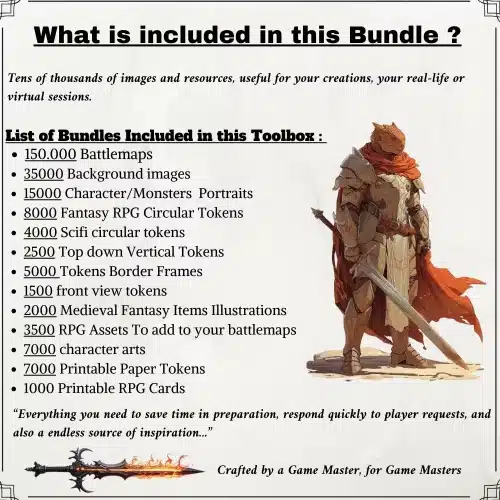
🎲 Get the Ultimate Toolbox Now
Instant Download • Lifetime Access
5. Setting up automated initiative: 3–6 step procedure
Example: Foundry with combat utility modules
To set up automated initiative in Foundry, follow these steps:
- Select your tokens on the map.
- Toggle the Combat State for each token.
- Use the Midi-QOL module to roll initiative for all selected tokens.
- Open the Combat Tracker to view the sorted turn order.
- Adjust any specific actor initiative modifiers if necessary.
- Confirm that all tokens are correctly linked to their respective actors.
This process allows you to quickly establish an organized turn order, ensuring that your combat flows smoothly. You can even pre-roll initiatives for recurring encounters to save time.

Tip: Regularly check the initiative settings to ensure they align with your game’s rules, especially if you have characters with unique modifiers.
Example: Roll20 macro sequence
In Roll20, setting up automated initiative can be done through macros. Here’s a quick sequence to follow:
- Select all tokens on the map.
- Run an initiative macro for each selected token.
- Open the Turn Order panel to view the sorted initiative.
- Assign turn notifications to players for better engagement.
- If you lack Pro access, instruct players to click their token and use a standardized “/me rolls initiative” macro.
This method helps streamline the initiative process, even without deep automation features.
Warning: Remember to test your macros on a single token first to ensure they function correctly before deploying them in a live session.
6. Automating attacks, hit/damage, and saves
Midi-QOL and damage workflow in Foundry
To automate attacks and damage in Foundry using the Midi-QOL module, you can follow this workflow:
- Ensure that the Midi-QOL and Dynamic Active Effects modules are installed and active.
- Confirm that your character’s attack features are configured properly in the actor sheet.
- Enable the “Auto Roll Attacks/Damage” option in the Midi-QOL settings.
- Set the Damage Application to “Apply damage to targets” for automatic HP adjustments.
- Conduct a test attack using a simple weapon to verify the entire process, from roll to damage application.
- Check that the chat displays clear messages for each roll, maintaining transparency for players.
This setup allows for seamless action resolution, keeping the game moving while ensuring players remain aware of the mechanics at play.
Tip: Consider implementing a “narrative pause” after critical hits to allow for dramatic storytelling, keeping players engaged in the unfolding action.
Roll20 example macros and inline rolls
In Roll20, you can create macros to automate attacks and damage effectively. Here’s how to set up a basic attack macro:
- Create a macro that rolls an attack and includes an inline damage roll.
- Use ChatSetAttr to modify hit points based on the damage rolled.
- Post the results in the chat for player visibility.
- Place this macro in your Macro Bar for easy access during sessions.
- Test the macro on a single token to ensure it functions as intended.
This approach allows you to streamline the attack process, but be prepared to manually adjust HP if you’re not using API scripts.
Example: Creating small, reusable macros for common actions (like short/long rests or bonus actions) can help speed up gameplay and reduce the need for repetitive manual entries.
7. NPC behavior scripting & simple AI
Using behavior tables and state machines can significantly enhance the automation of NPCs (non-player characters) in your games. These tools help streamline their actions during combat, making encounters feel more dynamic and engaging. A behavior table allows you to define a set of actions based on specific triggers or conditions. For example, if an NPC is low on health, it might prioritize healing itself before attacking a player.
To implement this, you can create a simple table with the following priority actions:
- Heal if health is below 25%.
- Attack the nearest player if adjacent.
- Move away if outnumbered.
- If none of the above are applicable, perform a defensive action, such as taking cover.
State machines can also be effective for scripting NPC behaviors. You can establish different states for your NPCs, such as “idle,” “aggressive,” and “retreating.” For instance, if an NPC’s health drops below a certain threshold, it could transition from “aggressive” to “retreating,” moving away from players and seeking cover. This predictable behavior enhances player engagement by creating a more immersive experience.
Tip: Start with a few simple rules for each NPC to avoid overwhelming complexity. As you grow more comfortable with scripting, you can expand their behaviors to include more nuanced interactions.
8. Token, map and spatial automation
Token and map automation can greatly streamline your gameplay experience by reducing the manual tracking of player movements and visibility. In Foundry, dynamic lighting and auto-vision features allow you to manage what players can see based on their character’s position and the environment. For example, if a player moves their token behind a wall, the dynamic lighting can automatically block their line of sight, keeping the game immersive and realistic.
To set this up, you can follow these steps:
- Create your map and designate walls or barriers.
- Assign vision settings to each token, specifying whether they can see in dim light, darkness, or have darkvision.
- Use movement templates to define areas of effect for spells or abilities.
- Test the settings by moving tokens around the map to ensure visibility and effects are working as intended.
- Adjust lighting and vision settings as necessary to enhance gameplay.
- Confirm with players that they can only see what their characters would realistically observe.
Warning: Be cautious with dynamic lighting on large maps, as it can affect performance for players with slower internet connections. Consider using simpler lighting setups in those scenarios.
Token status automation, such as HP (hit points) bars and overlays, can also enhance your combat encounters. With tools like Midi-QOL, you can set tokens to automatically update their HP bars when damage is taken or conditions change. This keeps players informed about their characters’ statuses without needing to manually adjust numbers during the heat of battle.
To configure this:
- Ensure each token is linked to its corresponding actor in your VTT.
- Set up the HP bar to display current HP, temporary HP, and any status effects.
- Use overlays for conditions like “stunned” or “incapacitated” to visually indicate the state of each token.
- Test the setup by applying damage in a sandbox session to see if the HP bars reflect the changes correctly.
- Adjust settings to ensure that all players can view the necessary information without compromising game balance.
- Regularly confirm with players that they can see their HP statuses and any overlays.
Tip: Keep overlays simple and use clear text labels to communicate conditions effectively. This will help maintain clarity during gameplay and avoid confusion.
9. Encounter building & balancing for automated combats
Building and balancing encounters for automated combat can save you time and ensure a smoother gameplay experience. Using templates for encounters allows you to quickly set up combat scenarios that are well-structured and reusable. In Foundry and Roll20, you can save monsters, token states, and full encounter templates, making future sessions much easier to manage.
When creating an encounter template, consider the following steps:
- Link all tokens to their respective actors.
- Set up initiative presets for each creature.
- Define automated abilities and their triggers.
- Configure the scenery and lighting settings to match the encounter’s theme.
- Attach a loot table for post-combat rewards.
- Test the encounter in a sandbox to ensure everything is functioning as intended.
Example: You might have a template for a goblin ambush that includes goblin warriors, a leader, and a hidden trap. By saving this template, you can quickly deploy it in future sessions with minimal adjustment.
Balancing automated minions and boss mechanics is equally crucial. Automated minions should have straightforward behaviors and low HP to avoid lengthy resolution loops, while bosses can incorporate scripted triggers that enhance their dramatic impact. For example, you might set a boss to unleash a powerful attack when its health drops below 50%, telegraphing this move to players to maintain engagement.
To balance your encounters effectively:
- Playtest with different party sizes to see how quickly combats resolve.
- Log round counts to adjust HP, damage, or the number of minions as necessary.
- Keep complex boss mechanics as manual triggers to maintain player agency and excitement.
- Regularly review and iterate on encounters to ensure they remain challenging but fair.
- Consider player feedback to fine-tune the balance of your encounters.
Warning: Always ensure that players can clearly see the telegraphs and counterplay opportunities in automated boss mechanics. This transparency keeps the game engaging and avoids frustration during critical moments.
10. Random encounter & loot automation
Using random tables and compendiums can add excitement to your game by automating encounters and loot distribution. Most VTTs support rollable tables that allow you to randomize encounters based on the environment or story context. This not only saves time but also keeps players on their toes as they won’t know what to expect.
To set up a rollable table for encounters:
- Create a themed rollable table, such as “Forest Encounters,” with entries like goblins, wild animals, or environmental hazards.
- Link this table to your encounter scripts so that when players enter a new area, a random encounter can trigger automatically.
- Test the table by rolling it in a sandbox environment to ensure the entries are balanced and fit the narrative.
- Incorporate tags for rarity or difficulty to help manage encounter scaling.
- Adjust the content based on player levels or story progression.
- Document the table’s purpose and intended use for clarity.
Example: If a player character ventures into a dark forest, rolling on the “Forest Encounters” table might result in a surprise ambush by a pack of wolves, adding tension and excitement to the narrative.
For loot automation, you can streamline the process of distributing rewards after encounters. When an NPC is defeated, you can link a rollable table for loot drops that automatically assigns items to player character inventories. This ensures that loot distribution is quick and fair, reducing downtime during sessions.
To implement loot automation:
- Create a loot table that reflects the type of items appropriate for the encounter.
- On the NPC’s death trigger, call the loot table to roll for items.
- Automatically create the item on the winning character’s sheet and post a message to the chat to inform players.
- Test this system in a controlled environment to ensure it works smoothly.
- Set a confirmation step for high-value items to maintain player agency.
- Log the loot rolls to provide transparency during the game.
Tip: Automating loot drops can greatly enhance the pacing of your sessions and ensure players feel rewarded for their efforts without unnecessary delays.
11. Integrations: chat, dice bots, D&D Beyond, TTS
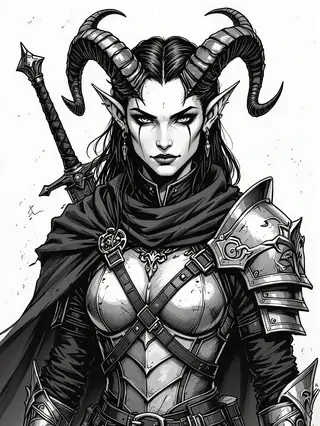
Integrating tools like Beyond20, API bridges, and webhooks can significantly enhance your gameplay experience by connecting different systems. Beyond20 is an excellent tool that links D&D Beyond to your VTT, allowing players to roll attacks, spells, and saving throws directly from their character sheets into the VTT chat. This integration helps streamline gameplay and keeps everything organized.
To set up Beyond20:
- Install the Beyond20 browser extension.
- Open your character sheet on D&D Beyond and navigate to the action you want to roll.
- Click the Beyond20 button, which will send the roll to your VTT chat.
- Verify that the result appears correctly and test it with different actions.
- Encourage players to use this tool for seamless integration.
- Regularly check for updates to the extension to ensure compatibility.
Warning: Ensure all players have the extension installed and configured correctly to avoid confusion during play.
API bridges can also connect various tools, allowing for a more cohesive experience. For example, you can use webhooks to sync actions between D&D Beyond and your VTT. This can enable features such as pushing critical hit events into a campaign’s Discord channel for persistent session logging.
To implement API bridges:
- Identify the tools you want to connect (e.g., D&D Beyond, Discord).
- Set up the necessary webhooks or middleware to facilitate communication between them.
- Test the connection to ensure data is flowing correctly.
- Use webhooks to push notifications for important events, like turn changes or critical hits, to keep everyone informed.
- Monitor the integration for any issues and adjust settings as necessary.
- Secure your API keys and permissions to prevent unauthorized access.
Tip: Use modular TTS (text-to-speech) add-ons for turn announcements and critical results. This can enhance accessibility for visually impaired players and make the game more engaging for everyone.
12. Speed-up workflows you can adopt mid-session
Implementing mid-session workflows can dramatically reduce combat time and improve the overall pacing of your game. By delegating certain responsibilities and pre-rolling certain actions, you can keep the game flowing smoothly. Here are a few techniques you can adopt to speed up combat without sacrificing the quality of the experience.
One effective strategy is to delegate initiative management to a player. This allows the GM to focus on narration while a player tracks turns and calls out when it’s time for each character to act. You can implement this with the following steps:
- Choose a player to manage initiative before the session starts.
- Provide them with a simple overview of the turn order and how to call turns.
- Encourage them to keep track of player actions and remind others when it’s their turn.
- Use a timer or visual cue to maintain a steady pace.
- Confirm with the player after the session to see if any adjustments are needed.
- Rotate this responsibility among players in future sessions to keep everyone engaged.
Example: In a recent session, I had a player manage initiative, and it allowed me to focus on the story and descriptions while they kept combat moving forward. This resulted in quicker rounds and more dynamic gameplay.
Another useful technique is pre-rolling likely damage or attack rolls for predictable quick-fire rounds. This can be particularly effective with minion groups or repeated actions. You can follow these steps:
- Identify likely actions that will occur during the encounter.
- Pre-roll and record these actions in a visible area for quick reference.
- Use macros to execute these rolls automatically if your VTT supports it.
- Ensure players are aware of the pre-rolls and can reference them easily.
- Adjust the actions based on player input or changes in the encounter.
- Test this method in a single session to evaluate its effectiveness.
Warning: While speeding up gameplay is essential, always ensure that players have the opportunity to engage with their characters and the narrative. Balance efficiency with enjoyment to maintain player satisfaction.
13. Testing, debugging & playtesting automation
How to simulate combats and log results
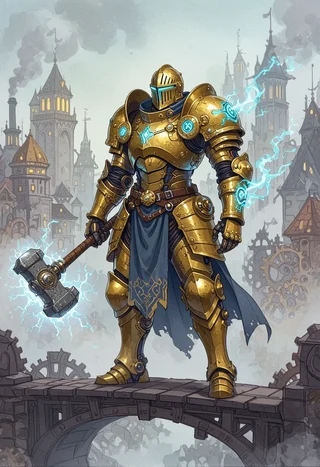
To ensure your automated combat encounters run smoothly, it’s essential to simulate combats and log the results. Start by creating a sandbox scene in your Virtual Tabletop (VTT), where you can test various mechanics without impacting your main game. Here’s a simple six-step procedure to follow:
- Isolate the mechanic you want to test, such as initiative rolls or damage calculations.
- Reproduce the scenario in your sandbox environment, ensuring all relevant tokens and actors are present.
- Enable logging or console output to track events during the simulation. This may involve turning on chat logs or using a console in Foundry for debugging.
- Run multiple iterations of the combat scenario (10-20 times is ideal) to gather sufficient data.
- Collect metrics such as round counts and time taken for each encounter to see how well your automation is performing.
- Adjust settings based on your findings to optimize the flow of combat.
By following this process, you can pinpoint areas that need improvement and verify that your automation works as intended. Remember, the goal of playtesting is not just to catch bugs but also to ensure the experience remains engaging for your players.
Tip: Keep a change log for module updates and document any adjustments you make during testing. This will help you track what works and what doesn’t, making future sessions smoother.
Common automation bugs and how to fix them
Automation can significantly streamline your gameplay, but it’s not without its challenges. Common bugs often arise from disabled modules, unlinked tokens, and malformed formulas. To tackle these issues effectively, consider this prioritized troubleshooting flow:
- Confirm that all necessary modules are enabled and that their versions match your VTT system’s requirements.
- Verify the links between tokens and their corresponding actors to ensure actions are executed correctly.
- Test with a minimal setup, such as one player character (PC) against one non-player character (NPC), to isolate the problem.
- Check the browser console for any JavaScript errors that may indicate what’s going wrong, especially in Foundry.
- If issues persist, try reproducing the scenario in a fresh world to see if the problem lies within your current settings or modules.
By following these steps, you can identify the root cause of automation failures and fix them efficiently. It’s also helpful to familiarize yourself with common error messages, such as “midi-qol not found” or “effect key mismatch,” so you can seek help more effectively in community forums.
Warning: Before seeking assistance from community resources, gather diagnostic information, including your module list and VTT version. This information will help others assist you more quickly.
14. Common pitfalls and how to avoid them
Over-automation risks and player agency
While automation can enhance gameplay by speeding up combat encounters, it can also lead to over-automation, which risks diminishing player agency. Players may feel disconnected from the game if they see fewer of their decisions impacting the outcome. To mitigate these risks, consider implementing strategies that maintain player engagement:
- Use transparency in your automation, such as displaying roll breakdowns in chat, so players can see how decisions and mechanics interact.
- Require confirmations for key automation actions, especially those that significantly impact the game, like death or major damage events.
- Apply a Narrative Pause after high-impact automated outcomes to allow players to react and engage with the story.
For example, if a character falls unconscious due to an automated damage calculation, take a moment to describe the scene and allow players to react before moving on. This approach maintains the drama and keeps players invested in the narrative.
Example: In one of my sessions, I experienced a situation where a player’s character died due to an automated action without any narrative context. This caused confusion and disengagement. After implementing a confirmation step for such critical events, players felt more connected and involved in the narrative.
Licensing, assets, and permission issues
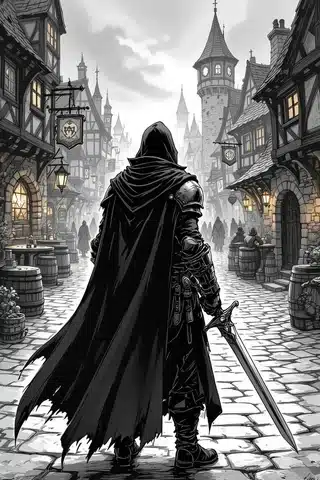
When automating your combat encounters, it’s crucial to ensure that all assets you use comply with licensing and permission requirements. Using unlicensed assets can lead to legal issues, especially if you’re streaming or monetizing your games. To avoid these pitfalls, follow these guidelines:
- Use licensed sources for your assets and always check the terms of use provided by creators.
- Confirm the rights for commercial use if you plan to stream or sell your games. This might involve reaching out to creators or looking up asset packages that specify commercial use.
- Credit creators appropriately in your materials and avoid copying paid compendium content without permission.
By ensuring that you respect licensing agreements, you not only protect yourself legally but also support the creators who make these valuable resources.
Warning: It’s essential to review asset and compendium licenses, especially if you plan to share your game publicly. Many creators appreciate acknowledgment and proper credit, so make it a standard practice in your games.
15. Workflow templates, examples, and reusable macros
Full worked example: a 6-step automated encounter
To illustrate how to automate a combat encounter efficiently, let’s walk through a six-step example using Foundry VTT. This will help you visualize the entire process from setup to execution:
- Load the encounter scene with pre-linked tokens that represent your players and NPCs.
- Toggle the Combat State to initiate combat, then roll initiative using the Midi-QOL module to automatically sort turn order.
- Use a scripted NPC behavior table for any minions to dictate their actions based on player movements or established priorities.
- Allow player actions to auto-roll attacks and damage, with Midi-QOL applying any effects automatically based on the results.
- Utilize Gambits to handle reactions, such as opportunity attacks, ensuring that all automated reactions are clearly communicated to players.
- On the death of a token, trigger a rollable table to determine loot drops, which will post the results to the chat for transparency.
This streamlined approach not only speeds up the encounter but also keeps players informed and engaged throughout the process.
Tip: After each step, take a moment to verify that everything is functioning as expected, such as confirming that initiative is populated and that damage rolls are reflected in the chat. This ensures you catch any issues early.
Reusable macro snippets and what they do
Creating reusable macro snippets can significantly enhance your efficiency during gameplay. Here’s a categorized list of macro intents that you can implement in your VTT, along with usage notes:
- Initiative Macros: Automate the initiative rolling process for tokens. For example, a macro like
!initiativecan roll for all selected tokens and update the turn order. - Apply Damage Macros: Use macros to apply damage automatically based on roll results. An example could be
!apply-damage @{selected|token_id} @{selected|damage_roll}. - Condition Application Macros: Quickly apply conditions to tokens with a macro such as
!apply-condition @{selected|token_id} stunned. - Loot Roll Macros: Create a macro that triggers a loot roll when an NPC dies, linking it to a rollable table for automatic loot distribution.
- Turn Announcement Macros: Use macros to announce whose turn it is in the chat for better player awareness.
By saving these snippets in a shared GM macro compendium, you can streamline your gameplay and ensure that important mechanics are executed consistently.
Example: I once had a session where I implemented a quick macro for applying conditions. It saved us several minutes and kept the game flowing smoothly, allowing for more engagement from the players.
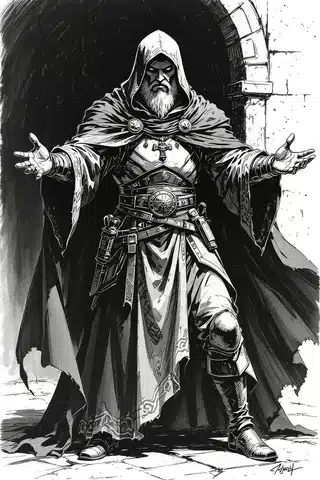
Tip: Use clear naming conventions for your macros, such as prefixing them with “Atk_” for attack rolls or “Cond_” for conditions. This practice makes it easier to find and utilize them during gameplay.
16. Resources & complementary tools
Asset packs, token packs and battlemaps
Having the right resources at your fingertips can significantly improve your gaming experience. Here’s a curated list of essential asset packs, token packs, and battlemaps that you can use in your VTT sessions:
- La boutique en elle même: A great source for various RPG assets.
- Post-Apocalyptic Backgrounds: Enhance your games with thematic visuals.
- Cyberpunk Miniatures: Perfect for futuristic settings.
- D&D Compatible Battlemaps: A massive collection to suit various encounters.
- Top-Down RPG Tokens: A great addition for visual clarity.
When selecting assets, prioritize those with clear licensing and high-resolution files to ensure they look great on the digital table.
Tip: Look for bundles that include multiple scales or types of assets, as these can provide more value and versatility for your campaigns.
Module repositories, scripts, and community resources
To aid your automation efforts, tap into community resources and repositories where you can find valuable modules and scripts. Here are some key resources to explore:
- Foundry VTT Official Site & Community: A hub for all things Foundry.
- r/FoundryVTT: A Reddit community where you can ask questions and find shared resources.
- Midi-QOL GitHub: For module details and support.
- r/FoundryVTTMods: Another Reddit community dedicated to module discussions.
- ENWorld Forums: A general resource for tabletop gaming discussions.
Encouraging your players to explore these resources can lead to improved gameplay and a more engaged gaming community.
Warning: Before posting on forums for help, gather your module list and any relevant version information to expedite the troubleshooting process. This preparation helps others assist you effectively.
In conclusion, automating your combat encounters can transform your online gaming experience, allowing for faster, more engaging sessions. By following the steps outlined in this guide—setting up your VTT, automating initiatives, actions, and damage—you’ll create a smoother gameplay flow that keeps players invested in the story. Don’t forget to test your setup and gather feedback from your players to fine-tune the automation. Now, go ahead and implement these strategies in your next session, and enjoy the benefits of a more dynamic and efficient game!
FAQ
How do I automate initiative and turn order in Foundry VTT?
Use the combat tracker, select tokens, toggle combat state, and roll initiative with Midi-QOL.
Can Roll20 automate damage and conditions without paid API access?
Yes, use macros for attack rolls with inline damage, but manual HP adjustments are needed.
What minimal automation should I use to speed up combats without losing player agency?
Automate initiative rolls and damage calculations while keeping tactical decisions manual.
How do I test automated encounters before running them live?
Create a sandbox scene to simulate combats and gather data on round counts and timing.
Where can I find tokens and battlemaps compatible with common VTTs?
Check platforms like Etsy and Foundry VTT marketplace for high-resolution assets.
Continue reading
- Token and Asset Management for Online Play: Free Workflows for VTTs
Token and asset management for online play — free workflows to organize, optimize, and deploy tokens across virtual tabletops. - How to play DnD in Solo
How to play DnD solo: practical steps, tools, and templates for engaging solo campaigns.