- 🎲 Understand the importance of token and asset management for online play.
- ✅ Discover free workflows to optimize virtual tabletop (VTT) assets.
- 🔎 Learn how to effectively use tools like GIMP and ImageMagick for batch processing tokens.
- 🧙♂️ Implement naming conventions and folder structures to keep your assets organized.
- 🎮 Explore importing procedures for popular VTTs like Roll20 and Foundry.
- 💡 Get tips on managing tokens in-play with layers and automation.
- 📂 Learn best practices for sharing and licensing assets with players.
- 🚀 Optimize performance and bandwidth during live sessions.
- 🤝 Collaborate effectively with co-GMs and teams.
- 🔧 Troubleshoot common problems related to token management.
Good token and asset management is crucial for enhancing the overall experience in online play. When you have your tokens and assets organized, it not only speeds up scene setups but also reduces mid-session friction. Imagine you’re in the heat of a battle and need to quickly pull up a specific token or asset. If everything is in disarray, you could waste precious time searching for what you need, leading to frustration for both you and your players. A well-organized library ensures that you can quickly access the right visuals, which keeps the game flowing smoothly.
Moreover, clear organization helps prevent duplicates and mismatched art styles, which can disrupt the visual consistency of your game. It also mitigates the risk of accidental license violations, particularly if you’re using purchased assets. Having a clear system means you can easily track where assets come from and how they can be used. This level of clarity not only enhances your gameplay but also fosters a more immersive experience for your players, who can easily identify characters and elements in the game world.
Tip: Consider implementing a consistent naming convention and folder structure to keep your assets organized. This will make it easier to find what you need during gameplay.
The benefits of good token and asset management extend beyond just organization; they significantly impact gameplay speed and clarity. For instance, when you have a library of tokens ready to go, you can spawn them quickly into your virtual tabletop (VTT) environment, like Roll20 or Foundry. This means less downtime during sessions and a more engaging experience for everyone involved. Additionally, players benefit from clear token visuals that provide tactical clarity, allowing them to understand their surroundings and make informed decisions during combat or exploration.
Good organization also reduces the cognitive load on both you and your players. When assets are easy to find and clearly labeled, it minimizes confusion during critical moments. For example, using a consistent naming scheme helps players quickly identify which token represents their character or an NPC. This clarity not only enhances the overall experience but also improves the efficiency of gameplay, leading to a more enjoyable session.
Example: Imagine a scenario where you have a well-organized token library. Your players are at a crossroads, and you need to quickly pull up a map of a nearby village. With everything labeled and categorized, you can find the right assets in seconds, keeping the narrative flowing seamlessly.
Poor organization can lead to several common pitfalls that disrupt gameplay. One major issue is the presence of duplicate tokens or mismatched art styles, which can confuse players and detract from the immersive experience. For instance, if two different goblin tokens are used interchangeably, it may cause players to question which one represents the actual goblin they are facing. Additionally, if files are not labeled correctly, you may encounter upload limits in platforms like Roll20, making it impossible to add new maps or tokens mid-session.
Another significant risk is the complication of collaboration if you’re working with co-GMs or a team. Poorly organized libraries can lead to permission conflicts and version confusion, where multiple people might be using different files without knowing it. This can result in wasted time and effort as team members struggle to sync their assets, ultimately leading to a disjointed gameplay experience.
Warning: Avoid using vague or inconsistent naming conventions, as they can lead to misunderstandings and wasted time. A clear structure helps everyone involved stay on the same page.
Getting started with token and asset management doesn’t have to be complicated, especially with the right free tools at your disposal. The core workflow can be broken down into concise steps: collect your art assets, clean and resize them as needed, name and tag them for easy identification, optimize for performance, and finally, import them into your chosen VTT. By following this streamlined process, you can efficiently prepare your assets for gameplay.
To help you get started, I recommend using free tools like GIMP for image editing, ImageMagick for batch processing, and Google Drive for cloud storage. These tools allow you to resize images, apply compression, and organize your files without incurring any costs. For example, you can quickly batch resize 500 images in just a few minutes using ImageMagick, which saves you significant time compared to manual editing.
Tip: Familiarize yourself with each tool’s capabilities to maximize efficiency. Knowing how to use GIMP and ImageMagick will be invaluable for your workflow.
The core steps in your workflow should follow a clear path from creation to deployment. First, source your art assets, whether they are from free resources like OpenGameArt or purchased from marketplaces. Next, use GIMP or another image editor to crop and shape your tokens according to your needs. For instance, you might want to create top-down tokens for tactical gameplay or circular tokens for character portraits. Once your tokens are ready, make sure to add transparency where needed and consider adding borders for better visibility against various map backgrounds.
After shaping your tokens, it’s crucial to resize them to common dimensions that are compatible with your VTT. A good rule of thumb is to use power-of-two sizes like 256×256 or 512×512 pixels for optimal rendering. Next, export your tokens in a suitable format, such as PNG or WebP, ensuring that you maintain transparency. Finally, import your tokens into your VTT of choice, making sure to test them in the environment to ensure they appear correctly.
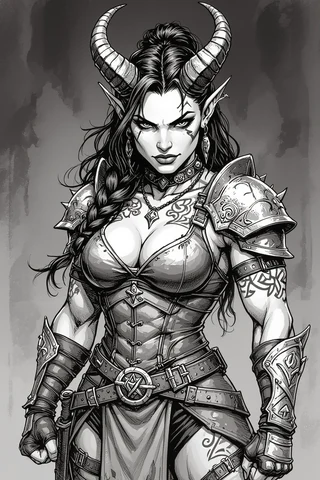
Example: If you’re using GIMP to create a top-down token, follow these steps:
- Open your image in GIMP.
- Use the “Ellipse Select” tool to crop the token.
- Add an alpha channel for transparency.
- Resize the token to 512×512 pixels.
- Export the token as a PNG file.
When it comes to managing tokens and assets effectively, having the right toolset can make all the difference. I recommend using a combination of the following free tools: GIMP for image editing, ImageMagick for batch processing, Photopea for browser-based edits, and ExifTool for metadata management. Additionally, Bulk Rename Utility can help with file naming, while Google Drive and GitHub serve as excellent options for cloud storage and version control.
For example, GIMP allows you to perform detailed edits to your tokens, while ImageMagick can handle bulk operations like resizing or converting file formats. If you find yourself needing to rename a large batch of files quickly, Bulk Rename Utility will save you a lot of time. By using these tools in conjunction, you can create a smooth workflow that keeps your assets organized and ready for deployment.
Tip: Take the time to learn the basic functions of each tool. Familiarity will help you work faster and more efficiently in your asset management process.
Establishing a consistent naming convention and folder structure is essential for effective token and asset management. A well-thought-out folder hierarchy can drastically reduce the time it takes to find specific assets. For instance, you might structure your folders as follows: “Campaigns/Maps/Tokens/PCs/NPCs/Monsters/Effects.” This hierarchical approach allows you to quickly navigate to the specific type of asset you need during a session.
In terms of naming assets, I recommend using a template like `[Type]_[Name]_[Variant]_[Size]x[Size].[ext]`. For example, a goblin scout token might be named `monster_goblin_scout_01_400x400.png`. This naming convention not only makes it easier to identify assets but also helps maintain consistency across your library. Additionally, including metadata in the filename, such as tags for creature types or abilities, can further enhance searchability.
Example: If you have multiple versions of a goblin token, you could name them `monster_goblin_scout_v1_400x400.png`, `monster_goblin_scout_v2_400x400.png`, and so on. This approach keeps your library organized and avoids confusion over which version to use.
To create a flexible yet organized naming schema, consider prefixing filenames by type. For example, you might use `pc_` for player characters, `npc_` for non-player characters, and `monster_` for creatures. This practice groups similar assets together, making navigation easier. Additionally, including size at the end of the filename allows for quick identification of the dimensions, which can be crucial when importing assets into a VTT.
Furthermore, implementing versioning tags can be immensely helpful. For instance, you could use `_v01`, `_v02` for iterations or a date-based system like `YYYYMMDD` for major updates. An example schema could look like this: `[prefix]_[race/class/name]_[CR/size]_[tags]_[v##]_[WxH].[ext]`. This method balances human readability with machine sorting capabilities, ensuring that you can easily find and manage your assets.
Tip: Regularly review and update your naming conventions as your library grows. This practice will help you maintain order and efficiency in your asset management.
Creating an effective folder structure can significantly streamline your asset management process. For a single campaign, you might use a folder tree like this: `VTT_Assets/Campaigns/DragonHeist/{Maps,Tokens/PCs,NPCs,Monsters,Effects}`. This organization allows you to quickly find and access the assets needed for your sessions.
For a shared library that spans multiple campaigns, consider a structure like this: `Shared/Icons/UI/Props` alongside separate folders for “approved” and “draft” assets. This setup allows for collaboration while keeping your library organized. Sample file names within these folders could include `monster_goblin_scout_01_400x400.png` or `map_village_square_512x512.webp`.
Example:
- Single Campaign Structure: `VTT_Assets/Campaigns/DragonHeist/Maps/`
- Shared Library Structure: `Shared/Icons/UI/Props/`
- Sample File Names: `npc_elf_archer_400x400.png`, `map_forest_path_512x512.png`
Choosing the right file formats and sizes for your tokens and assets is crucial for optimal performance during online play. PNG is the go-to format for tokens with transparency, as it supports lossless compression and retains alpha channels. WebP is another excellent choice, offering smaller file sizes while still maintaining transparency, making it a great option for modern VTTs. JPEG, on the other hand, is best suited for full-map backgrounds where transparency is not needed.
When it comes to sizing, aim for standard dimensions that work well across various platforms. Tokens typically perform best at sizes like 400×400 or 512×512 pixels. Keeping your token files under 100KB, where possible, is also essential for ensuring smooth performance during gameplay. This practice helps reduce loading times and minimizes lag, creating a more enjoyable experience for you and your players.
Tip: Always check the compatibility of your chosen format with your VTT. For instance, while WebP is efficient, not all platforms fully support it, so have a backup plan with PNGs.
Understanding when to use each file format can save you time and enhance your workflow. PNG should be your default choice for tokens that require transparency, as it preserves the alpha channel. If you’re looking for a smaller file size without sacrificing quality, WebP is a fantastic alternative, especially for tokens. Keep in mind that WebP is generally 30-60% smaller than PNG for comparable visual quality, which can be a significant advantage when managing a large library of assets.
For backgrounds or images that do not require transparency, JPEG is a suitable option. It compresses images efficiently, making it ideal for larger map files. However, be cautious as JPEG does not support transparency, and using it for token images can result in unsightly artifacts. A handy rule of thumb is to use PNG or WebP for tokens and JPEG for background images.
Example: If you’re creating a token for a forest creature, use PNG or WebP to maintain the transparency around the edges. For a landscape background, opt for JPEG to keep the file size manageable.
When exporting your images, choosing the right settings can make a big difference in both quality and file size. For ImageMagick, you might use a command like `magick *.png -resize 400×400 -strip -quality 85 -define webp:lossless=false batch_tokens.webp` to convert and resize your tokens in one go. This command not only resizes the images but also compresses them for optimal performance in your VTT.
In GIMP, ensure you adjust your export settings to remove unnecessary metadata and compress your files properly. For example, you can set the PNG export to use maximum compression while disabling Exif data. This helps keep your files lightweight without sacrificing visual quality. A practical approach is to use lossless PNG for pixel art tokens and lossy WebP for painted art to balance quality and size.
Tip: Always perform a quick visual check after exporting to ensure that the quality meets your expectations, especially when using compression settings.
Creating tokens is a straightforward process once you have your assets prepared. The two primary styles of tokens are top-down tokens for tactical play and circular cropped portraits for character representation. Both styles serve different purposes, and understanding when to use each can significantly enhance your gameplay.
For example, to create a top-down token, start with a high-resolution image (2000px or more) and crop it using GIMP. Use the “Rectangle Select” tool to select the area you want, then resize it to your desired dimensions (typically 400×400 or 512×512 pixels). Make sure to add an alpha channel for transparency, which ensures that the token blends seamlessly into the game environment.
Example: If you’re making a circular token, follow these steps:
- Open your character image in GIMP.
- Use the “Ellipse Select” tool to create a circular selection.
- Add an alpha channel for transparency.
- Resize the token to 400×400 pixels.
- Export the token as a PNG to maintain the transparency.
Cropping and shaping your tokens properly is essential for ensuring they look good on the battlefield. For circular tokens, use the “Ellipse Select” tool in GIMP to create a circular selection, ensuring that you maintain a center anchor for grid alignment. As a rule of thumb, keep 8-12% transparent padding around circular tokens to avoid clipping on borders, especially when placed on different backgrounds.
For top-down tokens, use the “Rectangle Select” tool to crop from the top view of the character or object. After cropping, remember to feather the edges slightly. This technique softens the edges and improves readability against various map lighting conditions. This attention to detail can make a significant difference in gameplay, as players will find it easier to identify their tokens.
Tip: Always check how your tokens look against different map backgrounds to ensure they are easily distinguishable. Adjust the padding and borders as necessary.
Adding transparent backgrounds and borders to your tokens enhances their visibility and overall presentation. In GIMP, start by ensuring your token has an alpha channel. Once that’s done, you can create a border layer by selecting the area around the token and filling it with your desired border color. This border not only adds a visual frame but also helps the token stand out on different types of maps.
To batch apply borders to multiple tokens, consider using ImageMagick or XnConvert. For instance, you can create a border layer and then use ImageMagick to composite this border onto each token in a single command, saving you a lot of time. This approach allows you to maintain consistency across your assets and ensures that each token is visually appealing.
Example: Here’s a quick procedure to create a border in GIMP:
- Add an alpha channel to your token layer.
- Create a new layer for the border.
- Select the area around the token and fill it with the border color.
- Export the token with the border as a PNG.
- Use ImageMagick to batch apply this border to your other tokens if needed.
Batch processing is a powerful technique that allows you to perform the same action on multiple files at once, which can save you hours when managing tokens and assets for your online play. For example, if you have hundreds of token images that need to be resized or converted to a different format, using batch processing tools can automate this process, ensuring consistency and saving time. Tools like ImageMagick and XnConvert are excellent for this purpose, and they are free to use.
With ImageMagick, you can quickly convert a batch of images from PNG to WebP format while resizing them in one command. This is particularly useful for virtual tabletop (VTT) assets where file size and format can significantly impact performance. A simple command like `magick mogrify -resize 400×400 -format webp *.png` would do the trick. This command resizes all PNG files in the current directory to 400×400 pixels and converts them to WebP format, optimizing them for use in VTTs.
ImageMagick is a command-line tool that can manipulate images in many ways, making it ideal for batch processing. Here are some practical commands you can use for your token management workflow:
- Convert and Resize: To convert all PNG files to WebP format and resize them to 400×400 pixels, you can use:
magick mogrify -resize 400x400 -format webp *.png
- Batch Composite Borders: If you want to add a border to all your tokens, you can use a loop in bash:
for f in *.png; do magick "$f" border.png -gravity center -composite "out/$f"; done
This command takes each PNG file, adds a border, and saves it in the “out” directory.
- PowerShell for Windows: You can also use PowerShell to resize images:
Get-ChildItem *.png | ForEach-Object { magick $_.FullName -resize 400x400 "out\$($_.BaseName).webp" }
Tip: When using batch commands, it’s a good idea to first test on a small number of files to ensure everything works as expected before processing a large batch.
If command-line tools feel daunting, free GUI (Graphical User Interface) tools like XnConvert and GIMP can make batch processing more accessible. These tools allow you to perform bulk operations through a more visual interface, which can be less intimidating for beginners.
XnConvert is a fantastic option that supports various image formats and offers a user-friendly interface for batch processing. To get started:
- Open XnConvert and add your images by dragging them into the program.
- Under the “Actions” tab, you can select operations like “Resize” or “Convert to” and specify your desired output format.
- Once your actions are set, go to the “Output” tab to choose where to save your processed files.
- Finally, click “Convert” to start the batch processing.
GIMP also allows batch processing through a plugin called Python-Fu. If you have GIMP installed, you can create a simple script to automate tasks like resizing or converting formats.
Tip: When using GUI tools, always preview your settings on a single file before applying them to a batch to ensure your output meets your expectations.
Importing tokens and assets into your virtual tabletop (VTT) of choice is a crucial step in preparing for your online game. Each platform has its unique procedures, and knowing these can save you frustration during a session. Below are streamlined import procedures for popular VTTs, along with tips for troubleshooting common issues.
To import tokens into Roll20, follow these straightforward steps:
- Upload to Art Library: Navigate to the Art Library in Roll20 and either drag your images directly into the library or use the upload button to select files from your computer.
- ZIP for Bulk Upload: If you have many images, consider zipping them into a single file, which can help you bypass the 10MB upload limit on free accounts.
- Drag into Game: Once uploaded, you can drag your tokens directly onto the game board for use.
If you encounter issues with image clarity, ensure that your tokens are the correct size for Roll20’s grid system. Tokens that are too large or small can appear fuzzy or misaligned.
Warning: If you run into upload issues, consider using external hosting solutions like Imgur for larger images, but be cautious about hotlinking, which can lead to broken images during your sessions.
Foundry VTT allows for a more organized approach to managing assets through the use of compendia. Here’s how to import tokens effectively:
- File Placement: Place your token images in the `Data/public/tokens/` directory of your Foundry installation.
- Refresh Assets: After placing the files, refresh your assets in Foundry to ensure they are recognized.
- Set Prototype Tokens: For NPCs or creatures, set prototype tokens on Actor sheets to streamline gameplay.
If you encounter missing assets, this might often be due to incorrect file paths or permissions. Ensure that your server has the correct file permissions set, typically `755` for directories and `644` for files.
Example: If you find that your tokens are not showing up, check the server logs for any error messages related to file paths or permissions, as these can provide valuable clues to resolve issues.
Importing custom assets into Tabletop Simulator (TTS) is relatively straightforward but does require a few specific steps:
- Import Assets: Use the “Create Object” menu to import your token images as custom assets or upload them directly to the Steam Workshop.
- Ensure Transparency: When importing, check that your tokens retain their transparency by using PNG format.
- Test in Single Player: Before publishing to the Workshop, test your tokens in single-player mode to ensure they display correctly.
If you notice that tokens appear invisible, it could be due to an issue with the alpha channel in your PNG files. Ensure that your image files are correctly formatted before uploading.
Tip: Consider creating a simple guide for your players on how to access and use the tokens if they are shared via the Workshop, as this can enhance their experience.
Fantasy Grounds has a unique method for managing assets that requires some organization. Here’s how to import tokens effectively:
- Place Tokens: Store your tokens in the `Campaigns/Assets/Images` folder.
- Reload Module: After adding your tokens, reload the module in Fantasy Grounds to make them available for use.
- Linking Images: Use the image linking feature to associate tokens with the appropriate NPCs or characters in your campaign.
If your tokens fail to appear, double-check that you have the correct naming conventions and that the tokens are in the right directory. Sometimes, a simple module rebuild can resolve missing assets.
Warning: Be mindful of the differences in behavior between the demo and full license versions of Fantasy Grounds, as this can affect how assets are managed and displayed.
Managing tokens effectively during your online sessions can greatly enhance gameplay. By using layers, status bars, and dynamic lights, you can create a more immersive experience for your players. Here’s how to optimize token management in-play.
Implementing overlays and health bars is crucial for tracking the status of tokens during gameplay. Here’s how to set them up:
- Add Overlays: Use overlays to indicate conditions like “stunned” or “hostile.” You can create a standardized set of overlay icons to maintain visual consistency.
- Health Bars: Use health bars to reflect the current hit points of each token, enabling quick visual assessments during combat.
To enhance readability, limit the number of overlays displayed on a single token. Too many visual indicators can lead to confusion, so consider using numeric health bars for precise HP representation.
Example: If you’re running a combat-heavy session, having a clear visual cue for each token’s status can significantly reduce the time spent on bookkeeping during turns.
Automation can drastically improve the speed and fluidity of your sessions. Consider implementing macros or simple scripts to manage token behaviors. Here’s how:
- Create Macros: Use macros to auto-update token health bars or switch token images based on status. For example, you can create a macro that sets a token’s health bar to a specific value when an event occurs.
- Toggle Overlays: Write a simple script to toggle overlay images based on conditions, such as changing the token’s appearance when it becomes “invisible.”
By automating these actions, you can focus more on storytelling and less on manual updates.
Tip: Familiarize yourself with the scripting capabilities of your chosen VTT, as they can provide powerful tools for enhancing gameplay and managing token states dynamically.
When managing tokens and assets, understanding how to share them legally is crucial. This section covers the best practices for sharing assets while respecting licensing agreements.
Different licenses dictate how you can use and share assets. Here are some common types to be aware of:
- CC0 (Creative Commons Zero): This license allows you to use the asset without any restrictions, including for commercial purposes.
- CC-BY (Creative Commons Attribution): You can use the asset, but you must give appropriate credit to the creator.
- Paid Licenses: Always check if the asset can be shared. Many paid assets come with restrictions that prevent redistribution.
To document permissions effectively, create a simple README file in your asset packs that includes the license type and attribution. For example:
License: CC-BY 4.0 — Attribution: Artist Name (URL)
Warning: Avoid sharing assets that come with restrictive licenses, as this can lead to legal issues. Always check the terms before redistributing.
Creating a shareable asset pack can enhance your players’ experience while ensuring you comply with licensing terms. Here’s how to prepare an asset pack:
- Organize Content: Include folders for tokens, maps, and any other relevant assets. Ensure each folder is clearly labeled.
- Include Documentation: Add a README file that outlines the license and usage terms, as well as an attribution list for any third-party assets.
- Zip the Pack: Compress the entire folder into a ZIP file for easy sharing, and consider hosting it on platforms like Google Drive or GitHub.
Tip: When creating your asset pack, consider including different resolutions of the same token to accommodate various player setups, enhancing usability.
Maintaining version control and backups is essential for protecting your valuable assets. Here’s how to implement effective strategies for managing your assets across devices.
Using Git for version control can be a robust solution for managing your assets. However, for larger binary files, Git LFS (Large File Storage) alternatives may be needed. Here’s how to set up a free solution:
- GitHub Releases: Use GitHub for version control and consider utilizing GitHub Releases for large binary files.
- Organize with Cloud Storage: Use Google Drive or rclone to sync your assets across devices, ensuring you have access to the latest versions anytime.
- Folder Structure: Implement a clear folder pattern like:
/master (current)
  /archive (old)
  /incoming (new)
  /approved (production)
Example: By maintaining a structured folder system, you can quickly locate and manage your assets across different campaigns and sessions.
Automating backups ensures that you never lose your hard work due to accidental deletions or corruptions. Here are steps to set up an effective backup strategy:
- Schedule Regular Backups: Use cron jobs or Task Scheduler to automate backups of your asset folders to a cloud service.
- Change Logs: Maintain a CHANGELOG.md file that documents changes made to your assets, including updates and version changes, using a simple format:
Date: YYYY-MM-DD
Author: Your Name
Changes: Brief description of changes
You can also use cron jobs (scheduled tasks in Unix-based systems) or Task Scheduler on Windows to automate the backup process. For example, a simple cron command could look like this:
0 2 * * * rclone sync /path/to/assets remote:backup
This command would sync your assets to a remote location every day at 2 AM.
Warning: Make sure to test your backup system regularly to ensure that your assets are being saved correctly. It’s easy to overlook this step, but a failed backup can lead to significant issues down the line.
When running online sessions, performance and bandwidth optimization are crucial to ensure a smooth experience for you and your players. Using efficient asset management strategies can significantly reduce lag and enhance gameplay. One effective method is to convert your tokens and images to the WebP format, which generally offers smaller file sizes without sacrificing quality.
Additionally, you can limit the number of active tokens on-screen at any given time. This not only reduces the load on your virtual tabletop (VTT) but also helps maintain a steady frame rate. Pre-loading assets before the session starts can also help by caching them in the browser, reducing the time it takes to load them during gameplay.
Example: A practical pre-loading strategy could involve creating a dedicated “warm-up” scene where you load all necessary assets before starting the main session. This way, players experience minimal lag when transitioning to the actual game.
To further optimize performance, consider using tiled maps and Level of Detail (LOD) techniques. Tiling maps involves splitting a large map into smaller sections or tiles, allowing the VTT to load only the visible tiles during gameplay. This significantly reduces the bandwidth required, especially for large maps.
For instance, you could divide a 2048×2048 px map into 256×256 px tiles. This way, you only load the tiles that players can see, minimizing the load time. To create tiles, you can use a tool like ImageMagick with a command like:
magick input-map.png -crop 256x256 +repage tile-%d.png
This command will generate individual tiles named `tile-0.png`, `tile-1.png`, and so on.
Tip: Always test your tiled maps in a private session to ensure they load correctly before introducing them to your players. This helps you catch any potential issues early.
Implementing caching strategies can significantly improve the performance of your online sessions. By pre-loading assets, you ensure that they are readily available when needed, reducing lag during gameplay. A simple way to achieve this is by creating a dedicated scene that loads essential assets before the main session starts.
You can also take advantage of server-side caching headers if you host your VTT. This instructs the browser to store certain files locally, meaning they won’t need to be downloaded again during the session. Additionally, clearing your browser cache before a session can help eliminate any outdated files that could cause performance issues.
Example: A pre-load checklist might include:
- Create a “loading” scene with all essential assets.
- Ensure all assets are correctly linked and accessible.
- Test the loading scene in a private game before the actual session.
Effective collaboration is key when working with teams or co-GMs on your online sessions. Establishing clear workflows and permission models can help streamline your asset management process. Using shared drives, like Google Drive, allows everyone to access necessary files while maintaining control over who can edit or approve changes.
You might consider implementing a simple permission model:
- Uploader: Can add new assets.
- Approver: Reviews and approves new assets.
- Viewer: Can access files but not make changes.
This structure ensures that everyone knows their role and helps prevent confusion or accidental overwrites. Regularly scheduled meetings or updates can also help keep everyone on the same page regarding changes and new assets.
Tip: Use a dedicated communication channel, such as Discord, to keep track of changes and updates. This allows for instant feedback and quicker decision-making among team members.
Creating a shared asset library can greatly enhance collaboration within your team. By using a platform like Google Drive or GitHub, you can store assets in a centralized location, making it easy for all team members to access what they need. Implementing a clear permission model is essential for maintaining control over your assets.
Consider a folder structure where each folder has specific access rights. For example:
- Assets: Read-only for all team members.
- Incoming Assets: Editable by uploaders only.
- Approved Assets: Read-only for everyone, editable by approvers.
This way, you can ensure that only vetted assets are used during gameplay, reducing the risk of errors or confusion.
Warning: Be cautious with folder permissions. Incorrect settings can lead to unwanted changes or loss of important files, so always double-check your configurations.
Effective communication is crucial for managing asset changes and conducting playtests. Establishing a clear process for submitting, reviewing, and approving new assets can help streamline your workflow. Using version prefixes (like v1_, v2_) can also help track changes over time.
A compact workflow might include:
- Submit a new asset with a brief description.
- Review and provide feedback in a designated channel (like Discord).
- Approve and move the asset to the approved folder.
Having a structured playtest checklist can also improve the quality of your sessions. This ensures that all new assets are properly vetted before being introduced to your players.
Tip: Encourage team members to document their feedback and suggestions in a shared document. This creates a record of changes and helps everyone stay informed about updates and improvements.
As you manage your tokens and assets, you may encounter common problems that can disrupt your sessions. Having a quick reference for troubleshooting can save you valuable time. For instance, blurry tokens may be caused by incorrect scaling or resolution. Always double-check the dimensions of your images before importing them into your VTT.
Another common issue is import errors, which can often be traced back to file permissions or incorrect paths. Ensure that your assets are placed in the correct directory, and verify that they have the appropriate permissions set. A quick checklist for troubleshooting might include:
- Verify the file path and location.
- Check file permissions (ensure appropriate access).
- Refresh the VTT to clear any cached issues.
Warning: Don’t overlook the importance of testing your assets in a private session before going live. This allows you to catch any potential issues and address them before they impact your players.
Token transparency issues can be frustrating, but they are often easy to fix. If you’re experiencing artifacts around the edges of your tokens, it may be due to how the alpha channel (the part of an image that defines transparency) is being handled. To resolve this, ensure that your tokens are exported with the correct alpha settings.
One quick fix involves using ImageMagick to re-export your tokens with a command like:
magick input.png -background none -alpha set output.png
This command sets the background to transparent and retains the alpha information. Additionally, applying slight feathering to the edges can help soften hard lines and improve the overall appearance of your tokens.
Tip: Always preview your tokens in the VTT before the session starts. This helps you catch any transparency issues early and ensures that everything displays correctly.
Import errors can be a significant headache when managing assets for your online sessions. Common issues often stem from incorrect file paths or permissions. First, double-check that your assets are placed in the right directory within your VTT. For example, in Foundry, assets should be located in the `Data/public` folder.
To troubleshoot, follow this quick checklist:
- Verify the correct file path for your assets.
- Check file permissions to ensure they are set correctly (e.g., `chmod 644` for files and `chmod 755` for directories).
- Look for any special characters or spaces in file names that could cause issues.
By systematically checking these factors, you can quickly identify and resolve import errors, ensuring a smoother experience during your sessions.
Warning: Always keep an eye on VTT console logs for any error messages. They can provide valuable insights into what went wrong and how to fix it.
When it comes to managing your tokens and assets effectively, having the right tools at your disposal is essential. Here are some selected resources that can help streamline your workflows:
These curated items can provide you with high-quality assets to enhance your gaming experience.
These tools are invaluable for managing, editing, and sharing your assets, ensuring you have everything you need for successful online play.
Use Bulk Rename Utility or ImageMagick for batch renaming and tagging.
PNG and WebP provide the best balance for VTT tokens.
Place tokens in the Data/public/tokens/ directory and refresh assets.
Check licensing terms; many prohibit redistribution of purchased assets.
Ensure images are saved as PNG and check alpha channel settings.
FAQ
How do I batch-rename and tag hundreds of tokens quickly?
Use Bulk Rename Utility or ImageMagick for batch renaming and tagging.
What file format gives the best balance of quality and bandwidth for VTT tokens?
PNG and WebP provide the best balance for VTT tokens.
How do I import a token library into Foundry VTT and keep it organized?
Place tokens in the Data/public/tokens/ directory and refresh assets.
Can I legally share assets I bought from online marketplaces with players?
Check licensing terms; many prohibit redistribution of purchased assets.
What are quick fixes when tokens show black/white squares instead of transparency?
Ensure images are saved as PNG and check alpha channel settings.
Continue reading
- How to Become a Digital Dungeon Master (Online & VTT Guide)
How to Become a Digital Dungeon Master — step-by-step VTT setup, tools, mapping, tokens and session workflows for running online RPGs. - How Professional Dungeon Masters Prepare Sessions: Tools, Workflows & Asset Bundles
Discover effective dungeon master session prep techniques and tools for engaging tabletop RPG sessions.