Running a Dungeons & Dragons game on Discord can be an exciting and engaging experience with the right setup and tools. This article will guide you through the process of effectively using Discord to host your DnD campaign, ensuring smooth communication and gameplay.
What you’ll learn in this article
- 🎲1How to effectively run DnD on Discord , ensuring smooth communication and gameplay.
- ✅2Setting up a Discord server structure with channels and roles tailored for your campaign.
- 🔎3Utilizing Discord bots for DnD like Avrae for character management and combat automation.
- 🧙4♂️ Managing combat flow and initiative tracking within Discord using macros and bot commands.
- 📜5Techniques for sharing Discord tokens and maps to enhance player engagement without a VTT.
- 🎨6Recommended resources for acquiring art and map packs to elevate your sessions visually.
- 🛠7️ Tips for troubleshooting common issues like audio problems and bot permissions.
- ✏8️ Creating templates for session messages and reminders to keep players informed and engaged.
- 🎲9Music, ambiance and timed audio cues
- 🎲10Automation & macros: examples and best practices
- 🎲11Session prep workflow (3–6 step procedure)
- 🎲12Recordkeeping, backups & campaign logs
- 🎲13Accessibility, safety tools and table etiquette
- 🎲14Troubleshooting & common problems
- 🎲15Examples: sample session transcript snippets
- 🎲16Resources & complementary tools (name, why it’s useful, URL)
- 🎲17Further reading & templates (server export, invite text, session agenda)
1. Planning a Discord-only DnD campaign
Define goals, session length, and expected tech baseline
When you’re planning to run a DnD game on Discord, it’s essential to clearly define your campaign goals and structure right from the start. Decide whether you want to run one-shots (self-contained adventures) or a long-term campaign with a continuing storyline. Having a target tone—whether it’s serious, comedic, or somewhere in between—will help set the mood for your sessions. Additionally, establish how often you want to meet and the expected length of each session.
You should also determine the expected tech baseline for your players. Make it clear that using the desktop app is recommended for better stability, and encourage everyone to test their microphones and internet connections ahead of time. You might even want to create a fallback plan for when a player drops out, such as having NPCs ready to step in or pausing the game temporarily. This preparation will minimize disruptions during your sessions, allowing for a smoother experience.
Decide ruleset, homebrew scope and character management
Choosing the right ruleset is crucial for your Discord DnD campaign. Common options include Dungeons & Dragons 5th Edition (5e) or Pathfinder. You’ll also want to decide how you’ll manage character sheets. Many players use D&D Beyond for hosting their characters, which integrates well with bots like Avrae. Establishing a clear homebrew policy—what’s allowed and how changes will be approved—will help prevent disputes later on.
It’s important to outline the character approval process. For example, you could have players post their character builds in a #character-creation channel for the GM to review within a specified timeframe. This ensures that everyone starts with a clear understanding of what’s acceptable in your campaign. By tying character records to a bot like Avrae, you can streamline gameplay and automate many aspects of character management, making your sessions more efficient.
2. Discord server structure and roles
Sample channel list (10+ channels) with purpose and permissions
Creating a well-structured Discord server is key to running a successful DnD campaign. An effective channel list might include channels like #announcements for important updates, #general for casual chat, #dice for rolling, and #character-sheets for players to share their characters. You can also include specific channels like #battle-maps for sharing visual aids, #lore-and-worldbuilding for collaborative storytelling, and #session-logs to keep track of what happens each session.
Consider using categories to group these channels logically. For instance, you might have a “Gameplay” category that includes #dice, #battle-maps, and #session-live, while a “Community” category could encompass #general and #downtime discussions. This organization makes it easy for players to navigate and find the information they need quickly. Additionally, you should designate at least one DM-only channel where sensitive information can be shared without risking accidental leaks.
Role design: players, co-GMs, observers, bots
Roles in your Discord server help manage access and streamline communication. Start with essential roles like GM and Player, and consider adding roles for co-GMs, observers, and bots. Co-GMs can help manage initiative, run side scenes, or assist with rules, while observers can participate without interfering in the game. It’s also beneficial to have a dedicated “Bots” role with constrained permissions, ensuring that bots can function without having access to sensitive channels.
To prevent permission issues, you should define clear responsibilities for each role. For example, the GM should have full permissions to manage channels and messages, while players should only have access to channels relevant to them. Additionally, providing a role hierarchy can help you avoid permission creep, which can lead to accidental leaks of secrets or spoilers. By carefully assigning roles and permissions, you’ll create a smoother and more organized experience for everyone involved.
3. Channel-by-channel setup (text, voice, and categories)
Lobby, Session-Prep, Session-Live, OOC, Resources, Archives
When setting up your Discord server channels, organizing them into distinct categories will help players find what they need quickly. A suggested structure could include a “Lobby” category for initial information and invites, a “Session-Prep” category for scheduling and handouts, and a “Session-Live” category for active gameplay. You should also create an “OOC” (Out of Character) category for casual conversations and a “Resources” category for rules and maps, alongside an “Archives” category for session logs and past materials.
Each channel should have a clear purpose. For instance, the #session-live channel could be where the action happens, while the #session-prep channel is where you post reminders and maps. Utilizing pinned messages for quick reference can also be a great way to keep essential information accessible without cluttering the chat. Additionally, consider using threads for side discussions or play-by-post interactions to keep the main chat focused on the ongoing session.
Setting channel permissions for secrets and spoilers
To maintain the integrity of your campaign and protect sensitive information, setting appropriate channel permissions is crucial. For DM-only channels, remove the @everyone role and only allow the GM role to access them. This keeps secrets safe and minimizes the risk of accidental leaks. You might also want to use direct messages (DMs) to share sensitive information or secrets with players at the right moment.
Consider using ephemeral strategies for sharing secrets. For example, you could post a secret in a GM-only channel and DM the relevant player at the right moment, then delete or move the message to archives after the reveal. This method ensures that sensitive information is only accessible when necessary. Additionally, testing permissions with a non-GM account before the session can help you identify any potential leaks, ensuring that everyone knows what they can and cannot see.
4. Bots for dice, characters and automation
Dice bot basics: Avrae, Sidekick, Dice Maiden examples
Integrating dice bots into your Discord server can significantly enhance the gameplay experience. Avrae is a powerful bot that offers advanced automation for Dungeons & Dragons 5e, allowing players to roll dice, manage character sheets, and track initiative seamlessly. On the other hand, Dice Maiden is a simpler option that focuses primarily on rolling dice with straightforward commands. To add a dice bot, simply invite it to your server and follow the setup instructions provided in its documentation.
Once your dice bot is set up, familiarize yourself with basic commands. For example, in Avrae, you can roll a dice using the command !roll 1d20+5, while Dice Maiden uses a similar command structure. It’s essential to test these commands before your first session to ensure everything works smoothly. I recommend designating one bot for rolling to avoid overlapping commands, which can lead to confusion during gameplay.
Character sheet bots & linking character records
Using character sheet bots like Avrae can streamline gameplay by automating character management. If your players use D&D Beyond, you can link their character sheets to Avrae for easy access. This integration allows players to roll stats, cast spells, and update health directly through the bot, making it easier to keep track of everything during sessions. To link a character, players will need to authenticate their D&D Beyond accounts and ensure their character privacy is set to public.
For players not using D&D Beyond, you can still manage character sheets by having them post their stats in a designated #character-sheets channel or by using a manual stat block. Encouraging players to keep their character information updated will help maintain gameplay flow. It’s also helpful to pin a message with instructions on how to link characters, which will reduce confusion and ensure everyone is on the same page during the game.
Example bot commands and macros
To enhance your gameplay experience, you can create macros—short commands that execute multiple actions with a single input. For instance, in Avrae, you could set up an initiative macro that automatically tracks turns. A simple example might include:
- The GM initiates the roll with
!init start. - Players add their initiative rolls with
!init add [character] [roll]. - The GM then lists the order with
!init order.
Using macros can reduce manual bookkeeping and streamline combat, allowing for a more fluid gameplay experience. You can also create custom commands for frequently used actions, such as healing spells or status updates. Storing these commands in a dedicated #bot-commands channel can make them easily accessible for everyone.
5. Running combat and turn management inside Discord
Simple skirmish flow (3–6 steps) with example commands
Running combat in Discord can be structured into a straightforward flow to keep the game moving smoothly. A simple skirmish can follow these steps:
- Roll Initiative: The GM calls for initiative rolls, and players roll using the command
!roll 1d20+[DEX]. - Post Order: The GM posts the initiative order in the #session-live channel for everyone to see.
- Announce Turns: The GM announces whose turn it is and encourages the player to declare their actions.
- Resolve Actions: Players take their actions, and the GM resolves any attacks, spells, or maneuvers.
- Update Pinned Message: After each turn, the GM updates the pinned message with the current state of combat (HP, status effects, etc.).
- Repeat: Continue this flow until the combat is resolved.
This structured approach helps keep everyone engaged and minimizes confusion about whose turn it is. I often encourage players to keep their declarations concise to maintain the game’s momentum. You might even set a soft turn timer, like 60-90 seconds, to encourage quicker decision-making.
Multi-map encounter flow and token management
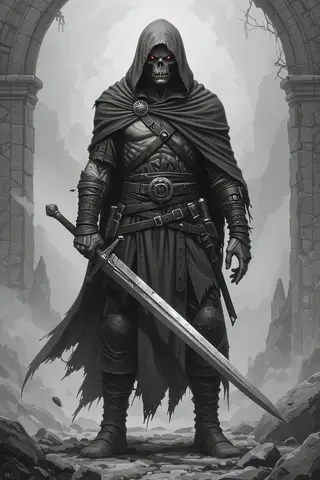
When running multi-map encounters, clear communication and organization are key. You can use separate map images for each room and upload them to your #battle-maps channel. As players explore, share the current map via screen share and update the pinned message with progress. You can also use emoji markers to represent player and enemy tokens on the maps, making it easy to visualize actions without needing a separate virtual tabletop (VTT).
For transitioning between rooms, it’s helpful to maintain a pinned index of maps in the #battle-maps channel. When players clear a room, post a quick update like, “Room cleared! Moving to the next area,” and swap out the screen-share image for the new room. This keeps the game fluid and ensures everyone knows the current state of play. You might also encourage players to use reactions to indicate their movements, which adds another layer of engagement.
6. Maps, tokens and visual aids without external VTTs
Techniques for posting maps and hiding/revealing areas
When using Discord to manage maps and visual aids, you can employ various techniques to effectively reveal areas and maintain a sense of exploration. Start by uploading your map images to the #battle-maps channel, and consider annotating them with replies or emoji reactions to indicate important features. For example, you might use 🔴 for enemies and 🔵 for player positions. This method allows players to visualize their surroundings without needing a dedicated VTT.
To create a fog-of-war effect, you can initially upload a complete map to a private GM channel, then crop or blur sections as players explore. As they enter new areas, share the revealed segments in the #battle-maps channel. Using threads or ephemeral messages can also help manage secrets, allowing you to DM players about hidden areas or treasures without revealing them to the entire group. This adds an element of surprise and keeps players engaged.
Recommended art & map packs (select GM Craft Tavern assets included)
When it comes to visual assets for your Discord DnD campaign, investing in high-quality map and token packs can save you a lot of time and enhance your gameplay experience. I recommend checking out some curated bundles available on Etsy, like the Game Master Toolbox, which contains over 350,000 assets, or the 200,000 DnD-compatible battlemaps pack. These resources can provide you with everything from detailed maps to character tokens, making it easier to create immersive environments for your players.
When purchasing assets, ensure you keep them organized by categorizing them into folders like battlemaps, tokens, and brushes/assets for quick access during your sessions. It’s also important to verify the licensing for commercial use if you plan to share these assets with your players. This way, you can avoid any potential copyright issues while still providing a rich visual experience for your game.
7. Sharing secrets, handouts and private info
DM-only channels and ephemeral messages
Creating DM-only channels is essential for managing secrets and sensitive information during your Discord DnD sessions. These private channels allow you to share information with only the GM and any designated players without risking accidental leaks. You can set up a channel specifically for your DM secrets, where you can post notes about upcoming encounters, NPC motivations, or hidden treasures. This ensures that players remain unaware of critical plot points until the right moment.
In addition to dedicated channels, utilizing ephemeral messages can enhance your communication. For example, you can send a DM to a player with crucial information about their character’s background or a secret they uncover during the session. After they acknowledge the message, you can delete it to prevent any screenshots or accidental leaks. This method keeps your game dynamic and engaging while ensuring players remain immersed in the experience.
Using embeds, spoilers, and direct messages safely
Discord offers several tools to help you share information securely and effectively, such as embeds and spoilers. Embeds allow you to format your messages neatly, which is particularly useful for handouts or important notes. For example, when preparing a handout for your players, include a title, a brief description, and a clear footer with any relevant timestamps. This makes it easier for players to digest the information quickly.
Additionally, using Discord’s spoiler functionality (||text||) can help you manage sensitive information. For instance, if you’re revealing a plot twist or a hidden treasure, you can mark the text as a spoiler so that only players who want to see it will do so. You can also send direct messages for secrets that require immediate attention. For added security, consider implementing a “reveal confirmation” step, where players must post a specific code or phrase in the chat to confirm they’ve read the information. This not only ensures they are engaged but also adds an interactive element to your sessions.
8. Voice, streaming, and video tips for theater-of-the-mind
Low-latency voice settings and moderator controls
To ensure a smooth and engaging experience during your Discord DnD sessions, it’s essential to optimize your voice settings. Start by using the desktop app, as it tends to provide better stability than mobile versions. Check your audio levels before the session begins, and join the voice channel at least five minutes early to test everything. If you experience latency issues, consider adjusting the voice region settings in your server settings—Discord typically auto-selects the best option, but manual adjustment can help in some cases.
Establishing moderator controls is also crucial for maintaining order during sessions. Designate a moderator to manage the voice channel, mute or unmute players as needed, and facilitate screen sharing. This ensures that the GM can focus on storytelling without being distracted by technical issues. Additionally, using push-to-talk (a feature that requires you to press a button to transmit audio) can help reduce background noise, making the session more enjoyable for everyone involved.
Using screen share for maps or handouts
Screen sharing can be a game-changer for visualizing maps and handouts during your Discord DnD sessions. When sharing your screen, make sure to select the window that contains the map or handout you want to display. Avoid minimizing the window during the session, as this can cause interruptions in the stream. For best results, consider sharing a dedicated image viewer window instead of your entire desktop, which helps keep distractions to a minimum.
If your screen share fails or if players are having trouble seeing the map, have a backup plan in place. You can upload a lower-resolution version of the map to a designated channel and direct players to open it separately. This way, even if the screen share doesn’t function as expected, players can still engage with the material. Always remember to keep private notes hidden by using separate windows to avoid any accidental reveals during your session.
9. Music, ambiance and timed audio cues
Bots and streaming tools for playlists and sound effects
Incorporating music and sound effects can significantly enhance the atmosphere of your Discord DnD sessions. You can use music bots or streaming tools to play ambient tracks that match the theme of your campaign. For example, if your party is exploring a haunted forest, playing eerie background music can increase tension and immersion. Ensure you choose royalty-free music or subscription services to avoid any copyright issues.
To manage sound effects, keep short audio clips (2–10 seconds) preloaded for easy access during gameplay. You can either use a bot to trigger these sounds or set up hotkeys with streaming software like OBS (Open Broadcaster Software). For a simple setup, consider creating a second user account in the voice channel that plays sound effects from a browser tab, allowing for seamless integration without overwhelming the main audio feed.
Scheduling audio cues and voice channel volume controls
Effective audio management during your DnD sessions involves planning and controlling the volume of different audio elements. One way to achieve this is by preparing a cue sheet that outlines the timing and specific sounds you want to play throughout the session. This can include background music, sound effects for combat, or ambient noises for different environments. By organizing your audio cues in advance, you can ensure a smoother experience and maintain immersion.
Additionally, consider using OBS or similar software to manage audio levels effectively. Volume ducking (automatically lowering the volume of background music when someone speaks) can help maintain clarity during discussions while still providing an atmospheric backdrop. If you’re playing with remote groups, share your cue list with co-GMs so they can assist in triggering sounds if you become busy with the game flow.
10. Automation & macros: examples and best practices
Initiative tracking macro (3–5 step example)
Tracking initiative during combat can be streamlined using macros in Discord. With a simple setup, you can efficiently manage turn order and speed up gameplay. Here’s a straightforward example of how to create an initiative tracking macro using Avrae, a popular Discord bot for DnD automation:
- GM Initiates Combat: The GM types
!init startto begin the initiative tracking. - Players Roll Initiative: Each player rolls their initiative by typing
!init add [character] [roll]. They can automate this with!init rollif they have their characters linked to the bot. - GM Displays Order: Once all players have rolled, the GM types
!init orderto display the initiative order in descending format. - Advance Turns: The GM can then type
!init nextto move to the next player’s turn smoothly.
This macro allows for quick updates and visibility into the combat flow, making it easier for everyone to stay engaged and focused. You can also establish a fallback with simple manual tracking, such as a pinned message that indicates the current turn order.
HP and resources automation patterns
Managing hit points (HP) and resources during combat can be a challenge, but automation can make this process much smoother. Using Avrae, you can implement a series of commands that automatically update and track HP changes, reducing manual bookkeeping and minimizing confusion. Here’s how you can set this up:
- Setting HP: To set a character’s HP, the GM or player can type
!hp set [character] [current]/[max]. - Updating Damage: If a character takes damage, the command
!damage [character] [amount]will automatically adjust their HP and log the change. - Healing Potions: Create a quick command or macro that applies healing effects and posts a log message for transparency.
It’s also a good idea to maintain a pinned status board message that lists each character’s current HP and conditions, which can be updated each round. This ensures that players can easily see the health status of their characters without having to ask during combat.
11. Session prep workflow (3–6 step procedure)
Quick prep checklist and file organization
Preparing for a DnD session on Discord requires a structured approach to ensure everything runs smoothly. Here’s a simple workflow to help you get ready before each session:
- Review Notes: Go through your session notes to refresh your memory on the plot points and NPCs.
- Prepare Encounters: Set up any encounters you plan to use, including monsters and their stats.
- Test Your Bots: Run a quick test with your dice bot to ensure it’s functioning correctly.
- Pin Maps and Handouts: Pin any relevant maps or handouts in the appropriate channels for easy access during the session.
- Test Voice Settings: Make sure your microphone and audio output are working properly.
By following this workflow, you can minimize last-minute scrambling and ensure that you have all the necessary materials ready for your players. It also helps establish a routine that can make each session feel more professional and well-organized.
Pre-session player reminders and info dumps
Keeping your players informed and engaged before a session is vital for a smooth experience. Use scheduling tools like Apollo to send reminders to your players. I recommend sending reminders at three key intervals: 72 hours, 24 hours, and 1 hour before the session begins. This helps ensure that everyone is prepared and aware of the upcoming game. Include a checklist of things they should prepare, like spells, gear, and current HP.
For larger lore dumps or important information, consider placing these in a designated channel, such as #session-prep or #handouts. Label these as “optional reading” to encourage players to engage without overwhelming them. You can also use emoji reactions for RSVP confirmations, so you know who will be attending and who may need to catch up later.
12. Recordkeeping, backups & campaign logs
Exporting chat, saving attachments, and versioning
To keep track of your DnD sessions on Discord, it’s essential to have a solid recordkeeping strategy. After each session, make sure to export your chat logs and save any attachments shared during the game. You can use tools like DiscordChatExporter to create daily or weekly archives in formats like HTML or JSON. This allows you to have a comprehensive log of your conversations, decisions made, and any crucial plot points discussed during gameplay.
When you save attachments, consider using a cloud storage solution like Google Drive or Dropbox. For effective organization, adopt a versioning system for your files. For example, use a naming convention like YYYYMMDD_sessionname_asset (e.g., 20231015_SpookyCaves_map_v1.jpg). This way, you can easily track changes and updates to your campaign materials. Remember to back up your files in at least two locations: one on your local device and another in the cloud to prevent loss.
Recommended storage & file-naming conventions
Establishing a clear file-naming convention and structured folder layout is vital for managing your DnD campaign assets effectively. For instance, you might organize your files into a main directory for your campaign named after the campaign itself, such as /CampaignName/. Within this folder, create subfolders for each session, labeled by date (e.g., /Session-YYYYMMDD/) and further categorize them into maps, tokens, handouts, and audio files.
When it comes to naming individual files, stick to a consistent format such as YYYY-MM-DD_campaign_session_room_asset_vX.ext (e.g., 2026-01-12_BlackFen_room02_map_v1.png). This method ensures that you can easily find and sort files later, especially during long campaigns where multiple assets are in play. Additionally, retaining master copies of all assets indefinitely while pruning working files older than a few months can keep your storage manageable.
13. Accessibility, safety tools and table etiquette
Running X-card / lines & veils inside Discord
Incorporating accessibility and safety tools into your Discord DnD sessions is crucial for creating an inclusive environment. One effective way to do this is by implementing the X-card system. To set it up, create a dedicated channel named #safety-tools where you can pin instructions on how to use the X-card. Players can react with a specific emoji, like 🚫, to signal that they want to skip content that makes them uncomfortable. It’s essential to establish a private reporting system where players can DM the GM with messages like “X-CARD: [topic]” to maintain confidentiality.
Additionally, consider using “lines and veils” to set boundaries about what content is acceptable in your game. Lines are topics that will not be crossed (e.g., graphic violence), while veils are subjects that can be mentioned but not explored in detail (e.g., romantic situations). Encourage players to share sensitive topics they wish to avoid in a safe space, and ensure that this information is respected throughout the campaign.
Tips for neurodiverse and hard-of-hearing players
When running a DnD game on Discord, it’s important to consider the needs of neurodiverse and hard-of-hearing players. One approach is to provide live captions during the game. You can assign a volunteer or use services like Otter.ai or Google Live Transcribe to display real-time text of the dialogue, which can greatly benefit those who may have difficulty following spoken words.
Additionally, consider setting up a “slow mode” channel where players can take their time to respond, or use play-by-post summaries for those who need extra processing time. Visual cues, such as using emoji reactions to indicate whose turn it is, can also help keep everyone engaged and informed about the game flow. Furthermore, having text-only channels parallel to voice channels ensures that players can follow along even if they miss something during the audio.
14. Troubleshooting & common problems
Audio issues, bot permission problems, image size limits
Technical difficulties can arise during your Discord DnD sessions, so it’s helpful to know how to troubleshoot common problems. If you encounter audio issues, start by confirming your input and output device settings. Run the Discord Voice & Video test to check for any discrepancies, and decide whether to use push-to-talk or voice activity based on your environment.
For bot permission problems, ensure that your bot has the necessary permissions to send messages, read messages, and embed links in the channels where they operate. You can test this by using a simple command, like !ping, to see if the bot responds. Regarding image size limits, try to keep images under 2MB to avoid upload issues, and use formats like PNG for high-quality visuals while maintaining a reasonable resolution.
Fast fixes and rollback procedures
Sometimes, despite your best efforts, technical issues can derail a game session. Having a rollback plan can help you maintain continuity. For instance, keep a “revert to last stable state” folder containing snapshots from previous sessions. This allows you to quickly restore the game if a bot fails or if there are significant technical issues.
Additionally, establish a manual fallback for critical functions like initiative tracking or HP updates. For example, if your bot goes down, you can create a simple spreadsheet to manage these elements until the bot is back online. If voice issues become too disruptive, consider switching to a text-only session in a designated channel, where players can continue to interact without relying on audio.
15. Examples: sample session transcript snippets
Sample DM messages for starting combat, using a secret handout, and moving a token
When running a DnD session on Discord, clear communication is key. Here are some sample messages you can use to streamline your gameplay:
- Starting Combat: “A trio of armored goblins bursts in—roll initiative in #dice:
!roll 1d20+[DEX]. I’ll pin the order once everyone has rolled.” - Using a Secret Handout: “DM: You open the letter. Inside: ||The map points to a ruined lighthouse east of town||. Reply ‘READ’ to confirm you have seen this.”
- Moving a Token: “Map update: 🔵 Elara moves to the north table (3 squares). Goblin 🔴 shifts to behind the bar. See pinned map for updates.”
These snippets are designed to be clear and concise, ensuring that players know exactly where to roll or post their responses.
Example macros and bot responses
Incorporating macros into your Discord DnD sessions can significantly enhance the gameplay experience. Here are some examples of macros and expected bot responses that you can utilize:
- Avrae Initiative Command: When a player rolls for initiative using Avrae, they might see a response like: “Initiative Order: 1) Elara +5 … 2) Goblin +2 …”
- Dice Maiden Roll Command: If a player rolls using Dice Maiden, the response would be: “🎲 Dice Maiden: 1d20+5 = 17 (Crit?)”
- HP Update Example: After a player takes damage, you could see a message like: “HP Update: Elara 12/26 (-8 from Orc Cleave).”
These examples help set expectations for bot behavior and ensure that players understand how to interact with the bot effectively.
16. Resources & complementary tools (name, why it’s useful, URL)
Bots, asset shops, storage tools, and utilities
When running a DnD game on Discord, having the right resources can make all the difference. Here’s a list of useful tools that can enhance your experience:
- Avrae: This is a powerful bot for advanced 5e automation and character sheet linking. It can handle everything from rolling dice to managing combat efficiently. Check it out here.
- Dice Maiden: A simple yet effective rolling bot that allows quick dice rolls without complicated commands. Ideal for groups that prefer a straightforward setup. Learn more here.
- Apollo: A scheduling and reminder bot that helps you manage session times and player availability. Find it in the Discord App Directory.
- D&D Beyond: A fantastic resource for character hosting, allowing players to create and manage their characters online. Visit D&D Beyond.
- Sacred Arts Designs: For all your map and token needs, this shop offers a variety of high-quality assets that can enhance your game visually. Explore their offerings.
Example: Consider using DiscordChatExporter to keep your chat logs organized and accessible, especially for long campaigns where tracking story elements is crucial.
Recommended storage options
In addition to bots and assets, it’s essential to have reliable cloud storage solutions for backups. Options like Google Drive, Dropbox, and Backblaze offer secure ways to store your campaign files, ensuring you won’t lose your hard work.
Warning: Always verify the licensing for any resources you intend to share or distribute, especially if you’re using them commercially or in public sessions.
17. Further reading & templates (server export, invite text, session agenda)
Copy-ready templates for session messages and invite posts
Having templates ready for your DnD sessions can save time and ensure consistency in communication. Here are a few copy-ready templates you can use:
- Invite Text: “You’re invited to [Campaign Name]! Session 0: [date/time]. Expect: 3–4 hour session, desktop client preferred. Read #rules & bring a DDB link if you have one.”
- Session Agenda: “1) Recap (10m), 2) Spotlight checks (5m), 3) Main scene (90–120m), 4) Wrap & XP (10m).”
- Post-Session Recap Header: “Session X — Date — Summary: [3 bullets]. Hooks: [2 bullets]. Loot: [list].”
These templates can help streamline your communication, making it easier for players to stay informed and engaged.
Example: Consider incorporating a short script for your Session 0 that covers rules, safety tools, bots, and tech baseline. This will ensure everyone is on the same page before diving into the adventure.
Fox’s take
Running a DnD game on Discord can be a rewarding experience with the right setup and preparation. By following the guidelines outlined in this article, you can create an engaging and efficient environment for your players. Remember to prioritize communication, organization, and inclusivity to ensure that everyone has a great time.
FAQ
Can I run DnD on Discord without any paid bots or sites?
Yes, use free bots like Avrae and Dice Maiden for dice rolling.
How do I hide maps or secrets from players in a Discord-only game?
Create DM-only channels and use direct messages for secrets.
What are the best bots to automate dice rolls and initiative?
Avrae and Dice Maiden are excellent for automating rolls and initiative.
How do I keep session logs and backups from Discord?
Use DiscordChatExporter to export logs and save attachments to cloud storage.
How do I manage large combat encounters without a VTT?
Use initiative tracking bots and emoji markers on shared maps for clarity.
Continue reading
- How to Create Unforgettable NPCs: Practical Techniques for GMs and Writers
Learn how to create unforgettable NPCs that enhance your tabletop game experience. - How to use DnD Beyond?
Learn how to use D&D Beyond: step-by-step character builds, campaign management, and VTT integrations like Beyond20 in one practical guide.