What you’ll learn in this article
- 🎲1Quick comparison of Roll20 vs Foundry for busy DMs.
- ✅2Breakdown of setup time for each platform.
- 🔎3Cost analysis including FoundryVTT cost and Roll20 marketplace expenses.
- 🧙5♂️ Insights into the VTT learning curve for both platforms.
- 🎮6Tips for quick session prep using both Roll20 and Foundry.
- ⚙7️ Recommendations for useful VTT modules and token packs .
- 🔄8Migration considerations when switching platforms.
- 🎲9Troubleshooting quick-fixes
- 🎲10Migration considerations and legal/asset notes
- 🎲11Decision guide: choose by DM scenario
- 🎲12Real-world examples and persona budgets
- 🎲13Practical micro-automation examples
- 🎲14Resources & complementary tools
- 🎲15Checklist for choosing and switching
When deciding between Roll20 and Foundry for your tabletop sessions, it’s essential to understand the key differences at a glance. Roll20 offers immediate browser access, making it easy to set up and run games quickly, especially for one-shot sessions or on mobile devices. You can expect a fast initial setup with times ranging from 5 to 15 minutes. In contrast, Foundry requires a one-time purchase, which can take longer to set up initially—usually between 15 to 45 minutes for a first-time user. However, Foundry excels in automation and customization, providing long-term time savings for ongoing campaigns.
| Feature | Roll20 | Foundry |
|---|---|---|
| Setup Time | 5–15 minutes | 15–45 minutes |
| Recurring Cost | $5–$10/month | $50 one-time + $5–$10/month (for hosting) |
| Learning Curve | 1–2 hours (basic) | 3–5 hours (basic) |
Tip: If you need to run a game quickly with minimal prep, Roll20 is your best bet. But if you’re looking for robust features and plan to run multiple sessions, investing time in Foundry can pay off in the long run.
1. Quick comparison at a glance: Roll20 vs Foundry
1.1 Key metrics: setup time, recurring cost, learning curve
Understanding the core metrics of setup time, cost, and learning curve can help you make an informed decision. For setup time, Roll20 shines with a quick 5 to 15 minutes for basic games, while Foundry takes about 15 to 45 minutes for first-time setups. The recurring costs differ significantly—Roll20 has subscription tiers ranging from $5 to $10 per month, while Foundry requires a one-time license fee of $50 and optional monthly fees for hosting services like Forge, which typically cost $5 to $10.
In terms of the learning curve, Roll20 is beginner-friendly, requiring about 1 to 2 hours to become proficient. Foundry, while more powerful, can take around 3 to 5 hours for basic usage, with advanced features potentially requiring up to 25 hours to master. This means that if you’re a busy DM looking for short-term solutions, Roll20 might be more appealing, but if you have the time to invest, Foundry offers greater flexibility and automation.
1.2 Instant pros and cons for busy DMs
When weighing your options, it’s important to consider the pros and cons of each platform. For Roll20, the primary advantages include zero installation requirements, quick map and token uploads, and mobile compatibility. However, the downsides are the recurring fees for advanced features and limited automation capabilities. This makes it less ideal for campaigns that require extensive customization or automation.
On the other hand, Foundry’s strengths lie in its powerful automation and extensive customization options, particularly with features like dynamic lighting and advanced wall configurations. Yet, the drawbacks include a more complex setup process and the need for technical knowledge, especially if you choose to self-host. If you’re focused on homebrew content and automation, Foundry could be the better choice.
2. Setup time breakdown
The setup time for both platforms can vary significantly based on your specific needs and familiarity with the tools. For Roll20, expect to spend about 5 to 10 minutes for a first-time install, which includes creating your account and setting up your first game. If you’re just looking to run a single session, you can typically get everything done in about 10 to 15 minutes. For a full campaign setup, particularly if you want to incorporate features like macros and dynamic lighting, you might spend anywhere from 45 to 90 minutes.
Foundry, on the other hand, generally requires a more extended setup time. For a first-time install via Forge, you can expect to spend around 20 to 45 minutes setting up your license and creating your world. If you choose to self-host, add an additional 15 to 30 minutes for port-forwarding and configuring your network. In total, a feature-rich campaign setup in Foundry can take between 2 to 4 hours, especially if you’re adding modules and detailed maps.
2.1 First-time install: step-by-step time estimates
To help you navigate the first-time installation process for both platforms, here are some time estimates and steps to follow:
Roll20:
- Create an account – 2 minutes
- Set up your first game – 2 minutes
- Upload a map – 3 minutes
- Add tokens and invite players – 3 minutes
- Test dice and permissions – 2 minutes
Total: ~5-10 minutes
Foundry (via Forge):
- Purchase your license – 5 minutes
- Create a new world on Forge – 10 minutes
- Install the D&D5e system – 5 minutes
- Upload your map – 10 minutes
- Share the link with players – 5 minutes
Total: ~20-30 minutes
2.2 One-session quick-start times
If you’re looking to quickly set up a single session, here’s how long you can expect to spend on each platform:
Roll20:
- Create a game – 2 minutes
- Upload a map – 3 minutes
- Add tokens – 3 minutes
- Invite players – 2 minutes
- Test the dice and permissions – 2 minutes
Total: ~10-15 minutes
Foundry (via Forge):
- Create a new world – 5 minutes
- Install the D&D5e system – 5 minutes
- Upload your map – 5 minutes
- Share the link with players – 5 minutes
Total: ~15-30 minutes
2.3 Full campaign, feature-rich setup times
Setting up a full campaign with all the bells and whistles can be a time-consuming process. Here’s a breakdown of what you might expect for each platform:
Roll20:
- Total Time: 45 to 90 minutes
- Activities: Setting up character sheets, configuring macros, and implementing dynamic lighting (if using Pro features). Expect to spend extra time if you’re drawing walls or creating detailed maps.
Foundry:
- Total Time: 2 to 4 hours
- Activities: This includes installing modules, configuring walls and lighting, importing compendiums, and testing automation features. If you’re using complex maps or numerous modules, budget additional time for setup and testing.
Warning: Keep in mind that the more complex your campaign setup is, the longer it will take. It’s a good practice to allocate extra time for unforeseen issues or technical difficulties.
3. Cost comparison and sample budgets
When planning your budget for either Roll20 or Foundry, it’s essential to understand the cost structure. Roll20 operates on a subscription model, offering a free tier with limited features, and two paid tiers: Plus at around $5/month and Pro at about $10/month. Additionally, you’ll need to budget for marketplace purchases, which can vary widely based on the assets you choose.
Foundry, on the other hand, has a one-time license fee of $50, which grants you access to the platform without recurring fees. If you opt for hosting through Forge, expect to pay an additional $5 to $10 per month. This cost structure can be more economical over time, especially if you plan to run multiple campaigns.
| Budget Level | Roll20 | Foundry |
|---|---|---|
| Quick-Start | Free + $20 asset bundle | $50 license + $0 (self-host) |
| Balanced | Plus $5/mo + $50 assets | $50 license + $5/mo Forge |
| Deluxe | Pro $10/mo + $100 assets | $50 license + $10/mo Forge + $50 assets |
Tip: Consider investing in larger asset bundles early on, as they can save you time and money in the long run, especially if you plan to run multiple sessions.
3.1 One-time vs recurring costs
The financial models for Roll20 and Foundry differ significantly. Foundry offers a straightforward one-time license fee of $50, while Roll20 requires ongoing subscription payments that can accumulate over time. For example, if you choose the Plus tier at $5/month, that totals $60 per year, while the Pro tier at $10/month reaches $120 annually.
In terms of hosting, if you self-host Foundry, there are no additional costs, but using Forge for hosting will add $5 to $10 per month. This means that if you frequently run campaigns, the break-even point for Foundry’s automation benefits can often be reached after just a few sessions, making it a more cost-effective option in the long run if you’re running multiple games.
3.2 Marketplace assets, token packs, and when to buy
Marketplace assets can significantly enhance your experience on both platforms. Roll20’s marketplace allows you to purchase individual assets, which can quickly add up, while Foundry supports the import of file-based assets, giving you more flexibility. For example, you might consider investing in high-value bundles such as the Game Master Toolbox for Roll20 or D&D compatible battlemaps for Foundry.
When to buy is also crucial. If you plan on running many sessions, it’s wise to purchase larger bundles early to maximize your time savings. Alternatively, if you’re just testing the waters with a new campaign, consider utilizing free assets first to gauge your needs before committing to larger purchases.
3.3 Sample budgets for Quick-Start, Balanced, Deluxe
Here’s a breakdown of sample budgets for both platforms, which can help you determine what fits your needs:
Quick-Start Budget:
- Roll20: Free tier + $20 for a token pack = $20 total
- Foundry: $50 one-time license + $0 (self-host) = $50 total
Balanced Budget:
- Roll20: Plus tier at $5/month ($60/year) + $50 for asset purchases = $110 total
- Foundry: $50 one-time license + $5/month for Forge ($60/year) + $50 for assets = $160 total
Deluxe Budget:
- Roll20: Pro tier at $10/month ($120/year) + $100 for asset purchases = $220 total
- Foundry: $50 one-time license + $10/month for Forge ($120/year) + $100 for assets = $270 total
Example: If you think you’ll run more than five sessions, Foundry can be more cost-effective due to its one-time licensing model, especially when you factor in the automation and features that save you time in setup.
Tip: Tailor your budget to your campaign frequency; if you plan to run multiple sessions, investing in Foundry may save you money in the long run.
5. Step-by-step quick setups
5.1 Roll20: 3–6 step quick-setup for first session
Setting up Roll20 for your first session can be streamlined with a few clear steps. Here’s a quick guide to get you started:
- Create a game: Start by creating a new game and selecting your system.
- Upload your map: Access the Art Library to upload your chosen map.
- Add tokens: Drag and drop your tokens onto the map.
- Set permissions: Adjust the permissions for each token to ensure player access.
- Test functionality: Run a quick test of your dice and settings to confirm everything works.
5.2 Foundry: 3–6 step quick-setup for first session (Forge vs self-host)
Setting up Foundry for your first session can be streamlined with a few clear steps. If you opt for the Forge (a hosting service for Foundry), the process is typically faster than self-hosting. Here’s a quick guide to get you started:
- Purchase License: First, you’ll need to buy a one-time license from the Foundry website.
- Create a Forge World: If using Forge, create a new world directly in the interface. This usually takes about 5-10 minutes.
- Install the D&D5e System: Within your new world, install the D&D5e system from the setup menu. This can be done quickly and should take no more than 5 minutes.
- Upload Your Map: Drag and drop your map file into the scene tab. This step can take a few minutes depending on the file size.
- Set Permissions: Make sure to set the right permissions for your players, allowing them to interact with the map.
- Share the Link: Finally, send the generated link to your players so they can join the session.
5.3 Migration micro-procedure: transfer a map + 5 tokens from Roll20 to Foundry
Migrating content from Roll20 to Foundry can be smooth if you follow these structured steps. Here’s how to transfer a map along with five tokens:
- Export Map and Tokens: In Roll20, right-click on your map and select “Download.” For tokens, download each as an image file (PNG or JPG).
- Upload to Foundry: Open your Foundry scene and drag the map image into the scene tab. For tokens, use the “Actor” tab to create new actors using the uploaded images.
- Link HP/Bars: Set up health points (HP) and any other necessary bars for your tokens. This is done by editing each actor in Foundry and linking them to the appropriate attributes.
- Test Vision: Check the vision settings for your tokens to ensure they can see the map as intended. You can adjust settings in the token’s configuration menu.
- Rebuild Journals/Macros: Note that any journals, macros, or dynamic lighting settings from Roll20 will need to be rebuilt manually in Foundry.
Warning: While images and text handouts transfer easily, complex features like macros and dynamic lighting settings will need to be recreated. This could take additional time depending on the complexity of your original setup.
6. Recommended modules and add-ons that save time
To maximize your efficiency in Foundry and Roll20, utilizing the right modules and add-ons can save you a significant amount of prep time. Here are some top recommendations for each platform:
For Foundry, consider these essential modules:
- Token Action HUD: This allows for quick access to token abilities and actions, saving time during combat.
- Midi-QOL: Automates damage rolls and conditions, which can save about 30-90 minutes of prep for each multi-encounter session.
- Levels: Simplifies the management of multi-level maps, crucial for complex dungeons.
For Roll20, the following tools can enhance your gameplay:
- Token Action Bar: A must-have for quick access to token actions during encounters.
- Dynamic Lighting (Pro): Provides advanced visual effects, making your maps more immersive.
- Marketplace Art Packs: Investing in high-quality art packs can save time on creating custom visuals.
Example: If you choose to integrate the Midi-QOL module in Foundry, you can automate many combat interactions, which reduces the time spent on manual calculations. This is especially useful for busy DMs who need to streamline their sessions.
7. Hosting, backups, and maintenance
When it comes to hosting your Foundry game, you have a few options to consider, each with its pros and cons. Here’s a breakdown of the most common hosting methods:
- Forge Hosting: This is a paid service that ranges from $5 to $10 per month. It requires no technical setup, offers automatic backups, and is ideal for busy DMs who want a hassle-free experience.
- Self-Hosting: This option is free but requires some technical know-how. You will need to set up port-forwarding on your router and manage your server, which can be time-consuming.
- VPS (Virtual Private Server): Services like AWS Lightsail or DigitalOcean typically cost between $4 and $10 per month. This gives you more control but also requires some technical setup.
Tip: If you opt for self-hosting, ensure you have a reliable backup strategy. Regularly export your world data to avoid losing any hard work in case of technical failures.
7.1 Forge vs self-hosting vs VPS options and costs
Choosing the right hosting option for your Foundry game can greatly influence your overall experience. Here’s a quick comparison of the different hosting methods:
| Hosting Method | Cost | Pros | Cons |
|---|---|---|---|
| Forge | $5–$10/month | Easy setup, auto-backups | Monthly fee |
| Self-Hosting | Free | No recurring costs | Requires technical skills |
| VPS | $4–$10/month | More control, flexible configurations | Technical setup needed |
Tip: For non-technical users, Forge is often the best choice due to its simplicity and built-in support. It allows you to focus on your game rather than troubleshooting server issues.
7.2 Roll20 account tiers, storage limits, and best practices
Roll20 offers different account tiers that can affect your gameplay experience. Here’s a quick overview of the tiers:
- Free Tier: Limited functionality and storage, which can be restrictive for larger campaigns.
- Plus Tier: Approximately $5/month, offering better storage limits (around 100GB) and some advanced features.
- Pro Tier: About $10/month, unlocking dynamic lighting and API access for automation.
Warning: If you stick with the free tier, you may find yourself managing assets more frequently due to storage limits. This can lead to extra prep time that could be avoided with a paid tier.
To optimize your account regardless of the tier, consider these best practices:
- Compress Images: Use tools like TinyPNG to reduce the file size of your assets, helping you stay within storage limits.
- Use External Links: For large audio files or extensive libraries, consider hosting them externally to avoid taking up space on Roll20.
- Regular Cleanup: Set a schedule to review and delete unused assets to keep your account organized and efficient.
By understanding the account tiers and implementing these best practices, you can enhance your Roll20 experience and minimize potential disruptions during your sessions.
8. Time-saving templates & session recipes
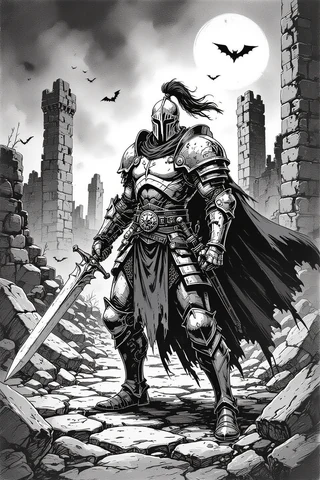
When you’re a busy DM, having a structured approach to session preparation can save you precious time. Here are two effective recipes you can use to streamline your combat and full-session preparation:
8.1 30-minute combat prep for both platforms
1. Upload Your Map: Start by uploading your chosen map. Aim to spend around 10 minutes on this.
2. Add Tokens: Import your tokens and set them up within the next 10 minutes.
3. Link Character Sheets: Ensure each token is linked to its character sheet, which should take about 5 minutes.
4. Test Lighting: Finally, spend 5 minutes testing dynamic lighting to ensure everything works as expected.
8.2 2-hour full-session prep recipe
1. Set Up Folder Structure: Begin by organizing your assets into a clear folder structure (e.g., /Scenes, /Actors, /Macros). This should take around 10 minutes.
2. Import Maps and Tokens: Spend about 30 minutes importing your maps and tokens.
3. Configure Journals and Macros: Allocate the next 40 minutes to set up any necessary journals and macros.
4. Dry-Run the Session: Finally, take 30 minutes to dry-run the session, testing all features to ensure a smooth experience.
8.3 Recommended folder/package structure for campaign assets
Having a clear and organized folder structure can save you time in the long run. Here’s a recommended structure for your campaign assets:
- /Assets
- /Maps
- /Tokens
- /Audio
- /Handouts
- /Macros
- /Scenes
- /NPCs
- /Monsters
This structure will help you quickly locate assets during your sessions and streamline your preparation process.
9. Troubleshooting quick-fixes
Technical issues can arise during your sessions, but knowing how to troubleshoot them quickly can save you from frustrating delays. Here are some common problems and their quick fixes for both Roll20 and Foundry:
9.1 Common audio and latency fixes
Audio and latency issues can disrupt the flow of your game, but there are several steps you can take to mitigate these problems. Here’s a quick guide to resolving common audio and latency issues on both platforms:
- Roll20:
- Check Browser Mic Permissions: Ensure your browser has permission to access your microphone. This can usually be managed in the browser settings.
- Close Tabs: Close any unnecessary browser tabs that might be consuming bandwidth, which can help reduce latency.
- Disable VPN: If you’re using a VPN, consider disabling it during your session, as it can affect your connection speed.
- Foundry:
- Use Forge Hosting: If you’re self-hosting and experiencing issues, consider switching to Forge, which often provides better performance.
- Configure Audio Module: Make sure your audio module settings are correctly configured for optimal performance.
- Close Other Applications: Similar to Roll20, close any applications that may be using your bandwidth.
Tip: If these fixes do not resolve the latency issues, consider using external communication platforms like Discord for voice chat. This can help keep your game flowing smoothly, even if technical difficulties arise.
9.2 Token/vision/fog issues and short procedures
When running a session, you may encounter issues related to tokens, vision, or fog of war. Here are some straightforward procedures to resolve these common problems quickly:
- For Roll20:
- Enable Dynamic Lighting: Ensure Dynamic Lighting is activated for your game. This can be found in the game settings.
- Check Token Settings: Verify that each token has the proper vision settings enabled. Right-click on the token and select “Advanced” to adjust its vision.
- Refresh the Page: If tokens are still not revealing fog, refresh the game page to reset the settings.
- For Foundry:
- Verify Walls Layer: Make sure the walls layer is active in your scene. This is crucial for dynamic lighting to function properly.
- Refresh Vision: Refresh the vision settings for the token by clicking on the token and selecting “Refresh Vision.”
- Check Prototype Settings: Ensure that the prototype settings for the token are configured correctly to allow vision.
Example: If your players can’t see areas they should, checking the walls layer in Foundry is often the quickest way to identify the issue.
9.3 Module conflicts: how to isolate and resolve
Module conflicts can be a frustrating part of using Foundry, but knowing how to troubleshoot and isolate these issues can save you a lot of time. Here’s a streamlined approach to handling module conflicts:
- Disable Modules One-by-One: Start by disabling modules individually to identify which one is causing the conflict. This can help narrow down the culprit quickly.
- Use Safe Mode: If you suspect a module is causing issues, restart Foundry in Safe Mode. This disables all modules and allows you to run a clean version of your game.
- Reproduce the Issue: Try to reproduce the problem in Safe Mode. If it doesn’t occur, you can be confident it’s a module conflict.
- Binary-Enable Modules: Once you’ve identified the problematic module, enable other modules in half-splits to find the exact problem quickly.
Tip: Maintain a “known-good” snapshot of your module setup. This can be a backup of your world or a list of modules that have worked well together in the past.
10. Migration considerations and legal/asset notes
When migrating assets from Roll20 to Foundry, there are important considerations to keep in mind, both in terms of what can be transferred and the legality of your assets. Here’s a breakdown of what to expect during the migration process:
10.1 What transfers easily and what must be rebuilt
When considering migrating your campaign from Roll20 to Foundry, it’s essential to know what assets you can transfer seamlessly and what you’ll need to rebuild. Fortunately, image files like PNG and JPG for tokens and maps can transfer easily between platforms. Text handouts are also exportable, allowing you to maintain your narrative and lore without much hassle. However, more complex elements like macros (automated commands that perform specific actions) and dynamic lighting settings will require rebuilding from scratch. This means you’ll need to invest additional time in setting up these features again in Foundry.
To prioritize your migration process, start with the visual assets. Here’s a suggested order of operations:
- Export maps and tokens: Gather your essential visual elements first.
- Import images into Foundry: Upload the exported maps and tokens into your new campaign.
- Rebuild actors and character sheets: This will take the most time, so plan for it.
- Set up macros and dynamic lighting: After importing your visual assets, focus on automating your gameplay.
- Test functionality: Ensure everything works as expected before your first session.
Tip: Keep a detailed list of all assets and settings you need to recreate. This will significantly reduce the time spent on rebuilding and help avoid missing essential features.
10.2 Licensing and asset-use advice
Understanding licensing and asset use is crucial when migrating assets between platforms like Roll20 and Foundry. Marketplace purchases on Roll20 may be platform-locked, meaning you cannot transfer those assets to another service. In contrast, assets from Foundry or those purchased from sites like Etsy are often file-based, which means they can be reused across different platforms. Always check the Terms of Service (ToS) for any asset you purchase to ensure you’re compliant with usage rights.
To safeguard your purchases and avoid future headaches, consider these practices:
- Keep receipts and license texts: Document what you buy to reference later.
- Avoid platform-locked assets: Opt for assets that allow for portability, like those with Creative Commons licenses or purchased rights.
- Compress and rename files: This not only saves storage but also helps maintain provenance by including the vendor name and date in the filename.
Warning: Failing to check the licensing terms can result in legal issues and loss of access to your assets, so always do your research before purchasing.
11. Decision guide: choose by DM scenario
When choosing between Roll20 and Foundry, consider your unique needs as a Dungeon Master (DM). If you’re primarily using mobile or low-power hardware, Roll20 is the best choice due to its browser-based design, which requires minimal resources. For DMs who are on a tight budget, Roll20’s free tier offers sufficient functionality to run engaging sessions. If your focus is on automation and homebrew content, Foundry shines. Its advanced features allow for extensive customization and streamline gameplay, making it ideal for more complex campaigns.
To help you choose, here’s a quick decision flow:
- Time vs. Budget: If time is limited but you can invest money, Foundry may offer long-term savings through automation. If you’re on a strict budget, Roll20 is more accessible.
- Visuals and Cinematic Experience: For a visually stunning game, Foundry combined with modules like Levels can elevate the player experience significantly, albeit with a higher initial setup time.
Example: A DM planning to run a one-off session can quickly set up on Roll20, while someone looking to run a long-term campaign with intricate mechanics might benefit from the investment in Foundry.
11.1 Mobile-only or low-power hardware
If you find yourself frequently gaming on mobile devices or low-powered laptops, Roll20 is your best bet. Its browser-based platform is optimized for performance on devices with limited processing power. To enhance your experience, consider reducing the resolution of your maps or using lightweight alternatives like Owlbear Rodeo for quick setups. This can help alleviate any lag or performance issues during your sessions.
For mobile sessions, here are a couple of quick optimizations:
- Lower map resolution: Use smaller images to reduce loading times.
- Utilize lightweight alternatives: Platforms like Owlbear Rodeo can serve as a backup for minimalistic mapping needs.
Tip: Always test your setup before game day to ensure everything runs smoothly. This will help you identify any potential issues with your hardware ahead of time.
11.2 Budget constraints vs time constraints
When weighing budget constraints against time constraints, it’s essential to evaluate how often you plan to run sessions. If you’re limited on funds, Roll20’s free tier is a fantastic option that allows you to get started without upfront costs. However, if you’re planning to run multiple sessions over time, investing in Foundry could be more economical due to its one-time license fee and potential for cost savings through automation.
To help guide your decision, consider this rule of thumb: if you expect to run more than three to five sessions, Foundry may pay off in the long run. You can break down your expected costs and time savings as follows:
- Roll20 Free Tier: No upfront cost, but limited features.
- Foundry: $50 one-time license, which could save time on automation for ongoing campaigns.
Example: A DM running a weekly game for three months could find that the initial investment in Foundry pays for itself through reduced prep time and enhanced gameplay.
12. Real-world examples and persona budgets
To illustrate how different DMs can effectively utilize Roll20 and Foundry, let’s explore a few persona profiles.
12.1 Tina the Busy GM: numbers and recipe
Tina is a busy GM who prefers a straightforward setup to maximize her limited time. Using Roll20’s free tier, she spends approximately 45 minutes each week prepping for her sessions. She occasionally invests in a $20 token pack to enhance her game. For quick setups, Tina has developed a method that allows her to get everything ready in under 10 minutes.
To replicate Tina’s success, consider these steps:
- Use pre-made assets: Purchase a few high-quality token packs or maps to save time.
- Set up a standard template: Create a base campaign with essential settings already in place.
- Limit complexity: Keep rules and mechanics simple to reduce prep time.
Example: By using a $25 asset bundle that saves her an hour of prep for ten sessions, Tina effectively saves over $2.50 per hour in time lost.
12.2 Marcus the Automation-focused GM
Marcus has embraced automation by transitioning to Foundry, where he utilizes the Forge for hosting and a suite of modules designed to streamline gameplay. This setup has significantly reduced his prep time from two hours down to just 30 minutes per session. His module stack includes Midi-QOL for combat automation and Token Action HUD for easy token management.
To achieve similar results, follow these suggestions:
- Invest in automation modules: Start with basics like Midi-QOL and progressively add more as you grow comfortable.
- Create a testing plan: Run through your automations in a test session to ensure everything functions as intended.
- Use community resources: Engage with forums and Discord channels to find tips and troubleshoot issues.
Tip: With the right module combination, you can drastically reduce your prep time while increasing the complexity of your campaigns, allowing for a richer player experience.
12.3 Alicia the Aesthetic-focused GM
Alicia is passionate about creating a visually stunning experience for her players. Using Foundry, she invests in high-quality maps from Etsy and utilizes the Levels module for enhanced visuals. Although her setup time is longer, the payoff is evident in the immersive experience she provides during sessions. For instance, a $25 map bundle that saves her an hour of setup time is a worthy investment.
To optimize her workflow, Alicia recommends:
- Plan your purchases wisely: Select assets that not only look good but also save you time in the long run.
- Organize your assets: Maintain a structured folder system to quickly locate necessary files.
- Engage your players visually: Use ambient sounds and visuals to enhance the storytelling aspect of your game.
Example: By investing in a few high-quality bundles, Alicia can create a breathtaking environment that engages her players and elevates the overall experience.
13. Practical micro-automation examples
To streamline your sessions on Roll20 and Foundry, practical automation examples can be a game-changer. Here are a couple of useful snippets that can save you time during gameplay.
13.1 Initiative and combat automation snippets
For Roll20, you can set up an initiative macro to automate the rolling process. Here’s a simple example:
- Roll20 Macro: Use the command:
/roll 1d20 + @{selected|initiative}. This macro will roll a d20 and add the selected character’s initiative bonus.
For Foundry, the Midi-QOL module allows you to automate initiative rolls and damage calculations.
- Foundry Approach: Enable Midi-QOL in your game settings. Use the combat utility belt to manage turns and automate damage rolls.
Example: By using these macros, you can save time on repetitive tasks, making combat smoother and more efficient.
13.2 Token macros and one-click toggles
In Foundry, you can create a token vision toggle macro to quickly adjust visibility settings. Here’s a simple example:
- Foundry Token Macro: Use the command:
token.setVision(!token.vision). This macro will toggle the selected token’s vision on and off with a single click.
For Roll20, the Token Action Bar can help streamline actions for your players:
- Roll20 Recommendation: Set up a Token Action Bar for each token, allowing players to access their actions quickly without navigating through menus.
Tip: These macros and toggles can enhance gameplay by allowing for faster decisions during combat, reducing downtime and keeping players engaged.
14. Resources & complementary tools
When you’re setting up your campaigns on Roll20 or Foundry, having the right resources and tools can make a world of difference. Here are some essential links and tools to consider:
- Official Platform Links:
- Roll20: roll20.net
- Foundry: foundryvtt.com
- Forge: forge-vtt.com
- Roll20 Marketplace: marketplace.roll20.net
- Complementary Tools:
- TokenTool: A great tool for creating custom tokens. TokenTool
- Syrinscape: For adding immersive soundscapes to your sessions.
- Owlbear Rodeo: An excellent lightweight alternative for quick map setups.
Additionally, I recommend checking out these high-ROI Etsy products that can enhance your game:
- Game Master Toolbox – 350,000 Dungeons and Dragons Resources
- 165,000 Dungeons and Dragons Compatible Battlemaps
- 6,500 Token Borders Bundle for RPG
Warning: Always check the licensing and terms of service for any assets you purchase to ensure compliance and avoid potential issues later on.
15. Checklist for choosing and switching
When deciding whether to choose Roll20 or Foundry, consider the following six key points:
- Immediate session needs: Do you need quick access?
- Budget: Are you limited on funds?
- Recurring frequency: How often will you run games?
- Visual/automation priority: Is aesthetics or automation more important?
- Hosting comfort: Are you comfortable with self-hosting?
- Asset ownership: Do you want to retain control over your assets?
By answering these questions, you can determine which platform aligns best with your needs. For instance, if you respond “No” to hosting comfort, you might want to consider using the Forge for Foundry hosting.
Example: This quick assessment can help you clarify your priorities and streamline your decision-making process, ensuring you choose the platform that best fits your gaming style and logistics.
Fox’s take
In summary, both Roll20 and Foundry have their strengths and weaknesses, and the best choice ultimately depends on your specific needs as a DM. If you’re looking for quick setup and minimal costs, Roll20 is a fantastic option. However, if you’re willing to invest time and money for a more robust experience, Foundry offers extensive customization and automation features. Take a moment to assess your priorities, and don’t hesitate to dive in—your next adventure awaits!
FAQ
- How quickly can I learn Foundry vs Roll20? Roll20 typically takes 1-2 hours to learn, while Foundry may take 3-5 hours.
- What does Foundry cost upfront and yearly? Foundry costs $50 upfront, with optional hosting fees of $5-$10/month.
- Do I need a paid Roll20 subscription to run a good session? No, but a paid subscription enhances features and access to assets.
- Can I host Foundry on a cheap VPS and how much does that cost? Yes, VPS hosting typically costs $4-$10/month, depending on the provider.
- Which platform has better automation for D&D 5e? Foundry offers superior automation features compared to Roll20.
- What transfers when migrating from Roll20 to Foundry? Images and text handouts transfer easily, but macros and dynamic settings must be rebuilt.
Continue reading
- How to Save Time When Organizing DnD Sessions: Practical Systems, Tools & Templates
Save time organizing DnD sessions with proven workflows, templates, tools and ready-made maps you can adapt fast. - Why 2026 is the Best Year to Start Playing D&D
Why 2026 is the best year to start playing D&D — practical tips, starter builds, tools and step-by-step setup to begin your D&D journey.
Sources
- app.roll20.net
- forge-vtt.com
- forge-vtt.com
- foundryvtt.com
- foundryvtt.com
- foundryvtt.com
- help.roll20.net
- help.roll20.net
- help.roll20.net
- marketplace.roll20.net
- myvtt.games
- owlbear.rodeo
- roll20.net
- roll20.net
- syrinscape.com
- tokentool.io
- enworld.org
- etsy.com
- etsy.com
- etsy.com
- etsy.com
- etsy.com
- etsy.com
- fantasygrounds.com
- hipstersanddragons.com
- thegamer.com
- youtube.com
- youtube.com