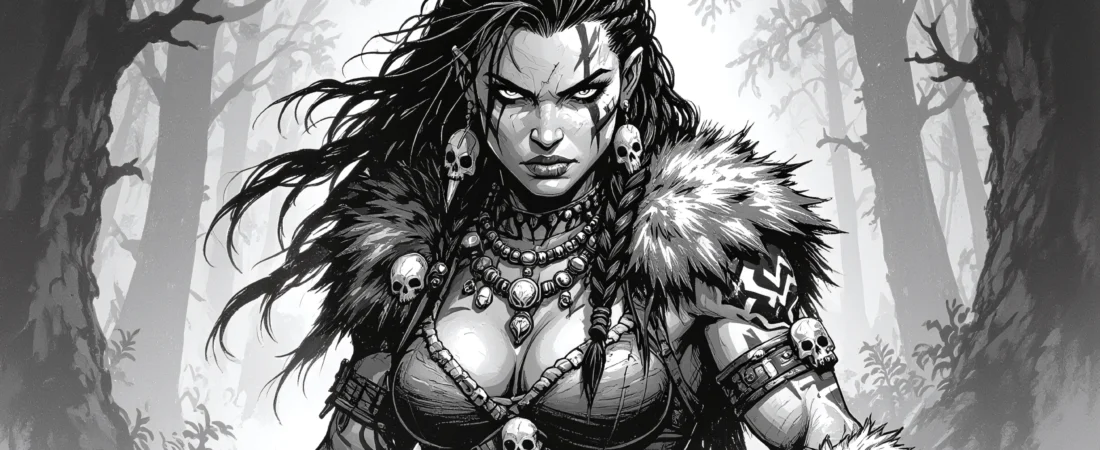
Welcome to your ultimate guide on using D&D Beyond! This platform is a powerful tool for Dungeons & Dragons players, offering extensive resources for character creation, campaign management, and more. Whether you’re a new player or a seasoned DM, this article will help you navigate D&D Beyond like a pro.
In this guide, you’ll learn everything from setting up your account to integrating with virtual tabletops. Let’s dive in!
What you’ll learn in this article
- 🎲1Create an account and choose your subscription tier.
- ✅2Navigate the D&D Beyond dashboard for efficient gameplay.
- 🔎3Build a character from scratch with a step-by-step guide.
- 🧙4♂️ Manage multiple characters and share them with your party.
- 🎉5Set up and manage campaigns, including DM permissions.
- 📚6Create and utilize homebrew content to customize your game.
- 🛠7️ Integrate D&D Beyond with virtual tabletops like Roll20 and Foundry.
- 🔧8Troubleshoot common issues and ensure smooth gameplay.
- 🗂9️ Implement best practices for organization and privacy.
- 🚀10Explore advanced tips and complementary tools for an enhanced experience.
- 🎲11Automation for DMs: encounter building and initiative tracking
- 🎲12Troubleshooting & common issues
- 🎲13Best practices, organization, and privacy
- 🎲14Advanced tips & workflows
- 🎲15Resources & complementary tools
1. Create an account and choose a subscription
1.1 Free vs. Hero vs. Master: feature comparison
To start your D&D Beyond journey, create an account and select a subscription that suits your needs. D&D Beyond offers three tiers: Free, Hero, and Master. The Free tier grants access to the Basic Rules, limited content, and the ability to create homebrew. This is an excellent starting point for solo players or those testing the waters.
The Hero tier allows access to one full rulebook, dynamic lighting features for virtual tabletops (VTTs), and discounts on marketplace items. This tier is ideal for players who want essential books without overspending. The Master tier unlocks the complete compendium, all VTT features, and additional DM tools, making it perfect for DMs running multiple campaigns.
Tip: If you’re unsure, begin with the Free tier and consider upgrading as your needs grow.
1.2 Step-by-step: sign-up, verify, connect Google/Discord
Follow these steps to create your account:
- Go to dndbeyond.com.
- Click “Sign Up” and provide your email and password.
- Verify your account via the email link sent to you.
- Log in to your dashboard.
- For easier access, connect your Google or Discord account under Account > Security, and enable two-factor authentication (2FA) for added security.
Once your account is set up, explore the dashboard to build characters or manage campaigns. Be aware that the Free tier may limit you to one character.
Warning: If you don’t receive the verification email, check your spam folder. Verifying your account is crucial for unlocking all features.
2. Navigating the D&D Beyond dashboard and interface
2.1 Main menu: Compendium, Characters, Campaigns, Homebrew
After signing in, the D&D Beyond dashboard serves as your central hub. On the left sidebar, you’ll find quick access to important sections like My Characters, My Campaigns, Compendium, and Homebrew. The Compendium contains all the rules, spells, and monsters needed for gameplay, while the Characters section allows you to create and manage your characters.
The Campaigns tab is for creating and organizing your adventures, inviting players, and tracking session notes. The Homebrew section lets you create custom spells, items, or monsters, streamlining your gaming experience.
Example: Pin your most-used spells or items in the Compendium for easy access during sessions.
2.2 Quick tips: keyboard shortcuts, search, filters
D&D Beyond offers keyboard shortcuts and search filters for smoother navigation. Use the search bar to find specific rules, spells, or monsters quickly, and apply filters by Source to narrow down results.
Bookmark frequently visited pages—like your character sheet or campaign notes—for quick access. If the interface is slow, consider disabling any conflicting browser extensions, such as ad blockers.
Tip: Familiarize yourself with shortcuts, like Ctrl + F for quick searches, to enhance your efficiency during gameplay.
3. Building a character from scratch
3.1 Character creation flow: choice order and tips
Creating a character in D&D Beyond is intuitive, but knowing the optimal order for choices can save time. Begin with the character’s Details, then Species (race), Class, Background, Abilities, Equipment, and finally Features & Traits. This sequence helps lock in proficiencies and ensures informed decisions.
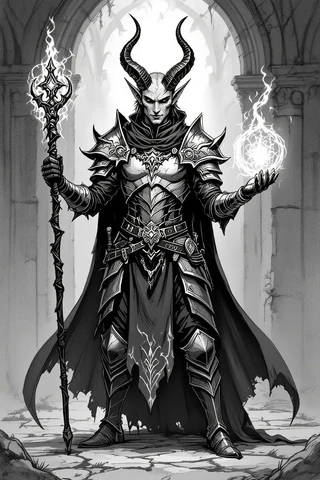
Choosing your Species and Background first reveals the associated proficiencies and skills applicable to your Class, ensuring you don’t miss out on vital bonuses.
Tip: Always verify the final character sheet summary before saving to ensure all choices are correct.
3.2 Short procedure: 5-step character build
Here’s a quick process to create your character:
- Create a Character in your dashboard.
- Choose your species, class, and background.
- Assign ability scores (using point buy or standard array).
- Select equipment based on your class.
- Save your character and print or share as needed.
This streamlined process allows you to create a level 1 character in under ten minutes. If planning to multiclass, consider prerequisites and their impact on character development.
Example: For a level 1 Human Fighter, use the Standard Array for ability scores, focusing on Strength and Constitution for combat effectiveness.
3.3 Example builds and sample notes
Here are a few example builds to inspire your character creation:
- Tank Barbarian (High CON/STR): Focus on Constitution and Strength, using the Bear Totem for damage resistance.
- Evocation Sorcerer (CHA primary): Prioritize Charisma and choose Metamagic options like Subtle or Quick for casting versatility.
- Rogue/Swashbuckler Multiclass: Start as a Rogue and take levels in Fighter for mobility and critical hit potential.
For each build, note key stats, HP calculations, and essential abilities to track strengths and playstyles during your campaign.
Tip: Use a template for your notes that includes stat lines, HP calculations, and key abilities for easy reference during gameplay.
4. Managing multiple characters and character sharing
4.1 Party organization: naming, tags, notes
Efficiently managing multiple characters is crucial for a smooth gaming experience. Implement a naming convention, such as [CampaignCode]_[PlayerName]_[ClassLv], to keep track of characters by campaign and level.
Tags can categorize characters by role (tank, healer, damage dealer). Use the notes feature to store important backstory elements or player contacts, enhancing role-playing opportunities.
Warning: Periodically review and clean up your character list to avoid clutter, especially after campaigns conclude.
4.2 Procedure: share or export a character
Sharing your character is straightforward on D&D Beyond. Here’s how:
- Open your character sheet and navigate to the Sharing tab.
- Toggle the Can View or Public Link option.
- Set permissions (Editable/View Only) based on your preferences.
- Copy the link or invite players via email.
This method ensures your friends or fellow players can see your character’s details while keeping sensitive information hidden.
Example: Use the “View Only” option to share your character with a new player, allowing them to view details without making edits.
5. Campaigns, party management, and compendium use
5.1 Setting up a campaign: DM permissions and invites
Creating a campaign in D&D Beyond allows for effective session management. Click “Create Campaign” and name it. As the DM, you can invite players via email or a shareable link.
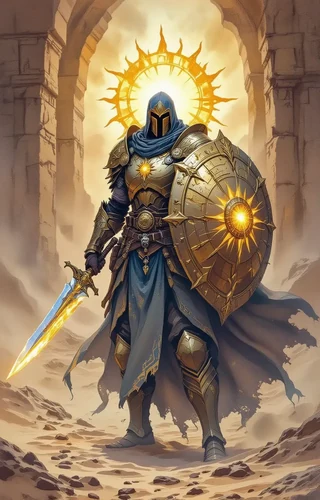
During setup, assign roles to players, controlling visibility for DM-approved content—useful for keeping elements hidden until needed.
Tip: Hold a Session Zero to discuss rules, house rules, and player expectations before starting the campaign.
5.2 Compendium management and campaign toggles
Managing Compendium access is essential for balanced gameplay. Filter the Compendium by Source and toggle visibility for specific books or homebrew content, limiting resources for new players to avoid overwhelming them.
For example, restrict the Compendium to only the Basic Rules for beginner campaigns, ensuring everyone is aligned on available spells, items, and rules.
Warning: Regularly communicate changes to homebrew content or rules to players, as this affects gameplay and expectations.
6. Homebrew, custom items, and monsters
6.1 Creating homebrew: items, spells, monsters
Homebrew content allows for significant game customization. Navigate to Homebrew and select “Create Homebrew” to start making custom items, spells, or monsters. Fill out necessary fields like name, properties, and rarity for items or abilities and stats for monsters. Once satisfied, publish your creation for others or add it to your campaign for personal use.
Tip: Test homebrew in a private campaign first to ensure balance and fit within your game.
When creating homebrew items, use a template for clarity. For example, for a new weapon, specify damage, type (slashing or piercing), and any unique abilities.
6.2 Best practices: versioning and campaign-scoped homebrew
Implement best practices like versioning for homebrew creations. Tagging with version numbers (e.g., v1.0, v1.1) helps track changes. When updating an item or spell, maintain a changelog for reference.
Warning: Always test homebrew items in controlled environments before introducing them to your main campaign. Compare challenge ratings (CR) for balance.
To scope homebrew for a campaign, limit its visibility to players involved. This ensures only approved homebrew items and spells are accessible, maintaining game fairness.
7. Using D&D Beyond in play: encounters, tracking resources, and tools
7.1 Using the character sheet during play
The character sheet is a powerful tool for managing resources during gameplay. It tracks hit points (HP), spell slots, and features, allowing focus on the story rather than bookkeeping. Familiarize yourself with the layout, especially the Actions & Rolls section for rolling attacks and saving throws.
Tip: Use the Digital Dice feature for interactive rolling, and customize your character sheet’s appearance for clarity during play.
Manage HP and spell slots directly from the character sheet. Adjust HP after taking damage and update spell slots after resting. This streamlined process helps maintain game flow.
7.2 Tracking HP, spells, short/long rest workflow
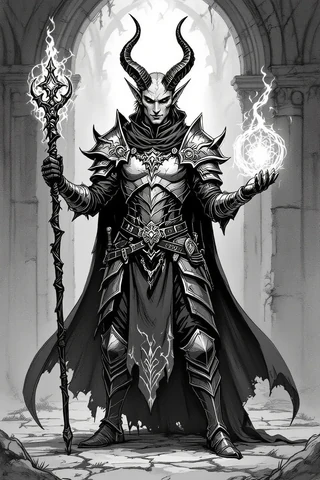
Tracking HP, spell slots, and resting workflows is vital for smooth gameplay. D&D Beyond automates HP tracking based on hit dice and current status. During a short rest, players can spend hit dice to recover HP, and the sheet tracks this.
Example: After a tough battle, use the short rest option to spend hit dice and regain HP. Remind spellcasters to update their spell slots after a long rest.
Establish a routine for managing resources, such as reviewing character status at the end of each session to prepare for the next.
8. Integrations & automation
8.1 Beyond20: install, configure, and quick example
Beyond20 is a browser extension that integrates D&D Beyond with VTTs like Roll20 and Foundry. Start by installing the Beyond20 extension for Chrome or Firefox. Then, navigate to the extension settings to select your preferred VTT, enabling roll transfers from D&D Beyond to your VTT chat.
Tip: After installing Beyond20, test the setup by rolling an attack from your character sheet to ensure it appears in your VTT chat.
Once set up, roll for attacks, saving throws, and more directly from your character sheet. For instance, clicking the attack option for a Longsword will send the roll to your VTT chat.
8.2 Foundry/Roll20/Avrae integrations and simple automation tips
Integrating D&D Beyond with Foundry or Roll20 offers powerful tools for managing your game. For Foundry, generate an API key from your D&D Beyond account under Account > APIs. Paste this key into the appropriate module in Foundry for seamless data synchronization.
Warning: Regenerate your API key if you encounter sync issues, as expired keys can disrupt connections.
For Roll20, use the extension to import characters and stats directly into your game. Click the import button in Roll20 after installing Beyond20, and your character’s data will populate in the Roll20 journal.
Avrae is a Discord bot that can import D&D Beyond characters for use in games. Use commands like “/import” to bring your character into Discord for easy rolling and initiative tracking.
9. Linking D&D Beyond to a Virtual Tabletop (VTT) — step procedure
9.1 Quick 4-step linking procedure and troubleshooting
Linking D&D Beyond to a VTT like Roll20 or Foundry enhances gameplay. Follow these steps:
- Install the appropriate extension or module: For Roll20, install Beyond20; for Foundry, ensure the D&D Beyond importer module is active.
- Generate and paste your API key: For Foundry, generate your API key from D&D Beyond and paste it into the Foundry module settings.
- Import your character sheet into the VTT: Open your D&D Beyond character sheet and use the import function in your VTT.
- Test the integration: Roll an attack or use a spell from your character sheet to ensure it syncs with your VTT chat.
Tip: If issues arise, clear your browser cache or use incognito mode to avoid conflicts with extensions.
Once linked, enjoy seamless gameplay as you manage your character and perform actions directly in your VTT. Common fixes include checking your browser profile and regenerating your API key if necessary.
9.2 Example: linking a spell attack through Beyond20
Linking a spell attack from D&D Beyond to your VTT is simple. For example, to roll for “Fire Bolt”:
- Open your Sorcerer character sheet on D&D Beyond.
- Click the attack option for “Fire Bolt.”
- Beyond20 will process the roll and send it to your VTT chat.
- The chat displays the total result, including modifiers, and damage rolls separately.
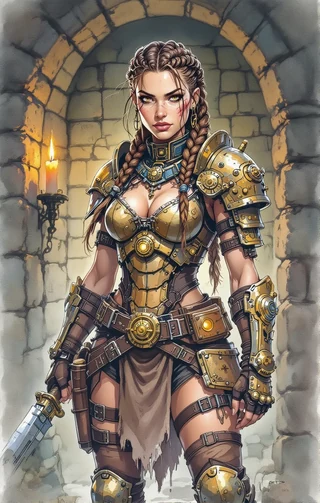
Example: Clicking “Fire Bolt” results in a roll like “d20 + spell attack modifier” showing in your VTT chat, with damage calculated and displayed. Toggle advantage options in Beyond20 before rolling.
10. Visual assets and tokens: using maps, tokens, and art
10.1 Where to get assets: marketplaces and packs
Enhance your D&D games with visual assets from various marketplaces. Roll20 and Foundry have extensive libraries, while platforms like Etsy offer unique resources. Consider the Game Master Toolbox, featuring 350,000 D&D resources, or the 165,000 compatible battlemaps.
Tip: Check seller licensing agreements to ensure proper usage in your VTT or for commercial purposes.
Recommended packs include:
These resources create immersive environments while saving time on map-making.
10.2 How to import tokens to VTTs and sync with D&D Beyond
To import tokens into your VTT and sync with D&D Beyond:
- Prepare token images: Use PNG format with transparent backgrounds, ideally sized 280–512 pixels.
- Upload tokens to your VTT: Go to the Maps section of your VTT and upload your tokens.
- Assign tokens to characters: Drag tokens onto your map and link them to the appropriate characters.
- Link tokens to D&D Beyond: Sync character images from D&D Beyond by attaching them to character sheets.
Example: For a character named Elara, upload her token image, place it on the map, and assign it to her character sheet in D&D Beyond for easy access during play.
Warning: Be aware of dynamic lighting restrictions, as some features may only be available in Hero or Master tiers. Familiarize yourself with your VTT’s capabilities before sessions.
11. Automation for DMs: encounter building and initiative tracking
11.1 Using the compendium and encounter tools
Using the compendium and encounter tools in D&D Beyond is invaluable for DMs. The encounter builder allows for efficient combat scenario management. Add monsters, automatically calculate experience points (XP), and assess encounter difficulty based on party level.
To create a reusable encounter:
- Choose monsters based on Challenge Rating (CR) from the compendium.
- Adjust monster numbers to fit your party size.
- Add environmental hazards or loot for enhancement.
- Save the encounter as a template for future use.
This approach saves time, allowing focus on storytelling rather than mechanics. Tailor encounters to fit themes and challenges, making each session unique.
Tip: Pre-generate common encounter types, such as ambushes or patrols, for quick reference during gameplay.
11.2 Quick automation workflow for a combat encounter
Automating combat encounters streamlines play. A good workflow includes preparation, linking tokens, and tracking initiative. Here’s a quick guide:
- Prepare your encounter by selecting monsters.
- Import the encounter into your campaign on D&D Beyond.
- Create journal entries for the environment and key NPCs.
- Link NPC tokens in your VTT to the initiative tracker.
- Use Beyond20 or Avrae for rolling initiative and managing combat.
Following these steps ensures smooth combat, allowing focus on narrative and player interactions.
Warning: Double-check initiative tracker settings before starting encounters to prevent confusion.
12. Troubleshooting & common issues
12.1 Login, subscription sync, and cross-site signin problems
If you encounter login issues or subscription syncing problems, clear your browser’s cache and cookies, try incognito mode, or log out and back in. After upgrading your subscription, it may take 5 to 10 minutes to sync.
For email verification issues, check your spam folder for messages from D&D Beyond. For payment issues, try a different card or access the site in incognito mode. If locked out due to 2FA, use recovery options provided during signup.
Tip: Ensure your email is verified and enable 2FA for added security.
12.2 Import mismatches, homebrew conflicts, and UI bugs
Import mismatches and homebrew conflicts are common. If spells or items are missing, it may be due to source locking. Ensure homebrew is published to the correct campaign with necessary permissions.
To resolve homebrew visibility issues:
- Republish the homebrew item to the correct campaign.
- Have the DM approve it again if initially set to private.
- Clear your browser cache to refresh content.
- Reimport the homebrew item.
Following these steps minimizes downtime and keeps sessions running smoothly. Check community forums for known UI bugs before submitting support tickets.
Example: If a homebrew spell isn’t appearing, republish it and ensure DM visibility settings are correct.
13. Best practices, organization, and privacy
13.1 Naming conventions, tags, and campaign hygiene
Maintaining organization in D&D Beyond is crucial. Implement a clear naming convention for characters, campaigns, and homebrew items. A suggested format: [CampaignCode]_[PlayerName]_[CharacterRole]_[Level] for easy identification.
Use tags effectively to categorize characters by roles or campaigns. Regular housekeeping, like archiving retired characters and reviewing active campaigns, aids clarity. Set reminders for monthly clean-ups.
Tip: Back up key characters and campaign notes by exporting as PDFs before significant changes.
13.2 Sharing policies and privacy controls
Understanding privacy settings when sharing campaigns and characters is vital. Set sharing options to “View Only,” “Editable,” or “Public Link.” DM-only notes remain hidden, ensuring sensitive information stays private.
For semi-private sharing, use “Unlisted” links. Remind players to avoid personal data on public sheets to protect privacy.
Warning: Enable 2FA on your account to safeguard campaigns and characters from unauthorized access.
14. Advanced tips & workflows
14.1 Multi-account workflows, content stacks, and party rotation
Managing multiple accounts or campaigns can benefit DMs who want to keep different worlds organized. Use separate accounts for sandbox versus main storylines to maintain clarity.
Maintain a content stack—a list of enabled rulebooks and resources—to ensure consistency across sessions. Cloning characters and templates for party rotation streamlines adapting to new players.
Tip: Keep a master “template character” for each party role for quick adjustments.
14.2 Exporting data for offline use and printed sheets
Exporting data from D&D Beyond for offline use or printing is easy. To export a character sheet as a PDF, navigate to the character’s Actions menu and select “Print.” This is useful for in-person sessions without digital access.
Consider exporting session journals and encounter lists after each game. Store files locally or in the cloud for easy access. Verify page layout settings before printing to ensure all necessary notes and spell lists are included.
Example: Export session notes and character sheets to PDF after each session for backup and easy reference.
15. Resources & complementary tools
15.1 Recommended integrations, marketplaces, and tooling
Enhance your D&D Beyond experience by integrating with tools like Roll20, Foundry, Beyond20, and Avrae. These platforms offer functionalities that complement gameplay. For instance, Beyond20 allows rolling directly from D&D Beyond into VTT chat.
For visual assets, marketplaces like Etsy provide a wealth of resources. Notable recommendations include the Game Master Toolbox, 165,000 Dungeons and Dragons compatible battlemaps, and 3,000 Fantasy Village Maps.
Tip: Check licensing agreements for purchased assets to ensure proper use in VTT or commercial purposes.
15.2 How to choose the right add-ons for your table
When selecting add-ons for your D&D Beyond account, consider your play style and group needs. The Hero tier may suffice for casual players, while DMs running multiple campaigns might benefit from the Master tier.
Before purchasing, ask practical questions: How often do we play? Do we need dynamic lighting? Is a particular marketplace art pack necessary? Start with smaller asset packs to gauge usefulness before committing to larger bundles.
Warning: Be mindful of your budget; focus on options that enhance your game for better long-term value.
Fox’s take
Now that you have a solid understanding of how to use D&D Beyond, you’re well on your way to enhancing your D&D experience! Remember to explore character creation, campaign management, and integration with VTTs like Roll20 or Foundry. Whether you’re a player looking to build your first character or a DM aiming to streamline your sessions, D&D Beyond offers a wealth of resources at your fingertips. So dive in, experiment with homebrew content, and enjoy the adventure ahead!

FAQ
Is D&D Beyond free to use, and what does each subscription add?
D&D Beyond has a Free tier with Basic Rules. The Hero tier adds one rulebook, while the Master tier includes all features.
Can I use D&D Beyond offline or export character sheets to print?
Yes, you can export character sheets as PDFs for offline use or printing via the Actions menu.
How do I link my D&D Beyond character to Roll20 or Foundry using Beyond20?
Install the Beyond20 extension, configure it for your VTT, and roll actions from your character sheet to sync results.
How do I share a campaign or character with players who don’t have a subscription?
Use the Sharing tab in your character sheet to toggle view options for players without subscriptions.
How can I add homebrew items or monsters safely to a campaign?
Create homebrew content in the Homebrew section, test it privately, and publish it for campaign visibility.
Sources
- avrae.io
- beyond20.wiki
- foundryvtt.com
- foundryvtt.com
- marketplace.dndbeyond.com
- marketplace.roll20.net
- roll20.net
- dndbeyond.com
- dndbeyond.com
- dndbeyond.com
- dndbeyond.com
- dndbeyond.com
- dndbeyond.com
- dndbeyond.com
- dndbeyond.com
- dndbeyond.com
- dndbeyond.com
- dndbeyond.com
- dndbeyond.com
- dndbeyond.com
- dndbeyond.com
- dndbeyond.com
- dndbeyond.com
- dndbeyond.com
- dndbeyond.com
- dndbeyond.com
- etsy.com
- etsy.com
- etsy.com
- etsy.com
- etsy.com
- youtube.com