
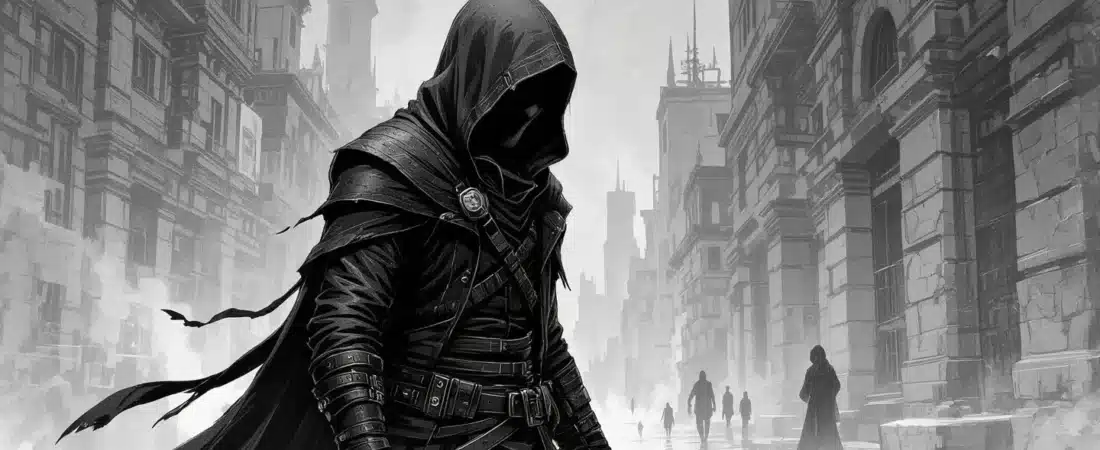
Creating atmosphere in a virtual tabletop (VTT) setting is essential for immersing your players in the adventure. If you’ve ever felt your game’s energy dip or your players disengage, you’re not alone. But fear not! With the right techniques and tools, you can transform your VTT sessions into captivating experiences that draw everyone in. Let’s explore how to enhance your game’s atmosphere through sound, lighting, and visual storytelling.
What you’ll learn in this article
- 🎲1Understand the importance of atmosphere in virtual tabletop (VTT) play for enhancing player engagement.
- ✅2Explore core VTT platforms like Foundry and Roll20 to create atmosphere in your games.
- 🔎3Discover sound and music techniques for effective layering to boost VTT immersion.
- 🧙4♂️ Learn about dynamic lighting and visual layering to enhance your VTT experience.
- 🥳5Get tips on creating engaging maps and focal points for better gameplay.
- 💡6Implement automation and macros to streamline your virtual tabletop sessions.
- ⚙7️ Optimize performance and reduce lag for smoother gaming experiences.
- 🔊8Find quick setup procedures to prepare your VTT before a session.
- 🎲9Accessibility, latency & performance tips
- 🎲10Quick setup procedures (4 short step-by-step flows GMs can run before a session)
- 🎲11Resources & complementary tools
- 🎲12Common mistakes and quick fixes
- 🎲138+ immediate tips to apply now
1. Why atmosphere matters in VTT play
Cognitive and emotional impact
Creating atmosphere in a virtual tabletop (VTT) game is not just about decoration; it significantly enhances player engagement and memory retention. Research shows that a well-crafted atmosphere can increase “presence”—the feeling of being immersed in the game world—by engaging multiple senses. For instance, using sound effects, ambient noise, and visual cues together can improve cognitive focus and emotional involvement, leading to a richer gaming experience. A study from PMC found that multisensory input can lead to a measurable uplift in cognitive focus and positive affect by 10-30% when lighting and sound align with genre cues.
As a Game Master (GM), I once switched to a low-minor-key music track with distant thunder sound effects during an investigative scene. The players became noticeably more tense and engaged, as the atmosphere heightened their emotional response to the unfolding mystery. This example illustrates how intentional atmospheric choices can significantly alter the players’ emotional landscape and enhance their overall experience.
Attention, pacing, and memory retention
Atmosphere acts as a throttle in gameplay, guiding player attention and pacing. For instance, silence can signal a moment of reflection, while sound and movement can create urgency. By layering sensory cues, you reduce cognitive load when describing complex scenes, allowing players to engage more fully with the narrative. Implementing simple techniques, like using a short sound effect followed by a lighting flash, can punctuate important moments, drawing players’ focus to critical information.
✨ Discover the Ultimate Tavern Bundle ✨
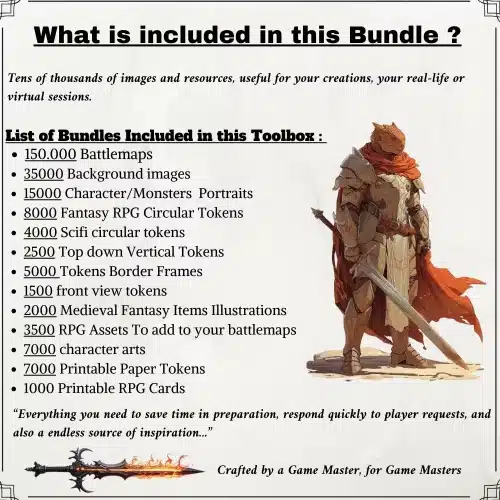
Stop prepping for hours. Get 350,000+ digital assets to create immersive campaigns instantly.
🎲 Get the Ultimate Toolbox Now
Instant Download • Lifetime Access
To gauge the effectiveness of your atmospheric choices, consider conducting a quick pre- and post-session poll asking players how much they remembered from the last scene, rating it from 1 to 5. This feedback helps you quantify improvements and refine your atmospheric techniques. For example, if you use a 3-second sound effect combined with a lighting flash during a reveal, you may notice a significant improvement in players’ recall of plot points, reinforcing the importance of atmosphere in VTT play.
2. Tools & platforms overview
Core VTT platforms (Foundry, Roll20, Fantasy Grounds, Astral, Tabletop Simulator)
When it comes to creating atmosphere in virtual tabletop settings, the choice of platform is crucial. Foundry VTT offers a powerful suite of tools, including dynamic lighting and soundboard modules, allowing for deep control over the gaming environment. Roll20 is more user-friendly for beginners, featuring accessible options like soundboards and dynamic lighting (available with a paid subscription), but it lacks some of the depth Foundry provides. Fantasy Grounds excels in rules integration but has a steeper learning curve due to its scripting capabilities.
For lighter or sandbox experiences, platforms like Astral or Tabletop Simulator are available, but they come with limited native audio and lighting features. Depending on your group’s tech skills and the desired depth of atmosphere, you can choose a platform that aligns with your needs. For example, if you’re running an atmospheric campaign that relies on automation, Foundry would be the ideal choice. Conversely, if your players are new to VTTs, Roll20 might be the better option for a smoother onboarding experience.
Supplementary tools (sound players, map editors, token creators)
To enhance your VTT experience, consider using supplementary tools alongside your primary platform. For sound, platforms like Tabletop Audio and Freesound.org offer extensive libraries of ambient sounds and effects that can be easily integrated into your sessions. Audacity is a great tool for audio editing, allowing you to mix and optimize sound files before importing them into your VTT. Additionally, token creators like TokenTool and TokenStamp can help you design custom tokens that fit your game’s theme and enhance visual storytelling.
As you gather your atmospheric toolkit, aim to acquire a few essential sound loops, sound effects, and music tracks. For example, you might want to gather three ambient loops, three sound effects, and one music track for a session. Ensure that your audio files are optimized for size (keeping them under 2–5MB) and quality (aim for a bitrate of 128 kbps for loops). This preparation will help you maintain a seamless atmosphere during gameplay without overwhelming your system’s performance.
3. Sound & music techniques
Layering ambience, music, and FX
Creating a rich auditory landscape involves layering sounds effectively. A three-tier layering model can be quite effective: start with an ambient layer (40–50 dB, looping), add a music layer (50–60 dB), and finish with an effect layer (60–70 dB, used sparingly). For example, in a tavern setting, you could layer ambient chatter, a lute playing softly, and the sound of glasses clinking. This combination creates a lively atmosphere that immerses players in the scene.
To set up your sound layers, begin by selecting suitable sound loops for each category. Assign specific volumes to each layer and create a dedicated folder for sound effects (SFX). For effective sound management, consider assigning hotkeys for quick access during your session. This way, you can easily control the audio experience and make on-the-fly adjustments based on player interactions.
Volume balance, crossfades, and BPM considerations
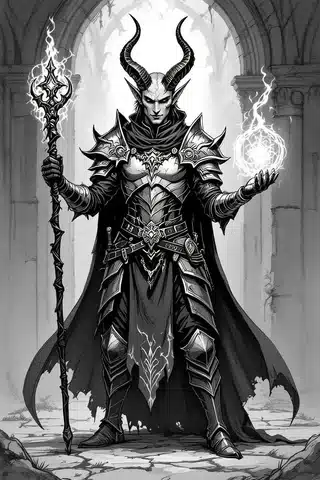
Balancing volume levels is crucial for maintaining clarity during gameplay. A good rule of thumb is to keep the master volume at around 30% to ensure that player voices are audible. When transitioning between different audio elements, use crossfades to create smooth transitions—fade out the old soundscape over 3–5 seconds while fading in the new one over 2–3 seconds. This technique prevents abrupt audio cuts that can disrupt immersion.
When selecting music tracks, consider the beats per minute (BPM) to match the scene’s pacing. For instance, exploration music can range from 60–90 BPM, while combat music should be faster, around 120–140 BPM. By aligning your audio choices with the scene’s tempo, you enhance the emotional impact of the gameplay. For example, if a tense moment is unfolding, transitioning to a faster-paced combat track can heighten the urgency and excitement.
4. Lighting, fog, and visual layering
Dynamic lighting basics
Dynamic lighting is a powerful tool for creating atmosphere in a virtual tabletop setting. It simulates light radii and occlusion, enhancing the realism of your scenes. Platforms like Foundry VTT support both dynamic lighting and Fog of War (FOW), which obscures areas of the map that players cannot see. This feature allows you to craft suspenseful moments by controlling what players can perceive based on their characters’ positions and actions.
When implementing dynamic lighting, remember to consider principles of contrast and color temperature. Warm lights (like a fireplace, #FF8C00) create a safe and inviting atmosphere, while cool colors can evoke eeriness and tension. Limit the number of active light sources to around 5–10 per scene to avoid performance issues. By testing the lighting from the player token’s perspective, you can ensure that the atmosphere aligns with your narrative goals without overwhelming the system.
Fog, weather overlays, and parallax
Incorporating fog and weather effects can add a cinematic quality to your VTT sessions. You can create animated fog by using multiple layers at different speeds, which adds depth to the scene. For instance, foreground fog can have an opacity of 0.3 and move quickly, while background haze can be slower with an opacity of 0.2. This layering technique not only enriches the visual experience but also enhances immersion.
For added realism, consider using weather overlays like rain or snow. These can be achieved with animated tiles or semi-transparent PNGs that drift across the screen. However, be mindful of performance; too many animated layers can cause lag. Always test your setup and adjust the number of layers or their frame rates to ensure a smooth experience for your players. This attention to detail can transform an ordinary scene into a memorable moment that players will talk about long after the session ends.
5. Maps, composition, and focal points
Choosing or creating the right map
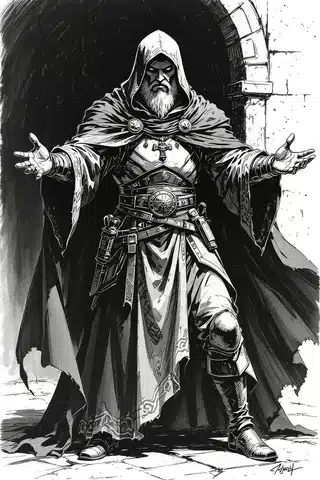
The battlemap serves as the stage for your virtual tabletop game, so selecting or creating the right map is essential. A good map should support the intended play style, whether tactical or narrative. Pay attention to composition rules, such as the rule of thirds, which helps create a balanced and visually appealing layout. Aim for depth layering by incorporating foreground, midground, and background elements, as well as allowing for negative space (empty areas that provide breathing room) to enhance movement and visual clarity.
When selecting maps, consider genre-specific recommendations. For example, if you’re running a fantasy campaign, you might choose a village map that features key locations for encounters. Resources like the 3000 Fantasy Village and Town Maps can provide high-quality options that fit your needs. Additionally, exporting your final map at a resolution of around 4000×4000 pixels ensures clarity at common VTT zoom levels.
Framing encounters and visual storytelling
Effective composition goes beyond mere aesthetics; it can significantly impact gameplay and player decisions. To frame encounters, place important features off-center to create a dynamic composition. For instance, if you’re designing an ambush scenario, position cover and chokepoints strategically to encourage tactical decisions from your players. The use of larger, brighter, or more detailed focal elements draws attention and enhances the storytelling aspect of your game.
To storyboard encounters visually, outline key objectives, entry points, hazards, and cover options before finalizing the map. For example, if you’re designing a city street map, ensure that players have clear paths toward a building while also providing tactical options for cover and movement. This thoughtful design not only enhances the visual storytelling but also allows players to engage more deeply with the game, making their choices feel impactful and meaningful.
6. Tokens, animation, and token FX
Animated tokens and vision cues
Using animated tokens in your virtual tabletop (VTT) sessions can significantly elevate the atmosphere and engagement among your players. Animated tokens are visual representations of characters or creatures that have movement or visual effects, enhancing the feeling of presence in the game. In platforms like Foundry, you can easily implement animated tokens and utilize libraries that provide various animations.
To effectively use animated tokens, consider the following steps: 1. **Select your tokens**: Choose animated tokens that fit the theme of your campaign. For example, if you’re running a fantasy setting, you might want to use animated undead tokens or glowing magical creatures. 2. **Implement vision cues**: Vision cues, such as sight cones or spotlights, can help direct attention to specific areas on the map. This can be particularly useful during tense moments, guiding players to where they need to focus. 3. **Test performance**: Keep an eye on the number of animated tokens you use; while they enhance immersion, too many can strain your system’s performance. Aim to limit the count and prefer optimized formats like vector graphics or GIFs.
Lighting-emissive tokens and aura usage
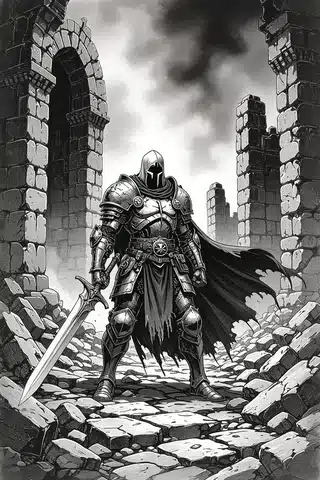
Lighting-emissive tokens are a fantastic way to convey important game mechanics visually. These tokens can glow or emit light, indicating spells, hazards, or even the health status of characters. For instance, a token representing a spellcaster might have a glowing aura that indicates they are ready to cast a spell, while a token representing a dangerous creature might have a red aura to signify it as a threat.
To implement lighting-emissive tokens effectively, follow these steps: 1. **Choose your token**: Select tokens that can visually represent different statuses. For example, a green aura could signify a healing zone, while a red aura might indicate a danger zone. 2. **Set up aura automation**: Use automation features to toggle auras based on status effects. For instance, when a character receives a buff, the token could automatically gain a glowing aura, making it clear to everyone at the table. 3. **Include textual alternatives**: Ensure that important visual cues have a textual counterpart. This could be a chat message or a tooltip that describes what the aura signifies, making your game more accessible.
7. Automation, macros, and scene scripting
Common automation patterns
Automation in your VTT can streamline your gameplay, allowing you to focus on storytelling and player engagement rather than micromanaging every detail. Common automation patterns include triggering sound effects (SFX), fading audio during scene transitions, and managing fog reveals. With platforms like Foundry, you can utilize its API and modules to enhance these automation capabilities.
To implement effective automation, consider these steps: 1. **Identify repetitive tasks**: Look for tasks that you frequently perform, such as playing background music or revealing parts of the map. Automating these can save you time. 2. **Set up scene-based audio fades**: For example, when transitioning to a new scene, you could automate a fade-out of the current audio while fading in the new audio. This creates a smooth transition that maintains immersion. 3. **Test your macros**: Always run your automation in a sandbox scene before your actual session. This way, you can ensure everything works as intended without disrupting the flow of your game.
Short macro examples and triggers
Incorporating macros into your VTT can enhance your game’s atmosphere and streamline gameplay. Macros are small scripts that automate tasks, such as changing music or triggering sound effects. Here are a few examples of macros that can be easily implemented:
- SceneStart: This macro could automatically fade to a new playlist and play an intro sound effect when a new scene begins.
- TokenEnter: This macro plays a footstep sound effect when a token enters a new area and briefly flashes its aura to indicate movement.
- CombatStart: This macro switches the background music to a combat loop and increases the ambient sound volume to heighten tension.
Example: You can adapt these macros to fit your specific assets and needs, ensuring that your automation is tailored to your campaign’s atmosphere.
8. Pacing, encounter design & theatrical cues
Scene beats and tension arcs
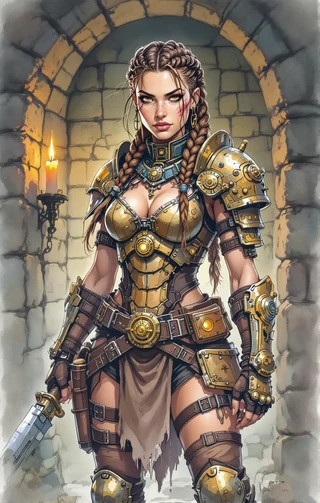
Using atmosphere as a throttle in your VTT sessions can significantly influence the pacing and emotional impact of your game. By establishing clear scene beats—specific moments that guide the flow of the narrative—you can create tension arcs that keep players engaged. A well-structured scene typically follows a pattern of setup, rising tension, climax, and resolution.
To effectively use scene beats, follow these steps: 1. **Establish the ambiance**: Start by setting the mood with ambient sounds and appropriate lighting. This creates a foundation for your scene. 2. **Introduce inciting cues**: Use a single sound effect to signal a turning point or complication in the narrative. For instance, a sudden thunderclap can heighten tension before a critical moment. 3. **Build to a climax**: As the scene progresses, shift to more intense music and tighter lighting to signal the climax. This could coincide with a combat encounter or a critical decision point for the players.
Using atmosphere to control pacing
Atmosphere can be a powerful tool to manipulate player pacing and decision-making during your VTT sessions. By strategically using silence or sound cues, you can speed up or slow down the pace of the game, guiding players toward the desired emotional response.
To control pacing effectively, consider these techniques: 1. **Implement silence**: Use a brief moment of silence (around 10 seconds) to force players to reflect on a significant event or decision. This can encourage deeper engagement with the narrative. 2. **Signal danger**: A rapid drumroll lasting about 3 seconds can indicate impending danger, prompting players to act quickly. 3. **Encourage roleplay**: A slow fade to ambient sounds can create a relaxed atmosphere, encouraging players to engage in roleplay and character interactions.
Example: After a climactic battle, you might use silence to let the gravity of the situation sink in before introducing ambient sounds to transition into the next scene.
9. Accessibility, latency & performance tips
Reducing lag and optimizing assets
Lag can be a significant barrier to immersion in your VTT sessions, especially when using multiple animated assets or dynamic lighting. To ensure a smooth experience, it’s essential to optimize your assets and manage the number of active elements in your scenes.
To reduce lag effectively, follow these steps: 1. **Limit animated elements**: Aim for fewer than six animated tiles and no more than ten active lights in a single scene. This helps maintain performance without sacrificing visual quality. 2. **Optimize audio and images**: Keep audio files around 128 kbps and images at a maximum resolution of 4000×4000 pixels. Compressed files load faster and reduce lag. 3. **Test performance**: Regularly check the frames per second (FPS) during your sessions. If players report lag, consider disabling some animated layers or reducing the quality of shadows and lighting.
Accessibility (captions, volume controls, color-blind-friendly choices)
Creating an inclusive atmosphere in your VTT is crucial for ensuring that all players can fully participate. This means considering accessibility in your sound cues, visual elements, and overall game design.
To enhance accessibility, implement these strategies: 1. **Add captions for audio cues**: Provide textual descriptions for important sound effects in the chat. This ensures that players who are hard of hearing can still engage with the game. 2. **Provide volume controls**: Implement volume sliders for ambient sounds and music, allowing players to adjust levels according to their preferences. 3. **Use color-blind friendly choices**: Incorporate high-contrast symbols in addition to color cues, and test color palettes to ensure they are accessible to players with color vision deficiencies.
10. Quick setup procedures (4 short step-by-step flows GMs can run before a session)
Quick atmosphere check
Setting the right atmosphere in your virtual tabletop (VTT) game is crucial for immersion. A quick pre-session check can ensure everything is functioning correctly and help you create the desired mood. Here’s how to do it in four simple steps, each taking just 60–90 seconds:
- Audio Priming: Load your music playlist, set ambient sound to around 40% volume, and music tracks to 50%. Play a quick sound effect (SFX) to ensure it’s working.
- Lighting Snapshot: Restore your saved scene using the Scene Packer in Foundry or refer to your notes for Roll20. Conduct a quick token-vision test to confirm visibility.
- Token Placement Optimization: Place your player characters (PCs) on the map, check sight lines for each token, and ensure auras are toggled correctly.
- Performance Pass: Disable animated tiles temporarily to check frames per second (FPS), and run a connection test with one player to ensure everything runs smoothly.
Sound cue priming, lighting snapshot restore, token placement optimization
To make your VTT sessions run smoothly, you need to have your audio, lighting, and tokens ready to go. Here’s how to efficiently prepare each component:
- Sound Cue Priming: Label your SFX by scene and bind hotkeys or macros for quick access. Create a “scene prime” folder containing five essential cues for the session.
- Lighting Snapshot Restore: For Foundry users, export your scene with the Scene Packer. If you’re using Roll20, document the position of critical light sources in a short text file for easy recreation.
- Token Optimization: Ensure that tokens do not overlap and that their auras are correctly toggled. Run a quick test by moving one player’s token for 10 seconds to check visibility and aura activation.
11. Resources & complementary tools
Marketplace assets and creators (selective)
Utilizing curated marketplace assets can significantly speed up your setup process and enhance your VTT atmosphere. Here are some recommended resources and links to help you find what you need:
- La boutique en elle même: Sacred Arts Designs
- Fantasy Villages/Maps: 3000 Fantasy Village and Town Maps
- Cyberpunk Maps: 3000 Cyberpunk Battle Maps Bundle
- Post-Apocalyptic Maps: 3500 Nuclear Fallout Maps
- Animated Tokens: 100 Animated Undead Tokens and 100 Orc Animated Tokens
Sound libraries, map editors, automation modules

Having the right tools at your disposal can elevate your VTT atmosphere significantly. Here’s a curated list of sound libraries, map editors, and automation modules that can help you streamline your setup:
- Sound Libraries: Free: Tabletop Audio, Freesound.org; Paid: Epidemic Sound, Michael Ghelfi Studios
- Map Editors: Inkarnate, Wonderdraft, Photoshop, GIMP
- Automation Modules: Foundry: Look for modules like Animated Tiles and Soundscape; Roll20: Explore API scripts for Pro users to automate common tasks.
Example: If you’re looking for a free sound library, start with Tabletop Audio for easy access to themed ambient sounds. If you need more variety, consider subscribing to Epidemic Sound for a larger selection.
12. Common mistakes and quick fixes
Overuse of effects
One common pitfall in creating atmosphere for your VTT sessions is the overuse of audio and visual effects. When you rely too heavily on SFX or flashy visuals, they can lose their impact and distract your players. Here’s how to avoid that:
Diagnostic Approach: If your players start ignoring an effect after the third instance, it’s time to retire it or vary the SFX to keep things fresh. Limiting yourself to 2–3 signature SFX per scene can help maintain their significance.
Variation Strategy: Rotate between different sound effects or visual cues to prevent repetition fatigue. For example, if you have a “door creak” SFX, consider using different variations or even different types of creaking sounds for different doors.
Poor mixing and unclear cues
Another frequent issue is poor audio mixing, which can lead to competition with player voices and diminish the overall experience. Here are some practical tips to ensure your audio is well-balanced:
Mixing Guidelines: Keep your master volume capped at around 30% to preserve voice clarity. During speech, duck music by 10–15 dB to ensure players can hear each other clearly.
Quick Test: Have a player speak while your audio is playing. If their voice is not clearly audible, reduce the music volume further until it balances well.
13. 8+ immediate tips to apply now
One-line actionable tips
Here are some quick, actionable tips you can implement right away to enhance your VTT atmosphere:
- Use one ambient loop + one music loop + 3 SFX; label and hotkey them for quick access.
- Keep your master volume at around 30% to ensure voice clarity during play.
- Limit animated tiles and lights to fewer than 10 active lights to reduce lag.
- Save lighting or scene snapshots in Foundry or document notes for Roll20 to streamline setup.
- Test your audio mix with one player’s microphone during prep to ensure balance.
- Utilize negative space intentionally on your maps—leave 20–40% area uncluttered for better movement and visual breathing.
- For accessibility, always duplicate critical audio cues with a chat message or tooltip for players who may miss them.
Two-minute and ten-minute improvements
If you’re short on time but want to boost your VTT atmosphere, here are some quick improvements you can make:
- Two-Minute Improvements: Load an ambient loop and a single music track, set their volumes, and test your SFX once to ensure everything is functioning as planned.
- Ten-Minute Improvements: Create a three-layer fog or parallax effect, set three light sources, and bind three hotkey SFX for quick triggering during gameplay.
Example: In just ten minutes, you can enhance the visual depth of your map with layered fog, adding a cinematic quality to your scenes without extensive setup.
Fox’s take
In summary, creating atmosphere in a virtual tabletop is all about engaging your players through sound, lighting, and thoughtful design. By applying the techniques discussed, from layering audio to optimizing your maps, you can significantly boost immersion in your sessions. Remember to test your setups regularly and gather feedback from your players to refine your approach. Now, it’s time to put these tips into action—choose a technique that resonates with you and elevate your next VTT session!
FAQ
How do I add ambient sound to my VTT session without distracting players?
Use a three-tier model with ambient sounds at lower volume and music slightly louder to enhance atmosphere.
What lighting settings best simulate darkness and tense encounters?
Use dynamic lighting with limited sources to create shadows and suspenseful environments.
Which simple automations most improve immersion?
Trigger sound effects for area entries and transition music during scene changes to enhance engagement.
How can I keep atmosphere while minimizing lag for remote players?
Limit animated elements and optimize audio files to ensure smooth performance for all players.
What quick checks should I run before every session?
Test audio, lighting, and token visibility to ensure a smooth start to your VTT session.
Continue reading
- How to use DnD Beyond?
Learn how to use D&D Beyond: step-by-step character builds, campaign management, and VTT integrations like Beyond20 in one practical guide. - How to create my own DnD character ?
Learn how to create a DnD character step-by-step with practical tips and tools.