As a Dungeon Master, you want to create the most immersive and engaging virtual tabletop (VTT) sessions possible. But with so many Dungeon Master tools for VTT sessions available in 2026, it can feel overwhelming to choose the right ones. Whether you’re looking for platforms, mapping tools, or automation resources, I’m here to guide you through the best options tailored to your needs, making your gaming experience smoother and more enjoyable.
What you’ll learn in this article
- 🎲1Discover the best Dungeon Master tools for VTT sessions in 2026.
- ✅2Compare leading virtual tabletop platforms like Foundry VTT and Roll20.
- 🔎3Learn how to create engaging battlemaps using Procreate and other mapping tools.
- 🧙4♂️ Understand the importance of token management and how to use token packs effectively.
- 🎶5Explore VTT audio tools to enhance your sessions with dynamic soundscapes.
- ⚙6️ Get actionable tips on DM automation, including macros and scripts for Foundry VTT.
- 📅7Find out how to effectively manage player characters and distribute handouts.
- 🛠8️ Delve into troubleshooting and performance tips for smooth gaming experiences.
- 🌍9Learn about accessibility tools to create an inclusive environment for all players.
- 💰10Navigate pricing and licensing for VTT tools and resources.
- 🎲11Session prep, scheduling and campaign management
- 🎲12Troubleshooting & performance tips
- 🎲13Accessibility, inclusion and tools for diverse players
- 🎲14Pricing, licensing and buying advice
- 🎲15Resources & complementary tools
- 🎲16Practical weekly DM workflow template
1. Top virtual tabletop (VTT) platforms in 2026
As we step into 2026, the virtual tabletop (VTT) landscape offers a variety of platforms tailored for different gaming styles and needs. The leading options include Foundry VTT, Roll20/Forge, and Fantasy Grounds, each with its unique strengths. For instance, Foundry VTT is known for its deep customization capabilities and powerful automation features, making it ideal for experienced GMs who want to create a tailored experience. Roll20 is often recommended for beginners due to its user-friendly interface and extensive official content marketplace. Meanwhile, Fantasy Grounds excels in licensed content automation, particularly for games like Dungeons & Dragons (D&D) and Pathfinder.
| Platform | Primary Use Case | Price Tier | Pros |
|---|---|---|---|
| Foundry VTT | Custom campaigns and automation | One-time purchase ($50) | Unlimited free players, extensive customization |
| Roll20/Forge | Easy setup and official content | Subscription model | User-friendly, large marketplace |
| Fantasy Grounds | Licensed automation and rules | One-time or subscription | Strong for D&D/Pathfinder, extensive rule support |
| Owlbear Rodeo | Quick, minimalist sessions | Free | Fast setup, great for theater-of-the-mind |
| TaleSpire | Visual, 3D experience | Subscription model | Immersive visuals, great for storytelling |
Tip: When deciding on a platform, consider your gaming style and the complexity of your campaigns. If you’re just starting out, Roll20 might be the best choice, while seasoned GMs may prefer Foundry VTT for its extensive features.
1.1 Platform feature comparison (Foundry VTT, Roll20/Forge, Fantasy Grounds Unity, Astral, Tabletop Playground)
When comparing VTT platforms, it’s crucial to evaluate their features side by side. Here’s a quick breakdown of the primary attributes you should consider: cost, hosting options, customization levels, and community size. Foundry VTT stands out for its high customization and automation capabilities, while Roll20 is the easiest to use for newcomers. Fantasy Grounds shines with its licensed content, although it has a steeper learning curve. Astral and Tabletop Playground cater to specific niches, with Astral being great for streaming and Tabletop Playground excelling in physics-based gameplay.
| Platform | Cost | Hosting | Customization Level | Community Size |
|---|---|---|---|---|
| Foundry VTT | $50 (one-time) | Self-hosted | High | Growing |
| Roll20/Forge | Subscription plans | Cloud-hosted | Medium | Large |
| Fantasy Grounds | $39 (one-time) or subscription | Cloud-hosted | Medium to High | Established |
| Astral | Free to start | Cloud-hosted | Medium | Niche |
| Tabletop Playground | Free | Cloud-hosted | Low | Emerging |
Example: If you’re planning to stream your sessions, Astral could be the best choice for its seamless capture capabilities, while TaleSpire’s visual appeal makes it a great pick for storytelling-heavy games.
1.2 Best use cases and which to pick (solo prep, streaming, theatre-of-the-mind hybrid)
Choosing the right VTT platform often depends on your specific use case. For solo preparation, Roll20 offers a wealth of official content that can be quickly set up, making it an excellent choice for GMs who want to jump right into the action. If you’re looking to stream your sessions, Foundry VTT and Alchemy are fantastic options due to their robust customization and visual capabilities. For those who prefer a theater-of-the-mind approach, Owlbear Rodeo provides a straightforward interface that allows you to focus on storytelling rather than technicalities.
Tip: Assess your primary goals as a DM. If you need quick setup and ease of use, Roll20 is your best bet. But if you’re aiming for an immersive experience with a lot of customization, Foundry VTT might be more appropriate.
2. Mapping tools and asset pipelines
Creating and managing maps effectively is crucial for a smooth VTT experience. There are several authoring tools available, including Procreate, Photoshop, WonderDraft, Inkarnate, and DungeonDraft. Procreate is particularly popular for hand-drawn maps, while Photoshop excels in batch editing capabilities. WonderDraft and Inkarnate are excellent for swift overland map creation, whereas DungeonDraft is ideal for creating tiles and dungeon layouts.
When exporting your maps, it’s important to optimize them for VTT use. This means exporting layered maps and choosing the right file formats, such as PNG and WebP, to ensure they load quickly during sessions. Aim for VTT-friendly sizes, typically keeping maps between 2-5 MB and tokens in the range of 256-512 pixels.
| Tool | Best For | Key Features |
|---|---|---|
| Procreate | Hand-drawn maps | Custom brushes, intuitive interface |
| Photoshop | Batch edits | Advanced editing features |
| WonderDraft | Overland maps | Quick terrain generation |
| Inkarnate | Fast map creation | User-friendly, stock assets |
| DungeonDraft | Tiles and dungeons | Layered exports for lighting effects |
Warning: While high-resolution maps look stunning, they can slow down your VTT performance. Always test your maps before the session to ensure they load smoothly for all players.
2.1 Authoring tools: Procreate, Photoshop, WonderDraft, Inkarnate, DungeonDraft
When it comes to selecting the right authoring tool for your maps, each option has its unique strengths. Procreate is fantastic for artists who want to create hand-drawn maps with a personal touch. Its extensive brush options allow for a high degree of customization. On the other hand, Photoshop is essential for those needing to perform batch edits or create complex visual effects.
WonderDraft and Inkarnate shine in their ability to create beautiful overland maps quickly. If you’re in a rush but still want a visually appealing map, these tools can provide great results in a short amount of time. DungeonDraft is specifically designed for dungeon and tile maps, allowing for detailed layering that can enhance your lighting effects in VTTs.
Example: If you’re preparing for an encounter in a dungeon, DungeonDraft is your go-to tool. You can create a detailed layout, export each layer separately, and use them to create a dynamic lighting effect within your VTT.
2.2 Asset pipelines: tilesets, layered exports, and optimized file formats (PNG, WebP, VTT-friendly sizes)
An effective asset pipeline is essential for ensuring your maps and tokens load quickly and efficiently in a VTT. Start by creating layered files in your authoring tools, then export them as PNG or WebP formats. WebP is particularly advantageous for maps due to its smaller file size without sacrificing quality. Aim for a file size of 1-2 MB for tokens and 2-5 MB for maps to maintain optimal performance.
Once you have your assets, implement a clear naming convention and folder structure to keep everything organized. This way, you can quickly find and retrieve assets during your sessions without wasting time searching.
Tip: Tools like TinyPNG and ImageOptim can help you compress your images without losing quality. This is particularly useful when managing a large library of assets.
2.3 Example: 4-step fast battlemap export for Foundry/Forge
Exporting a battlemap for Foundry or Forge doesn’t have to be complicated. Here’s a quick 4-step process to get you started:
- Create Your Map: Design a 20×20 grid map, ensuring it’s at least 1400×1400 pixels for clarity at a 70px/square grid size.
- Export Layers: Export your map layers as PNGs, keeping them organized by type (e.g., background, terrain, walls).
- Optimize Files: Use tools to compress your files, targeting a maximum size of 4 MB for the entire map.
- Upload to VTT: Import your map into Foundry or Forge, setting up the necessary lighting and visibility layers.
Warning: Always test the map in your VTT environment before the actual session to ensure everything works as intended.
3. Token and miniature management
Managing tokens and miniatures effectively can significantly enhance the gaming experience in your VTT sessions. When creating tokens, it’s essential to standardize their sizes, ideally between 256 and 512 pixels. Use PNG format with transparency for the best results. Batch-processing tools like Photoshop or GIMP can be incredibly helpful for resizing and applying effects such as glow or frames to your tokens.
In addition to static tokens, consider incorporating animated tokens into your sessions. While they can add an immersive element, be mindful of the performance impact, as animated tokens can consume more CPU and bandwidth. A good rule of thumb is to limit animated tokens to 3-5 per scene to avoid lag.
| Token Type | Size (pixels) | Format | Performance Impact |
|---|---|---|---|
| Static Tokens | 256-512 | PNG | Low |
| Animated Tokens | 256-512 | APNG/GIF | Moderate to High |
Tip: Utilize token libraries and compendia available on platforms like Roll20 or Foundry to quickly drag and drop tokens into your scenes. This can save you time and streamline your setup process.
3.1 Static vs animated tokens: formats and performance impact
Understanding the difference between static and animated tokens is crucial for effective VTT management. Static tokens, typically in PNG format, are less demanding on system resources, making them ideal for most scenarios. On the other hand, animated tokens can enhance immersion but may require more CPU and bandwidth, especially in larger scenes.
To maximize performance while still utilizing animated tokens, consider using formats like APNG or animated WebP, which provide better quality at smaller file sizes. For scenes with 20 or more tokens, stick to static options to ensure a smooth experience for all players.
Example: If you’re running a large battle scene, opt for static tokens for regular enemies and reserve animated tokens for key figures, like a boss character, to maintain performance without sacrificing excitement.
3.2 Token frames, batch importing and tagging
Token frames can add a polished look to your miniatures, and they are readily available in bundles on marketplaces like Etsy. To efficiently manage your tokens, consider batch importing them into your VTT. For Foundry, you can drag a folder of tokens into the Compendium, apply tags or flags using a CSV file where supported, and quickly categorize them for easy access during sessions.
Establish a tagging strategy to categorize tokens by criteria such as challenge rating (CR), type, and campaign relevance. This will streamline your workflow and allow you to quickly find the right tokens during gameplay.
Tip: Consider using tools like Token Stamp to create and customize your tokens with borders and frames, saving you time and enhancing your visual presentation in sessions.
4. Battlemap workflows, lighting, and dynamic effects
Creating an engaging battlemap involves more than just uploading an image; it requires thoughtful layering, lighting, and dynamic effects. Start by layering your map elements in a logical order: background, terrain, walls/occlusion, lighting, and finally, the token layer. This structure will help you manage visibility and interactions effectively.
Dynamic lighting is a powerful feature that can greatly enhance immersion. In Foundry, for example, you can enable dynamic lighting to allow players to see only what their characters would realistically perceive. This adds a layer of realism and strategic depth to your game.
| Layer Type | Purpose |
|---|---|
| Background | Sets the scene |
| Terrain | Provides navigable areas |
| Walls/Occlusion | Blocks or reveals visibility |
| Lighting | Controls illumination and shadows |
| Token Layer | Displays characters and creatures |
Warning: Be cautious with dynamic lighting settings, especially when playing with low-bandwidth players. Test your lighting effects to ensure they don’t negatively impact performance.
4.1 Best practices for layers, fog of war, and dynamic lighting
To maximize the effectiveness of your battlemap, adhere to a few best practices for layers and lighting. Always separate occlusion (what blocks vision) from illumination (what provides light). This allows for more flexible control over how players perceive the environment. Additionally, utilize fog of war to obscure areas that players have not yet explored, adding an element of mystery and strategy.
Before a session, test the visibility settings for each player, ensuring that everyone can see what they need without compromising performance. For players with lower-spec devices, consider preparing a fallback scene that uses basic visibility settings.
Example: In a cave setting, you might create a layer for stalagmites that obstructs vision while allowing light to pass through, enhancing the atmosphere and making exploration more engaging.
4.2 Example: Build a cave encounter in 5 steps (map, tokens, lighting, ambient audio, reachable assets)
Building a cave encounter can be a thrilling experience for your players. Here’s how to set it up in five clear steps:
- Export Your Cave Map: Create a cave map, ensuring it’s sized between 1000-1800 pixels for clarity. Export the map as a PNG.
- Create an Occlusion Layer: Add an occlusion layer to represent stalagmites and other obstacles within the cave, blocking player vision.
- Add Animated Tokens: Place 3 animated bat tokens (using APNG format) to create a sense of movement and danger.
- Set Ambient Audio: Use two ambient tracks (e.g., dripping water and wind) compressed to 128 kbps MP3 format. Set them to loop for continuous sound.
- Test the Setup: Run a quick test of the encounter by simulating three rounds of play, ensuring that everything functions smoothly.
Tip: Always consider accessibility options, such as high-contrast markers, to ensure all players can engage fully with the encounter.
✨ Discover the Ultimate Tavern Bundle ✨
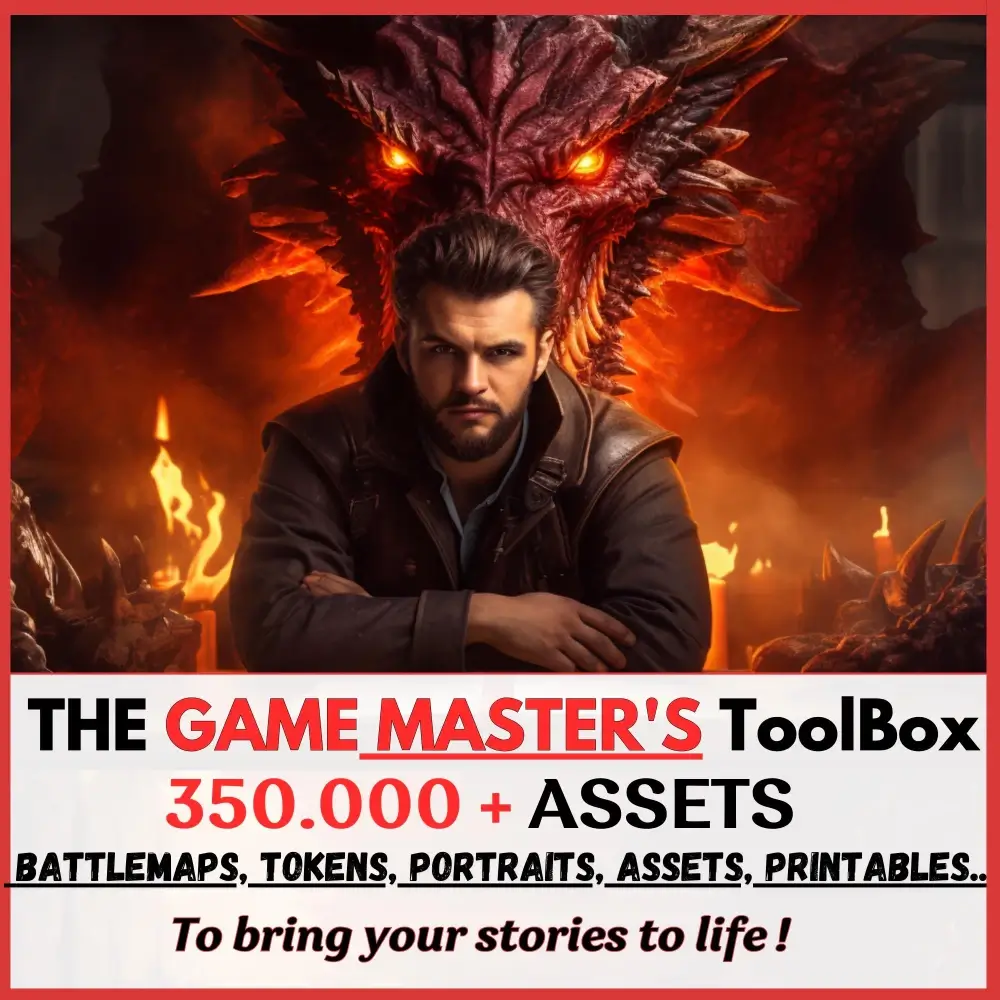
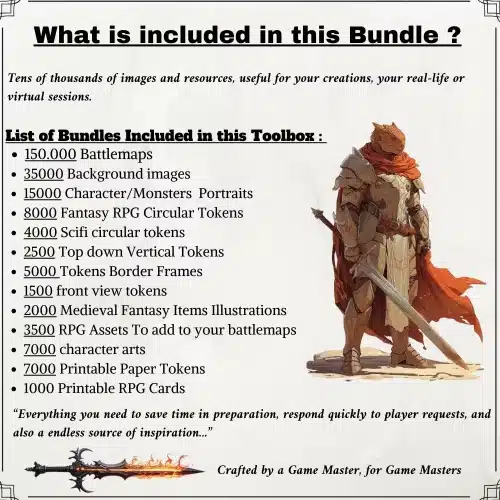
Stop prepping for hours. Get 350,000+ digital assets to create immersive campaigns instantly.
🎲 Get the Ultimate Toolbox Now
Instant Download • Lifetime Access
5. Encounter construction and initiative systems
Constructing engaging encounters involves balancing various elements, including monster statistics, player capabilities, and environmental challenges. Tools like Fight Club 5 or Kobold Fight Club can help you balance encounters by calculating appropriate challenge ratings based on your party’s level and size. Once you have your monsters selected, link their stats directly to tokens in your VTT for easy access during gameplay.
Incorporating automation for initiative tracking can save you valuable time during sessions. Many VTTs offer plugins that automate initiative rolls and condition tracking, allowing you to focus more on storytelling and less on bookkeeping.
| Tool | Purpose |
|---|---|
| Fight Club 5 | Balancing encounters |
| Kobold Fight Club | Encounter difficulty management |
| Midi-QOL | Automating actions/effects |
| Combat Utility Belt | Status automation |
Example: When preparing an encounter, use Kobold Fight Club to determine the appropriate challenge rating based on your party composition, ensuring that the encounter is neither too easy nor too difficult.
5.1 Encounter builder plugins and compendia (examples and when to use them)
Several modules and plugins can significantly enhance your encounter-building process. For instance, Token Stamp allows you to mass-spawn tokens quickly, while Midi-QOL automates actions and effects to streamline gameplay. Combat Utility Belt is excellent for managing status effects, and Simple Calendar helps keep track of time in-game.
Each of these tools serves a specific purpose, so choose them based on your encounter needs. For example, if you frequently run complex encounters with multiple status effects, integrating Combat Utility Belt will save you time and reduce the potential for errors.
Tip: Familiarize yourself with the specific features of each plugin to maximize their effectiveness in your sessions.
5.2 Automating initiative, conditions, and turn summaries (short macro example)
Automation can be a game-changer for managing initiative and conditions in your sessions. A typical macro pattern for Foundry might involve rolling for initiative, applying conditions, advancing the turn, and posting a summary for players. Here’s a simple example of what that could look like:
- Roll Initiative: Automatically roll initiative for all tokens.
- Apply Condition: If a token has a condition, apply it (e.g., “Stunned”).
- Advance Turn: Move to the next token in the initiative order.
- Post Summary: Announce the current turn and any active conditions in the chat.
Warning: Always test your macros in a sandbox environment to ensure they function correctly before using them in live sessions.
6. Macros, scripts, and automation for DMs
Incorporating macros and scripts into your VTT sessions can streamline gameplay and enhance the overall experience. Common macro patterns include dice roll pipelines, status toggles, and auto-rolling hit points. By automating these actions, you can save 20-40% of your session time, allowing for a more fluid gameplay experience.
Utilizing tools like Git for version control can help you maintain your macros and scripts, ensuring that you can easily roll back to previous versions if necessary. Additionally, always sanitize your macros to prevent any potential security issues.
| Macro Type | Purpose |
|---|---|
| Dice Roll Pipelines | Automating dice rolls |
| Status Toggles | Managing character conditions |
| Auto-Roll HP | Quickly generating hit points |
Tip: Consider setting up a local repository for your macros, allowing you to track changes and revert to previous versions if needed.
6.1 Common macro patterns (dice roll pipelines, status toggles, auto-roll HP)
Understanding common macro patterns can significantly enhance your efficiency during sessions. For example, a dice roll pipeline might look like this: roll the dice, announce the result, and apply damage to the target. Similarly, a status toggle macro could toggle a condition on a character and log it for reference.
Here are a few macro patterns you can consider:
- Roll + Announce: Roll a die and announce the result in the chat.
- Toggle + Log: Toggle a character’s status and log the change for reference.
- ApplyDamage + UpdateHP: Apply damage to a character and update their hit points accordingly.
Example: If you frequently run combat scenarios, having a macro that rolls damage and applies it to the target in one action can significantly reduce the time spent on bookkeeping.
6.2 3–5 step macro example: Apply initiative and a status condition with summary
Creating an efficient initiative macro can streamline your gameplay. Here’s a concise 3-step macro example for Foundry:
- Select Token: Identify the token that needs to roll initiative.
- Run Macro: Execute the initiative roll and apply any active conditions.
- Post Summary: Check the chat for the initiative result and any condition summaries.
Warning: Always ensure your macros are tested in a controlled environment to avoid disruptions during live sessions.
6.3 Security and maintenance: permissions, sandboxing, and versioning
Maintaining security and version control in your VTT is crucial for protecting your campaign and ensuring smooth gameplay. Using Git for Foundry allows you to track changes and collaborate with others effectively. Always sanitize your macros to prevent potential exploits, and manage player roles to restrict access to sensitive functions.
Consider creating a sandbox world for testing new modules or macros before deploying them in your main campaign. This helps ensure that any issues can be resolved without affecting your players’ experience.
| Security Measure | Purpose |
|---|---|
| Git for version control | Track macro changes |
| Sanitize macros | Prevent security exploits |
| Sandbox world for testing | Test new features safely |
Tip: Regularly audit your modules and macros to ensure they meet security standards and function as intended.
7. Sound, music and ambience management
Creating the right atmosphere for your VTT sessions can greatly enhance immersion for your players. Sound, music, and ambient effects can set the tone for adventures, making combat feel intense or exploration feel mysterious. Tools like Syrinscape and Tabletop Audio can help you curate the perfect soundtrack for your sessions. Syrinscape offers an extensive library of soundscapes that you can customize for different scenarios, from bustling taverns to eerie dungeons.
To implement sound effectively, consider the following steps: Choose your audio tool: Select Syrinscape for a more dynamic experience or Tabletop Audio for easy access to pre-made tracks. Create playlists: Organize your sound files into playlists that correspond to different game scenarios, such as combat, exploration, or role-playing. Integrate with OBS: If you’re streaming, use OBS to manage your audio sources and ensure good sound quality for viewers.
7.1 Tools and services (Syrinscape, Tabletop Audio, local mixing with OBS/VLC)
When setting up sound and ambiance for your VTT sessions, you have several great tools at your disposal. Syrinscape is fantastic for creating immersive soundscapes tailored to your game, while Tabletop Audio offers a variety of pre-made tracks that can fit many scenarios. You can also use local mixing tools like OBS (Open Broadcaster Software) combined with Voicemeeter for more advanced audio routing, allowing you to mix different audio sources seamlessly.
To get started, follow these steps: Select your audio tool: Choose Syrinscape or Tabletop Audio based on your needs. Set up your soundboard: If using OBS, configure it to capture audio from your chosen tool and any other sources you want, like voice chat. Create a local mix: Use Voicemeeter to balance game sounds and your microphone input, ensuring your voice is clear over the ambient sounds.
Example: If using Syrinscape, pre-load specific sound sets for your session and create hotkeys in OBS to quickly switch between them during gameplay. This allows you to enhance the experience dynamically as players engage with the story.
7.2 Example: 3-step dynamic ambience fade for combat
Transitioning between different types of ambiance, especially during combat, can greatly enhance the gameplay experience. Here’s a simple three-step process to create a dynamic ambience fade:
- Pre-load your combat loop: Choose a combat track (e.g., intense battle music) and set it up in your audio tool, ensuring it’s ready to play when needed.
- Set fade-in/out hotkeys: In OBS, assign hotkeys for fading in the combat music while fading out any ambient sounds, allowing for a smooth transition.
- Crossfade during combat: When combat begins, use your hotkeys to crossfade the ambient audio out and the combat music in, testing volume levels to ensure a balanced sound.
Tip: Always test your audio transitions before the session. This allows you to adjust levels and ensure that the sound enhances the experience rather than distracts from it.
8. Player/character management, handouts and compendia
Managing player characters and distributing handouts effectively can significantly enhance the flow of your VTT sessions. Shared journals allow players to keep track of their characters’ stats and notes, while encrypted handouts can securely share sensitive information. Using tools like Fight Club 5, you can export character sheets and manage player data efficiently.
To manage player characters and distribute handouts, consider these steps: Set up shared journals: Use your VTT’s journal feature to create shared notes that all players can access, ensuring everyone is on the same page. Create encrypted handouts: For sensitive information, use encrypted PDFs to share details that should only be revealed at specific times during your campaign. Export character sheets: Use Fight Club 5 to export character data into a format that’s easy to share and manage during the game.
Example: If a player has a secret mission, you can create an encrypted handout that they can only access when they reach a specific point in the story, adding an element of surprise and intrigue.
8.1 Shared journals, encrypted handouts, and player-friendly sheets
Shared journals are an essential tool for keeping your players engaged and informed throughout your campaign. They can store notes, character stats, and even session summaries that everyone can refer to. Additionally, using encrypted handouts can help maintain the element of surprise in your game by restricting access to sensitive information until the right moment.
To set up shared journals and encrypted handouts, follow these steps: Create a shared journal: Use your VTT’s features to establish a journal that all players can access and contribute to. Set up access controls: Implement visibility settings to ensure that sensitive information remains hidden until revealed during gameplay. Draft and encrypt handouts: Utilize tools that allow you to create PDFs of handouts and encrypt them, ensuring that only specific players can view them at designated times.
Tip: Regularly update your shared journals after each session to keep information fresh and relevant for your players, enhancing their experience and involvement in the campaign.
8.2 Example: creating an NPC handout and distributing it securely
Creating and distributing NPC handouts can help deepen your players’ engagement with the story. Here’s a straightforward four-step process to create and share a secure NPC handout:
- Draft a one-page NPC PDF: Include essential details like the NPC’s name, backstory, and any relevant traits or abilities.
- Add metadata: Tag your handout with relevant keywords or levels to make it easier for players to search for it later.
- Upload to VTT: Use your VTT’s features to upload the handout as an encrypted file or private link, ensuring that only players involved in the scene can access it.
- Reveal at a trigger: Set a specific in-game event that triggers the reveal of the NPC’s handout, logging the reveal in your game notes for future reference.
Warning: Make sure to test the handout distribution process before your session to avoid any hiccups during gameplay. Having everything prepared in advance will help maintain the game’s flow.
9. Streaming, recording and remote presentation
When it comes to streaming or recording your VTT sessions, having a solid setup is essential for providing a quality experience for both players and viewers. Tools like OBS (Open Broadcaster Software) allow you to capture your VTT window, overlay voice chat, and create a polished presentation. Setting up a layout that includes your VTT, player webcams, and any overlays you might need will enhance engagement.
To set up your streaming or recording environment, follow these steps: Download and install OBS: Make sure to configure OBS for optimal performance, including setting up your video and audio sources. Design your scene layout: Create a layout that includes the VTT source, player webcams, and any overlays or chat windows you want to display. Test your setup: Run a test stream or recording to ensure everything looks and sounds the way you want it.
Example: If you’re using Roll20, you can set your VTT source to capture the game window and adjust your overlays to display player names and session information dynamically.
9.1 OBS + VTT layout templates and multi-window capture tips
Setting up an efficient layout in OBS for streaming your VTT sessions can greatly enhance the experience for your audience. A well-structured scene layout can help keep your viewers engaged and informed. Here’s a recommended layout setup:
- Create a new scene: Name it something like “VTT Stream” for easy identification.
- Add sources: Include your VTT window as a source, player webcams, and any overlays such as chat or session information.
- Configure capture settings: Adjust the capture settings to ensure the best resolution and frame rate for your stream.
Tip: Using multi-window capture can allow you to display both your VTT and your players’ webcams simultaneously, giving viewers a more immersive experience.
9.2 Privacy, overlays, and chat-to-stream moderation
Maintaining player privacy and moderating chat during your stream is crucial for creating a safe and enjoyable environment. Implementing effective overlays and moderation strategies can help manage viewer engagement while protecting sensitive information.
To ensure privacy and effective chat moderation, consider these steps: Use overlays: Set up overlays that blur player webcams or hide private rolls to maintain confidentiality. Establish chat moderation rules: Create clear guidelines for chat behavior and assign trusted moderators to manage interactions during the stream. Test your privacy settings: Before going live, ensure that all privacy settings are functioning correctly to avoid any accidental exposure of sensitive information.
Warning: Always communicate with your players about what will be visible during the stream and get their consent before sharing any personal details. This practice fosters trust and keeps the focus on the game.
10. AI assistants and tools for DMs (2026)
Incorporating AI tools into your DM toolkit can streamline your preparation and enhance gameplay. AI can assist with generating NPCs, creating plot hooks, and balancing encounters. By utilizing these tools, you can save time and focus more on storytelling and player engagement.
For example, you might use an AI tool to generate an NPC backstory. Simply input parameters like the NPC’s role, personality traits, and background, and the AI can produce a detailed character profile for you. This allows you to quickly create rich, engaging characters without spending hours developing them from scratch.
10.1 AI NPC generation, plot hooks, and encounter balancing (prompt patterns)
When using AI for NPC generation and encounter balancing, having effective prompt patterns is key to getting the best results. Here are three practical patterns you can use:
- NPC Generation: “Generate an NPC who is a [role] with [personality traits] and [background details].”
- Plot Hook Creation: “Create a plot hook involving [setting] and [conflict or challenge].”
- Encounter Balancing: “Suggest an encounter for [party level] that includes [monsters or challenges] and is balanced for [number of players].”
Using these patterns can help you quickly generate the information you need to keep your game moving smoothly. Always validate the generated content to ensure that it fits within your campaign’s parameters.
Example: If you need an NPC for a tavern encounter, you might input “Generate an NPC who is a bartender with a friendly demeanor and a dark secret.” This prompt will yield a character that can add depth to your session.
10.2 Safety and creative guardrails when using AI
When integrating AI into your campaign preparation, it’s important to follow certain safety and creative guardrails to avoid unwanted issues. This includes verifying the stats generated by AI, ensuring that descriptions are human-edited, and sanitizing prompts to protect player privacy.
Here are four essential safety guardrails to keep in mind:
- Verify stats: Always double-check the generated stats against official sources for balance and accuracy.
- Human-edit descriptions: Ensure that any AI-generated text is reviewed and adjusted to fit your campaign’s voice and style.
- Sanitize prompts: Avoid including personally identifiable information (PII) or sensitive content in prompts.
- Log prompt provenance: Keep track of your prompts and their results to refine your AI usage over time.
Warning: Relying too heavily on AI without proper oversight can lead to inconsistencies or unwanted elements in your game. Always maintain a balance between AI assistance and your creative input.
11. Session prep, scheduling and campaign management
Effective session preparation and management are essential for running smooth VTT sessions. With the right tools and routines, you can streamline your process and ensure that your campaigns run without a hitch. Consider using templates and databases to track your campaign progress, character details, and session notes.
To set up an efficient session prep routine, follow these steps: Create a session template: Outline the key elements you want to cover, such as NPCs, plot points, and maps. Schedule regular prep sessions: Block time in your calendar for preparing materials, updating notes, and rehearsing key scenes. Utilize campaign management tools: Explore options like Fight Club or dedicated VTT features to keep everything organized in one place.
Example: If you have a weekly session, you might allocate a couple of hours each week to review your notes, update character sheets, and prepare any new handouts. This proactive approach can alleviate last-minute stress and enhance your overall game quality.
11.1 Quick-start 4-step session setup for a one-hour VTT run
When time is of the essence, having a quick-start setup for a one-hour VTT session can save you from scrambling at the last minute. Here’s a straightforward four-step process to get you ready:
- Select your main encounter: Choose the key encounter or scene you want to focus on during the session.
- Prepare necessary maps and tokens: Load your battlemap and any associated tokens into your VTT platform.
- Gather relevant handouts: Compile any handouts or reference materials you’ll need for the session, ensuring they are easily accessible.
- Run a quick connectivity test: Before your players log in, conduct a brief test to check your VTT’s functionality and ensure everything is running smoothly.
Tip: Keep a set of pre-made templates for encounters and handouts that you can quickly adapt for different sessions. This will help you save time in preparation and enhance your flexibility during gameplay.
11.2 Templates, campaign databases, and backup routines
Having a well-organized system for your campaign materials can make a huge difference in your VTT experience. Using templates and databases can help you track story arcs, character details, and session notes effectively. Additionally, establishing a regular backup routine ensures that your hard work is preserved.
To implement a solid organizational system, consider these steps: Create a folder structure: Set up folders for each campaign aspect, such as characters, encounters, and session notes. Use naming conventions: Develop a consistent naming scheme for files to make them easily searchable. Schedule regular backups: Implement a routine for backing up your campaign data, such as exporting files weekly or bi-weekly.
Example: If you name your character sheets with a format like “NPC_Name_CampaignDate,” it will be easier to find specific files when you need them. Regular backups can be done using cloud storage or a local drive to ensure you don’t lose any valuable information.
12. Troubleshooting & performance tips
When running VTT sessions, performance issues can disrupt gameplay and frustrate both you and your players. Having a plan in place for troubleshooting common problems can help you resolve issues quickly and keep the game flowing smoothly.
To troubleshoot performance issues, consider these steps: Compress maps: Use image compression tools to reduce the file size of your maps, improving loading times. Limit tokens: Keep the number of tokens in a scene to a manageable level to reduce lag. Run your VTT on SSD or VPS: Using a solid-state drive (SSD) or a virtual private server (VPS) can significantly improve performance.
Tip: Regularly check your players’ bandwidth and ensure they meet the recommended speeds for your VTT platform. This can help identify any connection issues that might affect gameplay.
12.1 Network and latency fixes, asset streaming and memory limits
Network issues can lead to frustrating latency during VTT sessions, which can disrupt the flow of the game. By addressing these issues proactively, you can minimize disruptions and enhance the player experience.
To improve network performance, follow these steps: Compress maps and assets: Use tools like TinyPNG or ImageOptim to reduce file sizes and improve loading times. Check bandwidth: Ensure that your upload and download speeds meet the recommended levels for your VTT platform. This is typically around 3–8 Mbps. Limit the number of active tokens: Keep the number of tokens in each scene to a manageable level to reduce lag.
Warning: Running a VTT on a device with insufficient memory can lead to crashes and slow performance. Make sure your system meets the necessary requirements to handle your chosen platform effectively.
12.2 Debugging crashing modules and slow map loads
If you encounter crashing modules or slow map loads during your VTT sessions, having a systematic approach to debugging can help you identify and resolve the issues quickly.
To debug these problems, consider the following steps: Disable unused modules: If you have many active modules, try disabling those that are not necessary for your current session to improve performance. Update modules regularly: Ensure that all your modules are up-to-date, as developers often release updates to fix bugs and improve performance. Conduct a binary search for problematic modules: Disable half of your active modules and test the VTT. If the issue persists, disable the other half until you identify the problematic module.
Tip: Keep a log of your modules and any changes you make, as this can help you track which updates or configurations lead to issues, making it easier to troubleshoot in the future.
13. Accessibility, inclusion and tools for diverse players
Creating an inclusive environment in your VTT sessions is crucial for ensuring that all players can enjoy the game. Implementing accessibility features can help accommodate players with various needs, enhancing their experience and participation.
To improve accessibility, consider these steps: Use high-contrast visuals: Ensure that your maps and tokens are easily distinguishable for players with visual impairments. Incorporate text-to-speech (TTS): TTS modules can help players who may struggle with reading or processing text quickly by reading aloud important information. Poll players for feedback: Regularly check in with your players to understand their needs and preferences regarding accessibility features.
Example: By using color-blind palettes for your tokens, you ensure that players with color vision deficiencies can easily identify their characters and interact with the game world.
13.1 Accessibility checklist (visual, auditory, cognitive supports)
Implementing an accessibility checklist can help you ensure that your VTT sessions are inclusive for all players. Here’s a concise checklist to consider when preparing your game:
- Visual Supports: Use high-contrast colors, large font sizes, and easily distinguishable tokens.
- Auditory Supports: Include TTS options and provide audio cues for important events in the game.
- Cognitive Supports: Simplify complex mechanics and provide clear instructions to help all players understand the gameplay.
Tip: Regularly updating your accessibility features based on player feedback can help create a more welcoming environment and improve overall enjoyment.
13.2 Simple tools: color-blind token palettes, captions and transcripts
Utilizing simple tools can enhance accessibility in your VTT sessions. Color-blind token palettes allow you to use colors that are easily distinguishable for players with color vision deficiencies, while captions and transcripts can help players who may have difficulty hearing or processing audio.
To implement these tools, consider the following: Select color-blind palettes: Choose palettes that use colors easily distinguishable by individuals with common types of color blindness. Enable captions: Use TTS modules or built-in features to provide captions for audio content during your sessions. Generate transcripts: After each session, create a transcript of key discussions and decisions to help players review what occurred.
Example: If you have a player who is color-blind, using a palette that features distinct shapes or patterns alongside colors can help them easily identify tokens on the map.
14. Pricing, licensing and buying advice
When it comes to selecting the best tools and resources for your VTT sessions, understanding pricing and licensing options is key. With various free and paid builds available, you can choose a setup that fits your budget while still providing the functionality you need.
To navigate pricing and licensing effectively, follow these steps: Assess your needs: Determine what features are essential for your gameplay. Do you need advanced automation, or are you looking for basic functionality? Explore budget options: Consider building a free starter kit using tools like Owlbear Rodeo and Inkarnate, or invest in a mid-range solution like Foundry with some paid assets. Evaluate long-term costs: Look at annual subscription costs for platforms like Roll20 to see if it fits within your budget over time.
Tip: Before making a purchase, take advantage of trial periods or free versions to test tools and see if they meet your needs before committing financially.
14.1 Free vs paid toolchains: three budget builds (starter, mid-range, pro)
When setting up your VTT, you can choose from various budget builds based on your needs. Here’s a quick overview of three potential setups:
- Starter Build: Free options like Owlbear Rodeo and Inkarnate provide basic functionality for casual gaming.
- Mid-Range Build: Foundry VTT for a one-time payment of around $50, plus some paid asset packs to enhance your experience.
- Pro Build: A combination of licensed modules and subscriptions, such as Fantasy Grounds, which can range from $150–$300 annually, depending on your chosen content.
Example: If you’re new to VTTs, starting with a free build allows you to familiarize yourself with the tools before investing in more complex systems.
14.2 3-step buying decision: how to choose the right paid addon
When considering paid addons for your VTT setup, having a clear decision-making process can help you choose wisely. Here’s a simple three-step approach:
- Assess your needs: Determine if the addon will save you time or enhance your gameplay experience significantly.
- Check license compatibility: Ensure the addon integrates well with your existing platform and modules.
- Test the waters: If possible, try out a demo or trial version to see if the addon meets your expectations before committing to a purchase.
Warning: Avoid impulse buys by sticking to your budget and carefully evaluating whether the addon aligns with your gameplay goals.
15. Resources & complementary tools
Having access to a variety of resources and complementary tools can greatly enhance your VTT experience. From asset bundles to audio libraries, knowing where to find high-quality materials can streamline your preparation process and enrich your gameplay.
To find the best resources, consider these options: Marketplace bundles: Explore websites like Etsy for curated bundles that include battlemaps, tokens, and other assets tailored for VTT use. Audio libraries: Look into services like Syrinscape and Tabletop Audio for immersive soundscapes that enhance your sessions. Community forums: Engage with communities on platforms like Reddit or Discord to share tips, resources, and experiences with other DMs.
Tip: Regularly check for new resources and updates to existing tools, as the VTT landscape is constantly evolving with new offerings and enhancements.
15.1 Selected GM Craft Tavern assets (selective listing with exact URLs)
If you’re looking to enhance your VTT sessions with high-quality assets, here are a few recommended GM Craft Tavern items that can speed up your preparation:
- Game Master Toolbox — 350,000 Dungeons and Dragons assets
- 200,000 Battlemaps (D&D-compatible)
- Sacred Arts Designs shop
- Procreate fantasy map brush kit
- 6500 token borders bundle
Example: Using the Game Master Toolbox can help you quickly access a wide range of assets, ensuring you have everything you need for your session without spending hours searching.
15.2 Other recommended marketplaces, plugins and audio libraries
In addition to GM Craft Tavern assets, there are numerous other resources available to enhance your VTT experience. Here are some additional marketplaces and tools worth exploring:
- Ambient Mixer: Offers customizable ambient soundscapes to suit your game’s setting.
- Tabletop Audio: Provides a library of soundtracks specifically designed for tabletop RPGs.
- Foundry module directory: A comprehensive resource for discovering useful modules and plugins to enhance your Foundry setup.
- Community forums: Engage with platforms like Discord and Reddit to share experiences and gather insights from other DMs.
Tip: Regularly explore these resources to discover new tools and enhancements that can improve your VTT sessions and keep your players engaged.
16. Practical weekly DM workflow template
To keep your campaign organized and minimize last-minute stress, establishing a practical weekly workflow can be invaluable. I recommend a five-day preparation schedule, where each day focuses on specific tasks. For example, Day 1 can be dedicated to developing story beats and character arcs, Day 2 for creating maps and gathering assets, Day 3 for crafting encounters, Day 4 for setting up audio and handouts, and Day 5 for conducting a dry run and backups. This structured approach helps ensure that you cover all necessary aspects of your campaign without feeling overwhelmed.
Each day, you can set time limits to keep yourself on track. For instance, allocate 1-2 hours for story development, followed by 1 hour for asset preparation. As you prepare, consider using template filenames like “CampaignName_AssetType” to keep everything organized. On your final day, don’t forget to back up your files and run a connectivity test with your players to ensure everything is set for the upcoming session.
Tip: Regularly updating your templates and files can help streamline your workflow and make it easier to adapt to unexpected changes in your campaign.
Fox’s take
In summary, the right Dungeon Master tools for VTT sessions can transform your gameplay, making it easier to manage encounters, create immersive maps, and engage your players. As you explore these resources, remember to assess your specific needs and budget. Don’t hesitate to try out free tools before investing in paid options. With the right preparation and tools at your disposal, you can create unforgettable adventures for your players. Now, it’s time to dive in and enhance your VTT experience!
FAQ
Which VTT is best for streaming and public games in 2026?
Foundry VTT is ideal for streaming due to its customization and automation features.
How can I quickly turn a hand-drawn map into a VTT-ready battlemap?
Scan your map, edit in Photoshop or Procreate, and export as PNG or WebP.
What are the top macro automations every DM should learn?
Learn to automate initiative rolls, damage application, and condition management.
How do I reduce latency and asset lag during sessions?
Compress assets, limit active tokens, and ensure a stable internet connection.
Where can I buy high-quality token and map packs that work with most VTTs?
Check marketplaces like Etsy and GM Craft Tavern for compatible assets.
Continue reading
- How Professional Dungeon Masters Prepare Sessions: Tools, Workflows & Asset Bundles
Discover effective dungeon master session prep techniques and tools for engaging tabletop RPG sessions. - Best free tools to make dungeon maps for Foundry VTT
Discover the best free dungeon map tools for Foundry VTT, with practical guidance and tips for seamless integration.