What you’ll learn in this article
- 🎲1The top VTT platforms in 2026 for different playstyles and preferences.
- ✅2How to create immersive battlemaps using tools like Wonderdraft and Inkarnate.
- 🔎3The best formats and sizes for tokens , including animated options for enhanced gameplay.
- 🧙4♂️ Essential macros and automation techniques to streamline your game sessions.
- 🎶5Recommended tools for integrating audio and ambiance into your virtual tabletop experiences.
- 💻6Hardware setups for budget , mid-range, and premium VTT configurations.
- 📅7Effective session management tools to keep your campaigns organized.
- 🎨8Tips for sourcing assets legally and efficiently for your VTT sessions.
- 🔐9Best practices for managing security and player permissions in a remote gaming environment.
- 💰10Sample budgets for setting up your VTT experience in 2026.
- 🎲11Costing, Licensing and Sample Budgets for 2026
- 🎲12Optimization, Troubleshooting and Live-Session Tips
- 🎲13Resources & Complementary Tools
- 🎲14Example Setups and 3–6 Step Procedures
1. Best Virtual Tabletop Platforms (VTT) in 2026
Quick comparison table (features, pricing, best use-case)
| Platform | Pricing | Key Features | Best Use Case |
|---|---|---|---|
| Roll20 | Free / Pro ~$10/mo | Easy entry, community content, video chat | Quick community games, theatre of mind |
| Foundry VTT | $50 one-time | Self-hosted, extensive customization | High customization needs, complex campaigns |
| Fantasy Grounds | $40–$150/yr | Automation, official module support | Running published modules, automation focus |
| TaleSpire | $30 one-time | 3D environment, visual appeal | Immersive 3D experiences |
| Alchemy RPG | Free / tiered options | Presentation features, streaming integration | Streamers and content creators |
Tip: When selecting a VTT, consider your playstyle and the features you value most. For example, if you prefer a quick setup and community-driven content, Roll20 might be your best bet. Alternatively, if you seek deep customization, Foundry VTT could be the right choice.
Beyond these established platforms, there are emerging options to explore in 2026. TaleSpire offers a unique 3D experience, while Alchemy RPG is designed for those who want to focus on presentations and streaming. Each platform has its strengths, so it’s worth trying a few to see which fits your gaming style best.
Which VTT to pick by playstyle (theatre of mind, grid combat, cinematic)
When choosing a VTT, it’s essential to align the platform with your preferred playstyle. For a theatre-of-mind approach, where imagination drives gameplay rather than maps, Roll20 or Beyond Tabletop can provide a streamlined experience without unnecessary complexity. These platforms prioritize speed and ease of access, allowing you to focus on storytelling.
If you’re into grid combat or cinematic gameplay, Foundry or Fantasy Grounds are excellent choices. They offer robust automation tools and precise grid management, making them ideal for tactical play. TaleSpire also caters to cinematic experiences with its immersive 3D environments, perfect for those who want to elevate their visual storytelling.
✨ Discover the Ultimate Tavern Bundle ✨
Stop prepping for hours. Get 350,000+ digital assets to create immersive campaigns instantly.
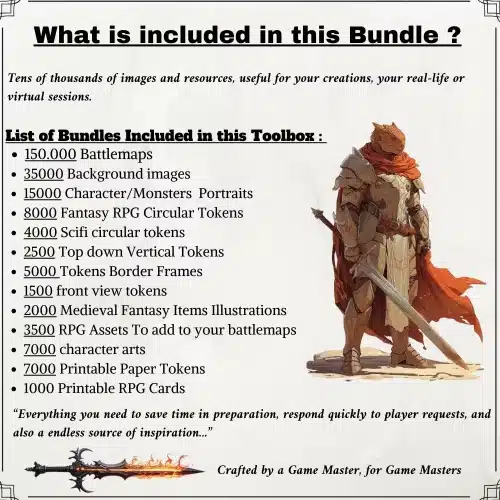
🎲 Get the Ultimate Toolbox Now
Instant Download • Lifetime Access
Warning: Switching platforms mid-campaign can introduce challenges, such as migrating assets and player familiarity. Take time to consider your options before making a decision.
2. Mapping and Battlemat Creation Tools
Desktop tools (Wonderdraft, Inkarnate, Procreate kits)
Creating effective battlemaps is crucial for immersive gameplay, and several desktop tools can help you achieve this. Wonderdraft and Inkarnate are two popular options that allow for detailed world-building and map creation. Wonderdraft is particularly user-friendly, enabling you to design maps from scratch with customizable elements. On the other hand, Inkarnate excels in creating beautiful, detailed maps with a variety of templates and assets.
For those who prefer a more artistic touch, Procreate is an excellent choice for hand-drawn maps. With various brushes and tools, you can create unique visuals tailored to your campaign. You might also find useful Procreate kits on Etsy, like the Procreate Fantasy Map-Making Brush Kit, which can speed up your creative process.
Example: To quickly create a dungeon map using Inkarnate, follow these steps:
- Open Inkarnate and select a new map project.
- Choose a grid size that fits your needs (e.g., 70×70).
- Use the drawing tools to outline your dungeon layout.
- Add walls, doors, and other features using the available assets.
- Export your map as a PNG or JPG file for VTT use.
Marketplace bundles and asset packs (how to pick legal assets)
When sourcing assets for your VTT sessions, consider using marketplace bundles. Websites like Etsy offer a variety of packs that can save you time and provide consistent art styles. However, it’s essential to verify the licensing of each asset to ensure it aligns with your intended use, whether personal or commercial.
To choose legal assets, follow these criteria:
- Check the license type (commercial or Creative Commons).
- Ensure the asset is in a compatible format (e.g., PNG for static images, GIF for animations).
- Consider the scale and consistency of the assets for your project.
Tip: Keep a record of your purchases, including licenses and author names, in a dedicated asset tracker (like Obsidian or Notion) to avoid any legal pitfalls later on. For example, you might purchase the 200,000 Battlemaps pack for extensive options while ensuring you save the license information for future reference.
3. Tokens, Animations and Asset Management
Token formats, size and anchor points
When creating or sourcing tokens for your VTT sessions, understanding the appropriate formats and sizes is crucial. The standard format for static tokens is PNG with a transparent background, while animated tokens can use GIFs or sprite sheets, depending on the platform. For static tokens, aim for a working size of around 256–512 pixels, exporting them at 280–512 pixels for optimal performance in your VTT.
Anchor points are also important. For example, Foundry uses the center of the image for rotation, while Roll20 prefers visually centered images with minimal padding. This means you should ensure that your tokens are centered properly to avoid alignment issues during gameplay.
Example: To prepare a token for VTT use, follow these steps:
- Create your token image in graphic design software, ensuring it has a transparent background.
- Resize the image to fit the recommended dimensions (280–512 pixels).
- Center the subject of the image for proper alignment.
- Save the token as a PNG file, naming it according to your organization scheme (e.g., goblin_melee_1x1_256.png).
Animated tokens and optimal file formats
Animated tokens can significantly enhance the visual experience of your VTT sessions. For Roll20, animated tokens are typically created as GIFs, while Foundry supports sprite sheets (collections of images in a single file). When designing or selecting animated tokens, keep file size in mind—aim for under 2–4 MB to prevent lag during gameplay.
To ensure optimal performance, limit the number of frames in your GIF to around 4–8 for simple animations. For sprite sheets, upload evenly spaced frames and set playback speed according to your preference.
Warning: Be cautious with animated tokens, as they can increase the CPU/GPU load on your system. Always test scenes featuring animated tokens before your session to ensure smooth performance.
Example: To create an animated token for Foundry:
- Design your animation frames, ensuring they are evenly spaced.
- Compile the frames into a sprite sheet using graphic design software.
- Upload the sprite sheet to Foundry, adjusting the playback speed as needed.
- Test the token in a scene to check for performance issues.
4. Automation, Macros and Initiative Tracking
Common macro examples (initiative, HP updates, conditions)
Macros are essential tools for automating tasks in your VTT, significantly reducing the workload during sessions. Common macros include those for initiative tracking, hit point (HP) updates, and condition toggles. For example, you can create a simple initiative macro that sorts combatants based on their initiative rolls each round.
Here’s how to set up a basic initiative macro:
- Create a new macro in your VTT.
- Write a script that sorts tokens based on their initiative rolls.
- Assign a hotkey for easy access during gameplay.
- Test the macro in a practice session to ensure it functions as intended.
Additionally, you can create a macro for HP updates, allowing you to quickly adjust a token’s HP based on damage taken. For example:
Selected Token Apply -{dmg} to HP bar1This macro would deduct the specified damage from the selected token’s HP.
Tip: Always version-control your macros by keeping them in a text file or Obsidian with comments. This way, you can easily track changes and revert to previous versions if necessary.
Integrations with character sheet systems
Integrating character sheets with your VTT can streamline gameplay and reduce the need for double-entry. For instance, D&D Beyond offers a browser extension called Beyond20 that allows you to import character sheets directly into Roll20 or Foundry. This integration facilitates seamless gameplay by enabling players to roll dice and manage their characters’ stats in real-time.
To set up this integration, follow these steps:
- Ensure you have a D&D Beyond account and character sheet ready.
- Install the Beyond20 browser extension.
- Open your VTT and link it to your D&D Beyond account via the extension.
- Import your character sheet into the VTT for real-time updates during gameplay.
Warning: Be mindful of player privacy when using integrations. Ensure that players grant ownership permissions for their characters to maintain control over their data.
5. Audio and Ambience: Music, SFX, and Voice
Tools for streaming audio into VTTs (Boomerang, VoiceMeeter, OBS)
Incorporating audio into your VTT sessions can greatly enhance the atmosphere and immersion of your game. Tools like OBS (Open Broadcaster Software), VoiceMeeter, and Boomerang allow you to stream music, sound effects (SFX), and your voice into the VTT effectively. OBS can serve as a virtual microphone source if your VTT accepts it, enabling you to mix audio tracks seamlessly.
To set up audio streaming, follow these steps:
- Install OBS and set it up to capture your audio source (microphone and music).
- Use VoiceMeeter to route audio from your computer to your VTT.
- Configure OBS to mix your microphone and audio tracks.
- Test the audio before your session to ensure all players can hear it clearly.
Tip: To avoid audio dropouts during your session, pre-buffer your audio or create a playlist in OBS to keep the flow smooth.
Licensing and royalty-free sources
When using music and sound effects in your VTT sessions, it’s crucial to ensure that you have the proper licenses to avoid copyright issues. Utilize royalty-free libraries, such as TabletopAudio and FreeSound, but always check the licensing agreements for each track. For paid music, platforms like Epidemic Sound and PremiumBeat provide high-quality options, but you’ll need to maintain a license log for any tracks you use.
To manage your audio resources effectively:
- Create a spreadsheet or note in Obsidian to log each track’s title, source, license, and usage rights.
- Record proof of purchase for any paid tracks, ensuring you have documentation in case of disputes.
- Regularly audit your audio library to ensure compliance with licensing requirements.
Example: If you find a track on Bandcamp that enhances your game, reach out to the artist for permission to use it, and document the agreement in your audio log. This will protect you and ensure a smooth gaming experience.
6. Video, Streaming and Hardware Setup
Camera and capture basics for DM screenshare
When preparing for a virtual tabletop (VTT) session, ensuring that your video and audio are clear is paramount. A stable webcam and high-quality microphone can drastically improve the experience for your players. I recommend using a USB microphone like the Blue Yeti for crisp audio, and a 1080p webcam to provide a clear video feed. Before your session, always test the video quality and audio levels to avoid any surprises.
Tip: For optimal framing, position your camera at eye level and use soft lighting to enhance your appearance. A three-point lighting setup can help eliminate shadows and create a professional look. This setup involves using a key light, fill light, and backlight to illuminate your face evenly.
Additionally, if you’re using software like OBS (Open Broadcaster Software), you can utilize its VirtualCam feature to seamlessly integrate your video feed into various VTT platforms. Make sure to check your internet bandwidth as well; a stable connection is essential for smooth streaming.
Recommended hardware for budget / mid / premium
Choosing the right hardware for your VTT setup can make a significant difference in the quality of your game. Here’s a breakdown of recommended gear based on three budget tiers:
- Budget: A USB microphone (like the Blue Yeti), a 1080p webcam, and a modern laptop should suffice. This setup is great for beginners who want to keep costs low.
- Mid: Upgrade to an XLR microphone with an audio interface for better sound quality, a 1080p+ webcam, and a mid-range GPU (like an RTX 3060) for handling dynamic lighting in 3D VTTs.
- Premium: For a high-end setup, consider an XLR broadcast microphone, a hardware mixer, a capture card for a DSLR camera, and a dedicated streaming PC alongside a gaming PC.
Warning: Always prioritize a wired Ethernet connection over Wi-Fi for streaming, as it provides a more stable and reliable network experience. Aim for at least 25 Mbps upload speed to ensure smooth gameplay without lag.
In my experience, investing in good audio equipment pays off immensely. Players are much more engaged when they can hear you clearly and without distortion. Don’t forget to check your lighting—proper lighting can enhance your video quality significantly, making your sessions more immersive.
7. Session Management, Scheduling and Player Tools
Campaign management apps, shared documents, session notes
Managing a campaign effectively requires organization and accessibility. Tools like World Anvil can serve as a comprehensive campaign management app, allowing you to store lore, character details, and maps all in one place. Alternatively, using Notion or Trello can help you keep track of session notes and scheduling by providing a visual layout of your campaign’s progression.
Tip: Create a minimal folder structure for your campaign assets, such as “Characters,” “Maps,” and “Session Notes.” This organization will make it easier for you to find what you need during sessions and keep your players engaged.
For shared documents, Google Drive is an excellent option for real-time collaboration. You can create session notes that everyone can access, which is especially useful for new players who need to catch up on past events. Additionally, consider sending a session-ahead checklist to players to remind them of what to prepare before gameplay.
Player-facing tools: handouts, decks, and quick reference
Creating player-facing tools can enhance engagement and streamline gameplay. Handouts, whether in PDF or image format, can be distributed via your VTT’s journal feature or chat. This allows players to access important information, such as maps or quest details, without interrupting the flow of the game.
Example: Consider using tools like Roll20 decks to create dynamic handouts that players can draw from during the session. This can include items, NPC interactions, or even random events that add an element of surprise to your gameplay.
To ensure accessibility, it’s important to consider the format of your handouts. Use readable fonts and alt text for images to accommodate all players. Implementing a version control system for your handouts can also help avoid confusion; always use a naming convention like “Session#_Handout_Topic.pdf” to keep things organized.
8. AI Tools for DMs: NPC generation, dialogue, and encounter balancing
Prompts and workflows for AI-assisted prep
AI tools can be invaluable for Dungeon Masters looking to streamline their prep work. For NPC generation, you can use a simple prompt structure: start with the context of the NPC (e.g., “a grumpy blacksmith”), followed by constraints such as tone or character traits (e.g., “sarcastic and gruff”), and finally specify the desired output format (e.g., “write a dialogue snippet”).
Tip: Store your AI-generated prompts and outputs alongside your campaign notes for easy reference during gameplay. This practice not only keeps your ideas organized but also allows you to revisit and refine NPCs as needed.
For encounter balancing, you can use AI to generate ideas for challenges tailored to your party’s level. After generating an encounter idea, cross-check the details with official resources to ensure balance. Remember to keep player preferences and play styles in mind when crafting these encounters.
Safety/privacy considerations and hallucination mitigation
When using AI tools, it’s crucial to maintain player privacy and data security. Avoid inputting any personally identifiable information (PII) into AI systems, as this can lead to potential data breaches. Additionally, always fact-check AI-generated content to ensure accuracy and avoid any discrepancies during gameplay.
Warning: To mitigate the risk of AI hallucinations (incorrect or nonsensical outputs), use techniques like chain-of-thought prompting. This involves asking the AI to explain its reasoning, which can help clarify its outputs.
If you’re using AI models that require internet access, prefer local or paid options that provide better data control. This way, sensitive campaign information remains secure, and you can use AI-generated content with confidence.
9. APIs, Integrations and Automation Pipelines
Popular integrations (Roll API, Google Sheets, Zapier)
Integrating various tools can enhance your overall VTT experience and streamline your workflow. For example, using the Roll API with your VTT can automate tasks like logging player actions or managing combat turns. Google Sheets can serve as a ledger for tracking experience points, inventory, or session notes.
Tip: Consider setting up Zapier to automate notifications or reminders. For instance, you can create a workflow that sends a Discord message whenever a new session is scheduled or when session notes are updated.
To get started with these integrations, familiarize yourself with the documentation for each tool. This will help you understand how to connect them effectively. Regularly back up your integration settings and ensure your API keys are stored securely, as this is crucial for maintaining the functionality of your automated processes.
Example automation flows for recurring tasks

Automation can significantly reduce the administrative burden of managing a campaign. For example, you could create a flow that automatically logs XP to a Google Sheet at the end of each session. This would involve setting a trigger (the end of the session), connecting it to the Google Sheet, and specifying the action (adding XP data).
Warning: Always verify the accuracy of automated entries by cross-checking them with your manual notes. This ensures that no data is lost or incorrectly recorded due to automation errors.
Another useful flow could be sending a notification to your players via Discord whenever a new adventure or session is published. This keeps everyone informed and engaged with the campaign without requiring manual updates.
10. Security, Permissions, and Best Practices for Remote Play
Managing player permissions and asset access
Establishing clear permissions for players in your VTT is essential to maintain control over your game environment. Consider creating different tiers of access: a basic Player role with limited view access, a Trusted Player role that can edit certain sheets, and a Co-GM role with full access. This structure helps prevent accidental spoilers and maintains the integrity of your campaign.
Tip: Conduct a manual review of each player’s permission tier before sessions. This ensures that everyone has the appropriate access and can participate fully in the game.
Using role-based permissions allows you to manage what players can see and do during the session. For example, you might want to restrict access to certain maps or notes that contain sensitive plot details. This can create a more immersive experience for players, as they will only see what their characters would realistically know.
Backups, export formats, and session logs
Backing up your VTT settings and session data is crucial for preventing data loss. Regularly export scenes, character sheets, and session logs to keep a comprehensive archive of your campaign. Recommended formats for exports include JSON for scenes, PNG for maps, and CSV for character data.
Example: After each session, perform a quick export of your session logs and save them in two independent locations, such as a local hard drive and a cloud service. This redundancy ensures that you can recover your data in case of hardware failure or accidental deletion.
Additionally, consider scheduling monthly full exports alongside quick exports after each session. This practice will help you maintain an organized archive that you can easily reference during future games.
By implementing these strategies, you can create a more secure and efficient VTT experience, allowing you to focus on storytelling and player engagement rather than technical complications.
11. Costing, Licensing and Sample Budgets for 2026
Free vs Paid Tiers Summary
When diving into the world of virtual tabletop (VTT) gaming, understanding the differences between free and paid tiers can significantly impact your experience. Free tiers, like those offered by Roll20, allow you to get started without any upfront costs, but they often come with limitations, such as reduced features (like dynamic lighting) or lower file upload limits. On the other hand, paid tiers unlock advanced functionalities, which can enhance your game, such as improved audio options or API access for automation.
Tip: Before committing to a paid tier, I recommend trying out the free versions of various VTT platforms. This allows you to assess their features and determine if they meet your needs before investing money.
Three Sample Budgets (Beginner / Mid / Premium)
Creating a budget for your VTT setup is essential, especially if you’re just starting out or looking to enhance your gaming experience. Here’s a breakdown of three sample budgets:
- Beginner Budget (~$0–$50/mo):
- Platform: Roll20 (free tier)
- Assets: Occasional purchases from Etsy, like token packs or simple battlemaps.
- Storage: Use Google Drive for free storage of your documents and assets.
- Mid Budget (~$5–$20/mo or one-time Foundry $50):
- Platform: Foundry VTT (one-time purchase of $50) or Roll20 Pro ($10/month).
- Assets: Invest in a paid asset pack, such as the 200,000 D&D compatible maps or a fantasy map-making kit.
- Tools: Consider using Notion for organizing your campaign notes.
- Premium Budget (~$50+/mo + hardware):
- Platform: Foundry VTT plus a paid hosting service.
- Assets: Subscription to audio libraries for ambiance and sound effects.
- Hardware: Invest in better streaming equipment, like a high-quality microphone and a capture card.
Warning: Be aware of hidden costs, such as bandwidth fees or the need for additional storage solutions. Planning for both immediate and long-term expenses can help you avoid surprises down the road.
12. Optimization, Troubleshooting and Live-Session Tips
Latency, Audio Dropouts, and Quick Fixes
Latency and audio dropouts can be major disruptions during your VTT sessions, but there are several strategies to minimize these issues. First, prioritize using a wired Ethernet connection over Wi-Fi, as this significantly reduces latency and improves overall stability. Additionally, make sure to limit the number of heavy applications running on your computer while gaming, as they can consume bandwidth and processing power.
If you encounter audio dropouts during your session, quickly pivot to a theatre-of-the-mind approach until the issue is resolved. This means you can continue the story without relying on the visual components of the VTT.
Example: If you experience an audio dropout, you might say, “Let’s visualize the scene. I’ll describe it, and you can respond as if we’re still in the game.” This helps maintain immersion even when tech issues arise.
Pre-Session Checklists and Warm-Up Routines
Preparing for a VTT session can often be streamlined with a pre-session routine. Start about 30 minutes before your game by loading your scene and testing all components, including dynamic lighting and audio. This allows you to identify any potential issues before players join.
Here’s a simple 6-step routine:
- Load your scene and ensure all assets are uploaded.
- Test dynamic lighting settings to confirm visibility.
- Pre-cache any media files needed for the session.
- Verify player ownership of character sheets and tokens.
- Test your audio to ensure clarity and volume.
- Open your session notes for quick reference.
Tip: Share a brief agenda with your players at the start of the session, outlining key points or events they should expect. This sets the tone and prepares everyone for the adventure ahead.
13. Resources & Complementary Tools
How to Choose Bundles vs Single Assets
When selecting assets for your VTT sessions, you might wonder whether to invest in bundles or individual assets. Bundles can save time and provide a variety of options for different scenarios, while single assets allow for more tailored purchases, reducing the risk of acquiring materials you may not use.
To decide, consider factors such as the scale of your campaign, the need for art consistency, and your budget. If you’re just starting, I recommend purchasing a small bundle to test quality and compatibility before scaling up your purchases.
Example: If you find a fantasy map-making kit that includes a wide range of assets, it might be an excellent way to kickstart your collection.
Attribution and License Tracking
Keeping track of licenses and attribution for your purchased assets is crucial for staying compliant with copyright laws. I recommend using a centralized asset tracker, such as Obsidian or a simple spreadsheet, to document each purchase. Each entry should include the title, URL, license type, author, date of purchase, and a link to the proof of purchase.
Mandatory action: Ensure to save the purchase invoice and any relevant license information linked to the asset entry. This practice not only protects you legally but also helps you maintain a clear record of your resources.
14. Example Setups and 3–6 Step Procedures
Setting Up a One-Hour VTT Session (3–6 Steps)
If you’re pressed for time but want to create a playable VTT session in under an hour, follow these streamlined steps:
- Create a campaign in your chosen VTT platform.
- Import or browse a prepared scene to set the stage.
- Upload tokens and set their vision and lighting settings.
- Import character sheets or ensure players confirm ownership.
- Test audio and dynamic lighting to ensure they function correctly.
- Invite players and run a quick introduction to the session.
Example: If your dynamic lighting setup fails, quickly switch to a theatre-of-the-mind format and use a simple initiative tracker to keep the game flowing smoothly.
Importing a Battlemat and Enabling Dynamic Lighting (3–6 Steps)
To import a battlemat and set up dynamic lighting effectively, follow these steps:
- Export and resize your battlemat to ≤4000 pixels and compress it to reduce lag.
- Upload the battlemat to your scene and set the grid size appropriately.
- Draw walls accurately to create the dynamic lighting environment (zoom to 200% for precision).
- Configure token vision and lighting settings, then test the Player View.
- Save and publish your scene, keeping a backup scene without dynamic lighting in case of issues.
Tip: Always do a quick quality assurance check by moving a token around as a player to verify that the lighting and visibility work as intended. This ensures a smooth experience for everyone involved.
Conclusion
In summary, selecting the best dungeon master tools for your VTT sessions in 2026 is all about finding the right balance between functionality and your unique playstyle. Whether you opt for dynamic lighting to set the mood, audio tools to immerse your players, or automation macros to ease your workload, the key is to experiment and discover what works best for you. As you embark on this journey, don’t hesitate to explore the resources mentioned here, and remember to keep refining your setup. Happy gaming, and may your adventures be legendary!
FAQ
Which VTT is best for beginners who want minimal setup?
Roll20 is ideal, offering a free tier with essential features.
How do I add dynamic lighting and line-of-sight to a map quickly?
Upload your map, set the grid, and draw walls in Foundry or Roll20.
What are affordable sources for high-quality battlemaps and tokens?
Etsy and DriveThruRPG offer budget-friendly packs and downloadable content.
Can I automate initiative and HP tracking across systems?
Yes, use macros in Roll20 and Foundry to automate these tasks.
What hardware upgrades give the biggest improvement for streaming sessions?
Upgrade to a high-quality microphone and 1080p webcam for better clarity.
Continue reading
- How Professional Dungeon Masters Prepare Sessions: Tools, Workflows & Asset Bundles
Discover effective dungeon master session prep techniques and tools for engaging tabletop RPG sessions. - Best free tools to make dungeon maps for Foundry VTT
Discover the best free dungeon map tools for Foundry VTT, with practical guidance and tips for seamless integration.