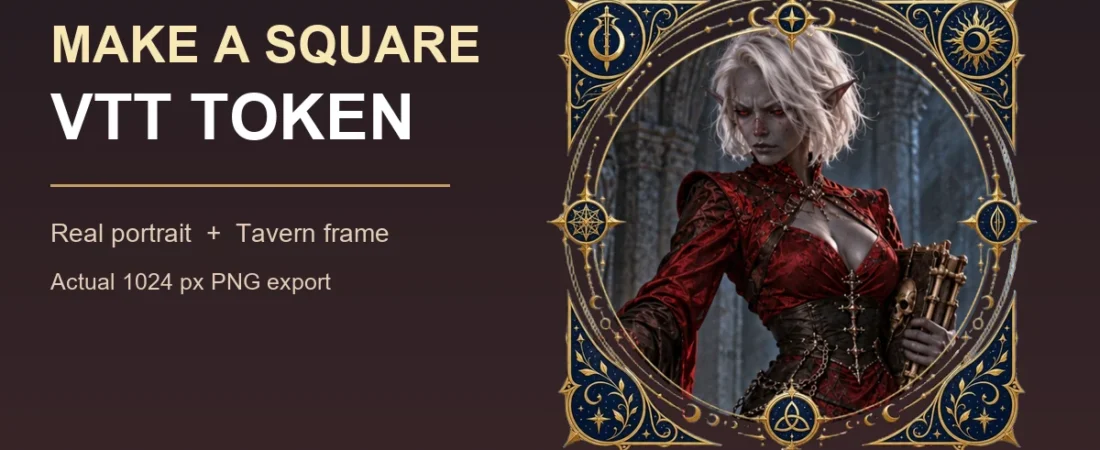
Have a full-body character illustration but need a readable square token for a virtual tabletop? Crop the portrait to the face and shoulders, pair it with a square frame in the Tavern Token Maker, and download a still PNG. This walkthrough uses an original character image and shows the actual browser export—not a mock token or an AI-generated preview.
Start with the portrait, not the border
Our input was a tall, full-body fantasy character portrait. The face occupied only a small part of the original image. Framing the entire figure as a square token made the face difficult to read, so we cropped a copy around the head and upper torso before importing it. The original illustration stayed untouched. This is an image-preparation step, not an automatic crop performed by Token Maker.
Use art that you own or have permission to reuse. Leave some room around the hair and shoulders: an ornate frame can cover the very edge of an image, and an extreme close-up may feel cramped when the token is displayed small. For a character meant to be recognized quickly on a crowded map, prioritize the face over full-body detail.
Build the square token in the live editor
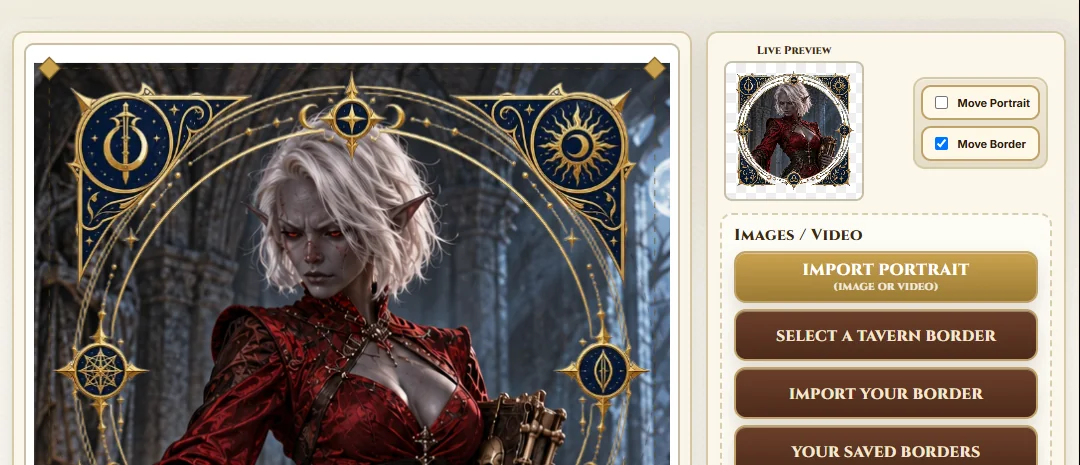
- Ouvrez la Token Maker editor and choose Importer un portrait (image ou vidéo). Select your cropped still image.
- Choisir Choisir un cadre de la Taverne, then open the Carrés collection. For this example we selected the frame labelled Coven 113. It has square outer corners and a round inner opening; square does not mean the portrait window itself must be square.
- Inspect both the main composition and the smaller live preview. Use the portrait-size and border-size controls to keep the face visible. If you need to reposition one layer, choose Déplacer le portrait ou Déplacer le cadre before dragging the corresponding layer. In this example, cropping the input first gave a better result than trying to rescue the full-body image by zooming alone.
- Under Settings, choose 1024 for output size and PNG for format. Rename the file if useful, then choose Compose & Download.
Check the downloaded PNG
The downloaded file was Veylith_Square_VTT_Token_1024.png, un 1024 × 1024 image with transparent corners. The frame and character appear together in the exported image; the sample below is converted to WebP for this article, but it comes directly from that real PNG export. The original portrait’s painted forest remains visible inside the frame: transparent corners do not mean the interior portrait background has been removed.
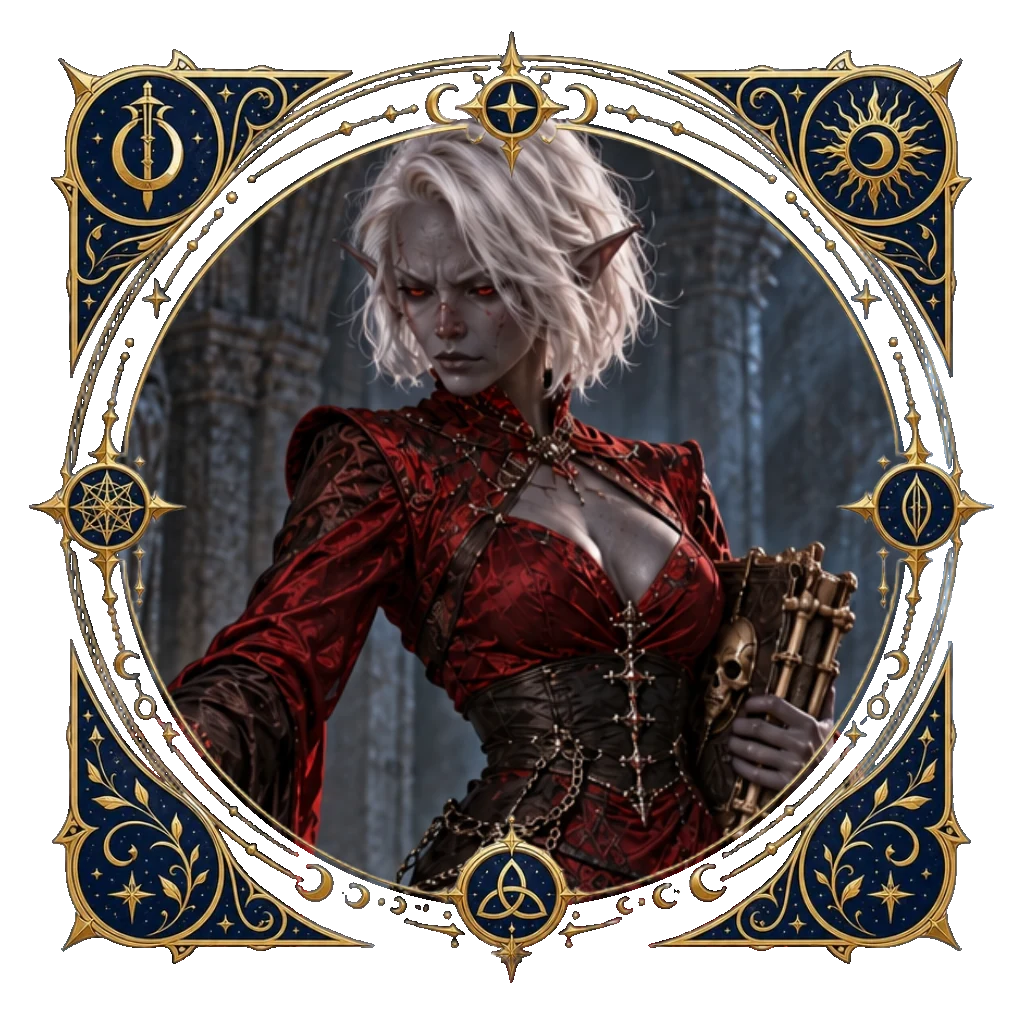
Before uploading to your own VTT, open your downloaded PNG and inspect it at a small on-screen size. Check that the face is legible, the frame does not hide important features, and the corners are transparent where you expect them. If you need a different crop or frame, return to the live Token Maker and export again. Upload and file-size rules vary between VTTs; check the current requirements of your particular platform rather than assuming every format behaves the same way.
If the result looks wrong
- Face missing or too small: crop a copy of tall full-body art around the upper body, re-import it, then refine the portrait-size control. Keep the source file.
- Wrong shape: reopen the border library and use the Squares tab; the classic round-frame tutorial is a different task.
- Busy composition: compare several square frames at the live-preview size and choose the one that lets your portrait read clearly. More ornament is not automatically more useful on a map.
- No transparency inside the frame: the editor combines layers; it does not automatically erase a painted background from the imported portrait. Prepare a transparent portrait first if that is the look you need.
If you prefer circular character stamps, read our round VTT token guide. For other practical browser tools, visit the répertoire d’outils gratuits pour MJ. This example is a still square token made with one owned image; it does not claim an animated export or a tested upload to any particular tabletop.
For more ready-made frames to use with your own portraits, explore the fantasy token borders bundle, including square designs.